
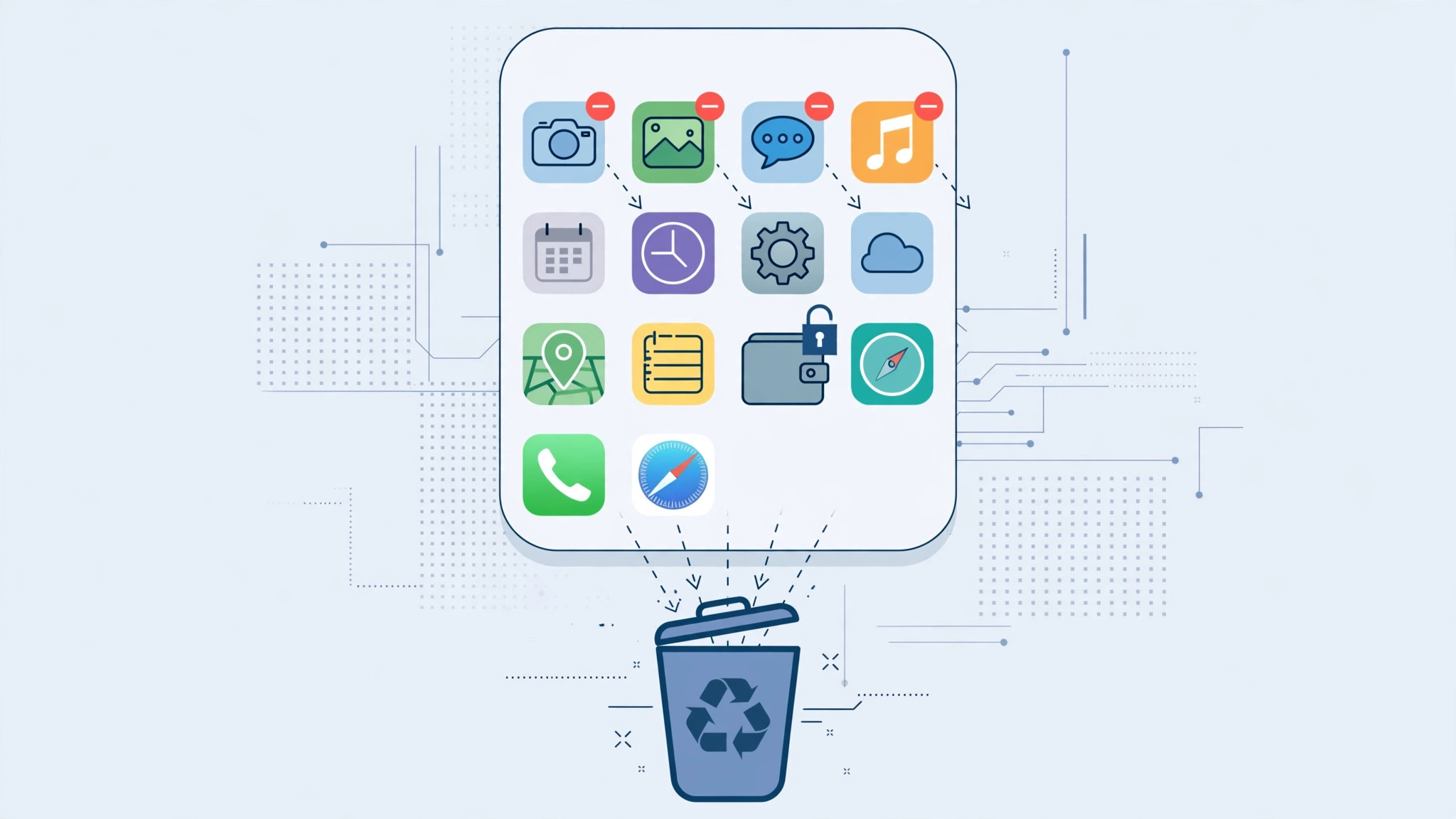
Every iPhone ships with a stack of Apple-made apps — some you use daily, others you have never opened and never will. Since iOS 10, Apple has allowed users to remove many of these built-in apps, and the list of removable apps has grown with every release. But the freedom is not total: a core set of apps is permanently bolted to the system.
So which ones can go, and which ones are staying whether you like it or not? Here is the definitive breakdown — plus the truth about whether deleting them actually frees up meaningful storage.
Built-in apps you cannot delete
Apple considers these essential to the iPhone experience, so the “Remove App” option simply does not appear for them:
- Phone
- Messages
- Camera
- Photos
- Settings
- Safari
- App Store
One notable exception: if your Apple Account region is set to a country in the European Union, regulations let you remove even more — in the EU you can additionally delete Safari, App Store, Messages, Camera, and Photos. AppleInsider has tracked these EU-only changes as Apple keeps adjusting iOS to regional rules.
Built-in apps you can delete
Pretty much everything else is fair game, including:
Calculator, Calendar, Compass, Contacts, FaceTime, Files, Find My, Fitness, Freeform, GarageBand, Health, Home, iMovie, iTunes Store, Keynote, Magnifier, Mail, Maps, Measure, Music, News, Notes, Numbers, Pages, Podcasts, Reminders, Shortcuts, Stocks, Tips, Translate, TV, Voice Memos, Wallet, Watch, and Weather.
Removing one is simple: touch and hold its icon, tap Remove App, then Delete App. Changed your mind later? Every deletable built-in app can be reinstalled free from the App Store — just search its name and tap the cloud icon, as Apple’s iPhone support pages explain.
If the undeletable icons bother you, remember you can always hide them instead — see our guides on taming the Camera on your lock screen and taking control of Safari’s behavior for more ways to customize Apple’s core apps without removing them. Our Safari redesign guide shows three fresh looks for the browser you are stuck with.
Does deleting built-in apps free up space?
Honestly? Barely. Apple’s built-in apps are tiny — most weigh just a few megabytes — so removing a dozen of them will not noticeably grow your free storage. Worse, deleting some apps can quietly remove related functionality elsewhere in iOS. The good news: no matter what you remove, you cannot break iOS — the system itself stays intact. For real storage wins, creators on TikTok and our own roundups suggest offloading photos and large third-party apps first.
If it still doesn’t work
If “Remove App” does not appear for an app that should be deletable, check for restrictions: go to Settings → Screen Time → Content & Privacy Restrictions and make sure deleting apps is allowed. On managed or parental-controlled devices, an administrator may have blocked removal. And if you deleted something by accident, do not panic — a quick App Store search brings it right back.
Frequently asked questions
Can deleting a built-in app damage my iPhone?
No. Apple designed the system so removing any deletable built-in app is completely safe — iOS keeps running normally, and you can reinstall the app from the App Store at any time.
Why can’t I delete Phone or Settings?
Apple treats these as core system functions rather than standalone apps — Phone handles emergency calling infrastructure and Settings is the gateway to the entire OS. They are protected so the iPhone always keeps its most critical capabilities.
Conclusion
You can delete most of Apple’s preinstalled apps, but the essential seven — Phone, Messages, Camera, Photos, Settings, Safari, and App Store — stay put (unless you are in the EU). Since removals save almost no space, the smarter move is usually hiding what annoys you and deleting only the apps whose features you would genuinely miss. Your iPhone, your rules — within Apple’s guardrails.






[…] Safari vanishes from the Home screen entirely — no icon, no search results, no way to open it. This is the most complete way to lock the browser on a kid’s device. Note that disabling Safari also blocks web views inside other apps (in-app browsers), which is usually what you want. If you are curious what else can be removed, see which built-in iPhone apps you can delete. […]
[…] this with other optimizations: read how to turn off all SharePlay features on iPhone and see which built-in iPhone apps you can delete to free up space and reduce background […]
[…] new apps, and the familiar jiggle-mode delete simply will not offer removal. If you ever wondered which built-in iPhone apps you can delete, this switch overrides all of that until you allow it […]