
macOS Mojave introduced system-wide Dark Mode, and most people love it — but maybe not for every app. Perhaps your text editor is unreadable in the dark, or a design app looks wrong. Here’s how to force individual apps back to the light appearance (or keep chosen apps dark) in Mojave, two ways.
If you enjoy tweaking how your Mac looks, you’ll also like how to change folder colors and add emoji on macOS for more personalization ideas.
Method 1: Terminal commands (per app, manual)
- Open the Terminal app (Applications → Utilities).
- To force a specific app to use the light appearance, type a defaults write command targeting that app’s bundle identifier. For example, to keep Safari light while the system is dark:
defaults write com.apple.Safari NSRequiresAquaSystemAppearance -bool Yes - Quit and relaunch the app for the change to take effect.
- Repeat for each app you want to pin to the light theme. To undo, delete the key with
defaults deleteand relaunch the app.
The downside: rules are set per app one by one, and macOS or app updates can reset them — so you may need to reapply the command after a big update. MacRumors and 9to5Mac have both covered these per-app appearance tweaks and their quirks.
Method 2: NightOwl (recommended, free)
- Download and install NightOwl, a free third-party app from the developer’s official site at nightowl.kramser.xyz.
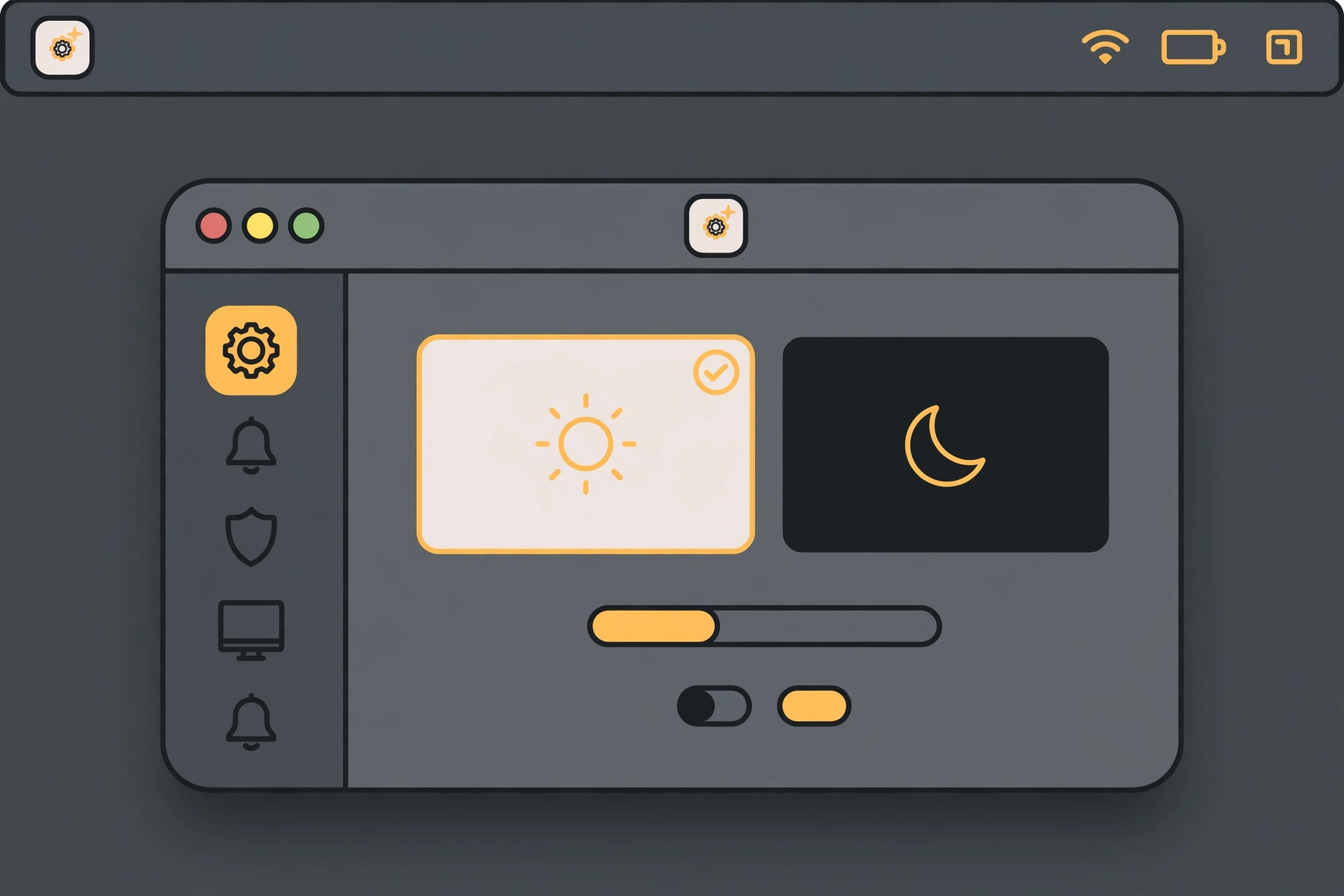
- Launch NightOwl — it lives in your menu bar. Use its menu to configure dark-mode behavior and set an automatic schedule for the system appearance.
- In the app’s menu, mark which apps should stay in the dark appearance. Everything else follows the system schedule, while your chosen apps always stay dark.
Result: you get true per-app control without touching Terminal, and NightOwl re-applies your choices automatically. For more on Apple’s built-in behavior, see Apple Support’s Dark Mode on Mac documentation. If you’re also customizing the look of iOS, check how to turn off the Liquid Glass effect in iOS 26.
If it still doesn’t work
If a Terminal override stops working, an app or macOS update probably reset it — just re-run the defaults write command and relaunch the app. If NightOwl doesn’t list an app, make sure the app is closed and reopened after installing NightOwl, and check that NightOwl has the permissions it asks for.
Frequently asked questions
Can Mojave set different themes per app natively?
Not through System Preferences — Mojave only offers a single system-wide appearance. Per-app control requires either Terminal defaults write commands per app (which updates can reset) or a free utility like NightOwl, which manages per-app appearance from the menu bar.
Is NightOwl safe and free?
Yes — NightOwl is a free third-party app from an independent developer, available only from the official site nightowl.kramser.xyz. It has been widely covered by the Mac press. Download it only from the developer’s site, never from third-party download portals.
Conclusion
Whether you go the manual Terminal route or let NightOwl handle it, you don’t have to accept an all-or-nothing theme in Mojave — pick the appearance per app and keep your Mac exactly how you like it.





