
When a new iOS release lands and something breaks — battery drain, a favorite app crashing, a redesign you just can’t live with — the instinct is to roll back. Downgrading iOS is genuinely possible, but it lives on a timer: Apple only allows it while it still “signs” the older firmware. This guide walks through the full downgrade procedure — but with one honest caveat up front: as of 2026, Apple no longer signs iOS 12, so you can’t actually go back to iOS 12 today. The steps below describe the general downgrade method, which works for any version while its signing window is open.
What to know before you start
Two caveats shape everything about a downgrade. First, Apple signs each iOS version only for a short window after a new release — once that window closes, the downgrade becomes impossible, and no tool can bypass the signature check. Second, backups only move forward: a backup made on iOS 13 cannot be restored onto iOS 12. So photos, messages, and other data created while on iOS 13 can’t travel via backup; only items synced through iCloud — contacts, calendars, and photos if iCloud Photos is on — return automatically once you sign back in. Read Apple’s guides on backing up your iPhone and restoring from a backup so you know exactly what survives the trip.
Step-by-step downgrade
- Make a full backup first. Back up the iPhone via iTunes/Finder on a computer or to iCloud. Crucially, keep any backup you made before upgrading to iOS 13 — that’s the one you’ll restore from later.
- Download the signed iOS 12 firmware (IPSW). Get the file for your exact iPhone model, for example from ipsw.me. This step only works while Apple still signs that firmware version.
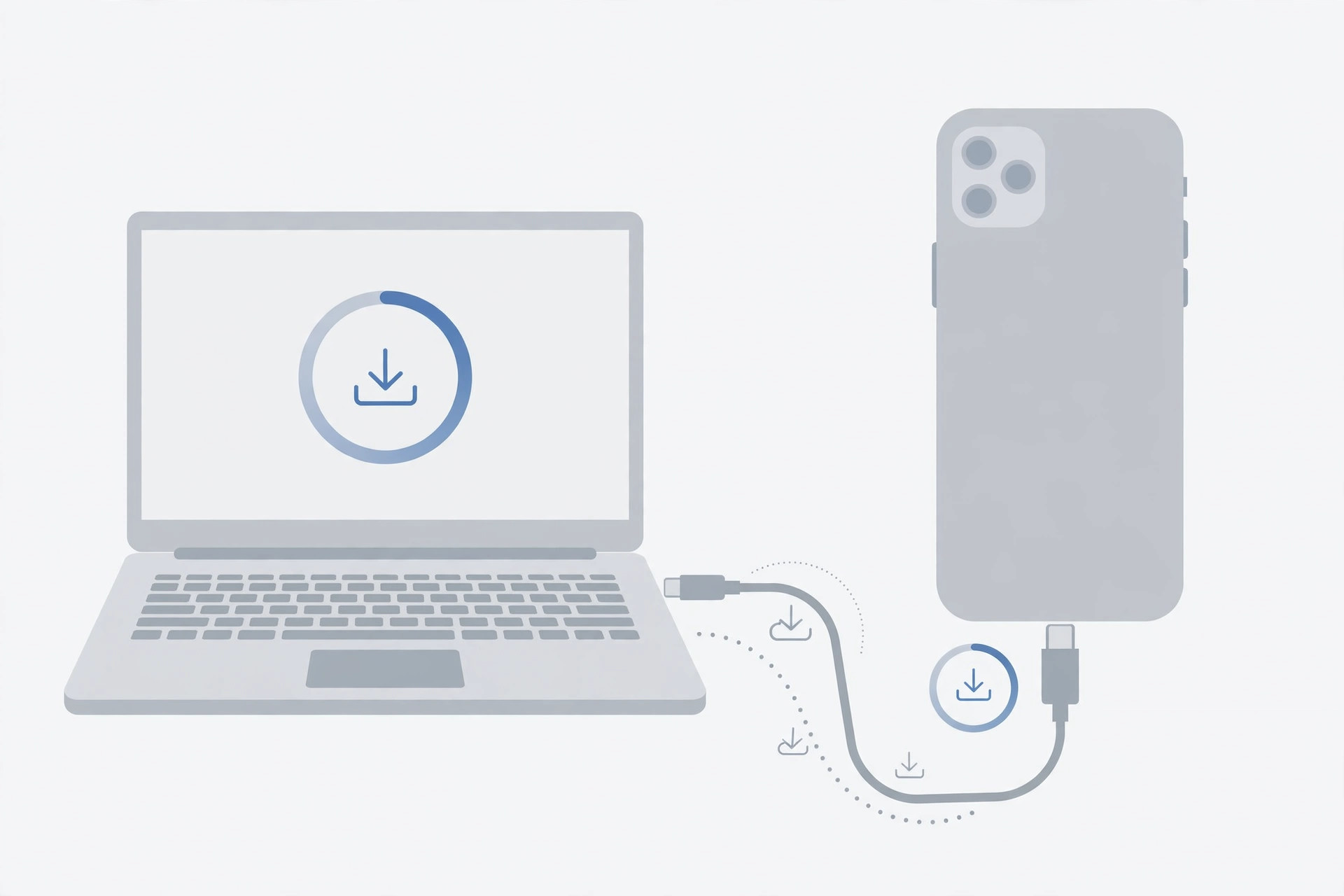
- Connect the iPhone to the computer. Open iTunes (or Finder on newer macOS) and put the device into recovery or DFU mode.
- Restore with the IPSW. Hold Shift (Windows) or Option (Mac) while clicking “Restore iPhone,” then select the downloaded iOS 12 IPSW file.
- Let the install finish. iTunes verifies and installs the firmware; the iPhone restarts to the iOS 12 “Hello” setup screen.
- Restore your data. Restore from the pre-iOS-13 backup, or set the phone up as new and sign in to iCloud so your synced photos, contacts, calendars, and messages pull back down.
Prefer to avoid the upgrade treadmill altogether? See how to completely block iOS 26 updates on iPhone — and if it’s just the new look you hate, you can turn off the Liquid Glass effect in iOS 26 instead of fighting the firmware.
If it still doesn’t work
If iTunes throws an error during the restore, the signing window has almost certainly closed — which means the downgrade can’t proceed, full stop. Double-check that you downloaded the IPSW for your exact iPhone model, try a different cable or USB port, and make sure iTunes or Finder is up to date. And if you already wiped the phone without keeping a pre-upgrade backup: sign in to iCloud and let synced data repopulate — anything that only lived in the newer backup is unfortunately unrecoverable.
FAQ
Can I downgrade to iOS 12 today?
No. As of 2026, Apple stopped signing iOS 12 many years ago. The method in this guide only works during the brief signing window that follows a new iOS release.
Will I lose my photos?
Anything synced through iCloud — with iCloud Photos enabled — comes back automatically after you sign in. But photos that only existed in the iOS 13 backup can’t be restored onto iOS 12.
Conclusion
Downgrading iOS is a race against Apple’s signing window: back up before you upgrade, remember that backups don’t travel backward, and act fast. For modern iPhones, the calmer strategy is usually to block unwanted updates in the first place — or just tame the parts of the new design you don’t like.





