
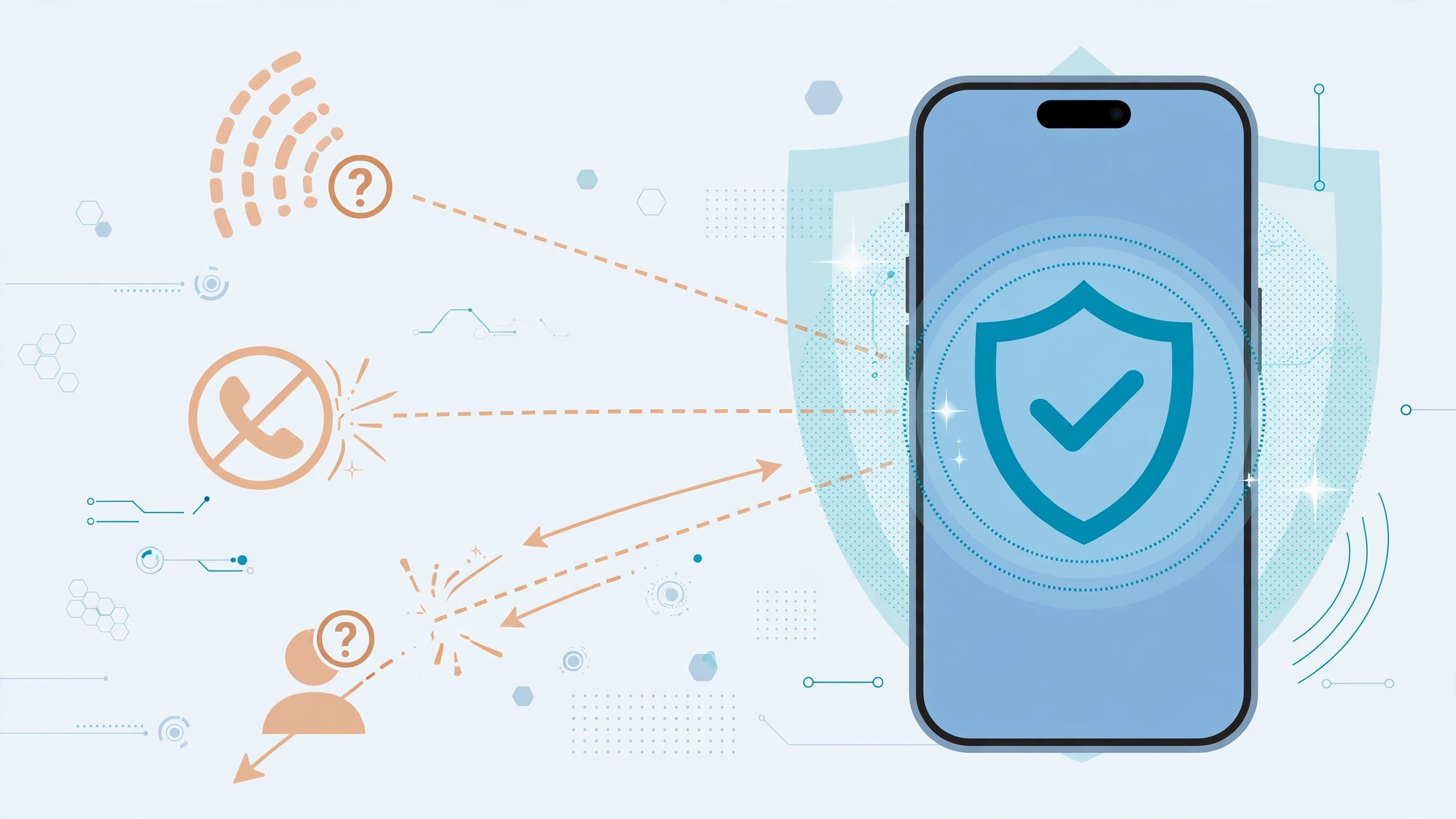
Robocalls, telemarketers, and mystery numbers ringing at dinner time — the iPhone has a built-in answer to all of them. If your iPhone runs iOS 13 or later, there’s a dedicated toggle that silences unknown callers in seconds. Older iPhones can get nearly the same result with a clever Do Not Disturb setup. Here’s both methods.
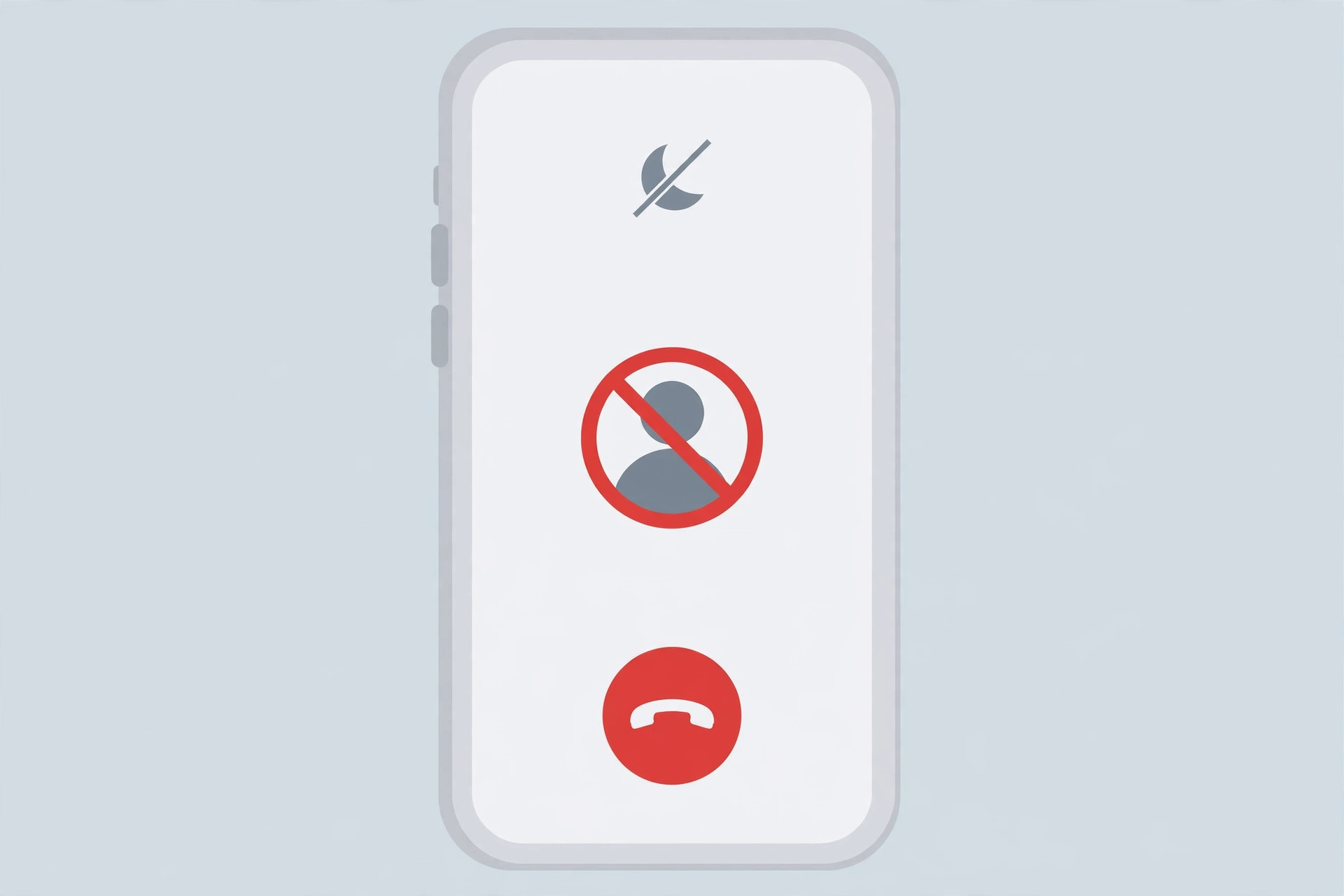
The modern way: Silence Unknown Callers (iOS 13 and later)
This is the official, set-and-forget option — and the one you should use if your iPhone supports it. When enabled, calls from numbers not in your contacts, recent outgoing calls, or Siri Suggestions are sent straight to voicemail, where they still appear in your Recents list. Apple’s guide to managing unknown callers on iPhone covers the details, and 9to5Mac explains how the feature works in practice.
- Open Settings > Phone. Scroll down to the Calls section.
- Tap Silence Unknown Callers and turn it on. That’s it — the switch is the whole feature.
- Check your voicemail as usual. Silenced calls still land in voicemail and show up in Recents, so you never truly miss anything important.
One tip: if you’re expecting a call from a number you don’t have saved — a delivery driver, a job callback — toggle the feature off temporarily so the call can ring through.
The legacy workaround: Do Not Disturb (older iOS)
On older iPhones without the dedicated toggle, Do Not Disturb can be pressed into service as a contacts-only filter:
- Open Settings > Do Not Disturb. Switch the mode on permanently and turn off its schedule so it never expires.
- Allow notifications only while the iPhone is unlocked. This keeps the filter from hiding things when you’re actively using the phone.
- Set “Allow Calls From” to “All Contacts.” Now only people in your address book can get through; everyone else is silenced.
- Toggle it quickly from Control Center. When you’re expecting an unknown call — say, a delivery — switch Do Not Disturb off for a while, then back on.
The trade-off: while the Do Not Disturb version is active, notifications and messages also only arrive when the phone is unlocked, so it’s a heavier hammer than the dedicated toggle.
Want finer control over who reaches you? See how to allow calls only from a specific SIM card in Focus Mode — and if audio keeps jumping between devices when a call does come through, our guide on stopping iPhone auto-switching audio fixes that too.
If it still doesn’t work
If spam keeps ringing through, first double-check the toggle is actually on and that iOS is up to date — the feature needs iOS 13 or later. Scammers also spoof local numbers, so a familiar-looking area code isn’t always a real caller. For a persistent individual harasser, block them directly: Phone > Recents > the (i) icon > Block This Caller. And check whether your carrier offers a free spam-filtering app, which can catch calls before they reach your iPhone at all.
FAQ
Do silenced unknown callers still reach my voicemail?
Yes. They go straight to voicemail and appear in your Recents list, so you can review them later — nothing is deleted or lost.
Does the Do Not Disturb trick hide my messages too?
With the legacy setup described above, notifications and messages only arrive while the phone is unlocked. That’s the main downside compared to the dedicated Silence Unknown Callers toggle.
Conclusion
For most people, Silence Unknown Callers is the clean, official fix: one switch, no side effects, and spam callers quietly pile up in voicemail. Only reach for the Do Not Disturb workaround on older iPhones — and remember to switch either method off when you’re waiting on a call from a new number.






[…] blocking is instant and free, and it pairs well with blocking calls from unknown numbers if the same spammers are ringing you […]