

One Mac folder shows tiny icons, the next shows a giant list, and the next one looks like it was designed by someone else entirely. If every folder on your Mac has a mind of its own, here’s the good news: you can pick your favorite look once and make Finder use it everywhere.
Setting a default folder view
Follow these steps to make all your folders look the way you want:
- Open any folder in Finder. Any folder will do — this is just your starting point.
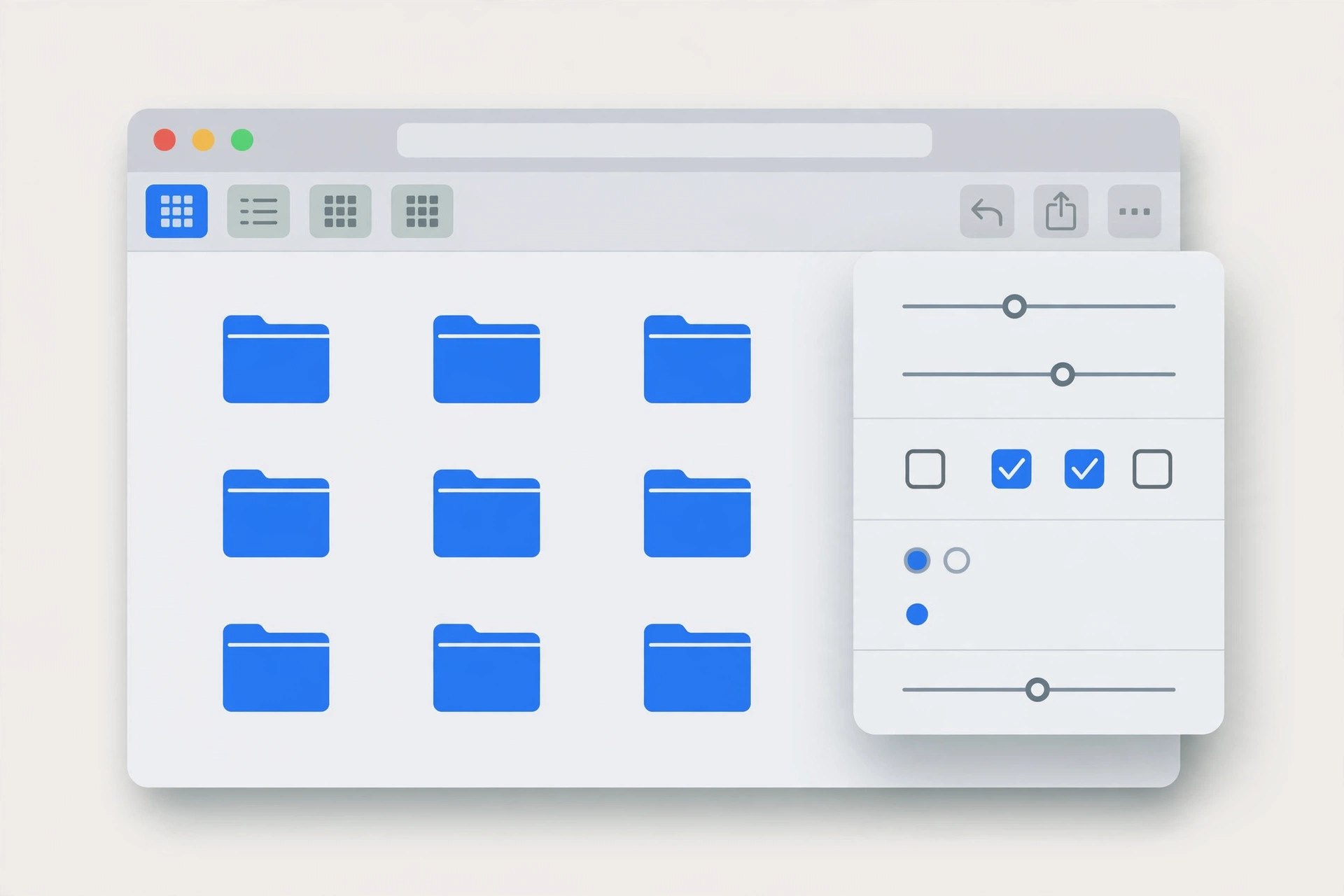
- Pick your preferred view. Use the View menu, the toolbar buttons, or the shortcuts Command+1 (icons), Command+2 (list), Command+3 (columns), or Command+4 (gallery).
- Open View Options. Go to View, then Show View Options — or just press Command+J. The options you see depend on which view you picked in the last step.
- Adjust the settings, then click “Use as Defaults”. Tweak things like sort order, icon size, and thumbnail previews, then hit the “Use as Defaults” button at the top of the View Options window. Finder now applies this look to every folder you open.
For more Mac customization, learn how to change folder colors and add emoji in macOS and quickly open the installed apps list. Officially, Apple’s guide to changing how folders display in Finder covers View Options in detail, and 9to5Mac’s walkthrough shows the same default-view trick.
If it still doesn’t work
If some folders still look different, those folders likely have their own saved view settings from before — setting a default only applies going forward. Open any stubborn folder, set its view manually, and it will stick. If “Use as Defaults” is greyed out, make sure you’re adjusting a normal Finder folder and not a special location like the desktop or a search results window.
Frequently asked questions
Can I give specific folders a different view?
Yes. The default you set only applies to folders without their own settings. Open any individual folder, change its view, and Finder remembers that folder’s personal setting without touching your default.
Does the default apply to list view sorting too?
Yes — the sort order you choose in View Options is part of the default. So if you always want folders sorted by name or by date modified, set it once in step 4 and every folder follows.
Conclusion
A consistent Finder is a calmer Finder. Set your default view once with Command+J and “Use as Defaults”, and you’ll never again wonder why one folder looks nothing like the rest.





