
There’s nothing more frustrating than a phone call that keeps cutting out mid-sentence. If your iPhone keeps dropping calls — ending them while you’re still talking — the culprit is usually closer than you think. In most cases, your own cheek is hanging up on you.
Here’s why it happens and how to fix it, step by step.
Why your cheek keeps ending calls
During a call, your iPhone is supposed to turn its screen off when you hold it to your ear. A tiny component called the proximity sensor — located near the top of the display — detects when something is close and switches the screen off so your face can’t tap anything. If that sensor is blocked or faulty, the screen stays on, and your cheek or ear brushes the red End call button. Call dropped.
Step 1: The 10-second self-test
Before changing anything, diagnose the problem. Open the Phone app and start a call (call a friend, or even your own voicemail). While the call is connected, hold your hand flat near the top of the screen, covering the area around the earpiece.
Does the display dim and switch off? Then your proximity sensor works, and the problem lies elsewhere — skip to Step 4. Does the screen stay lit no matter how close your hand gets? Then the sensor is blocked or broken, and you’ve found your culprit. This simple test is the single most useful diagnostic for dropped calls, and troubleshooting guides for iPhone dropped calls consistently start here.
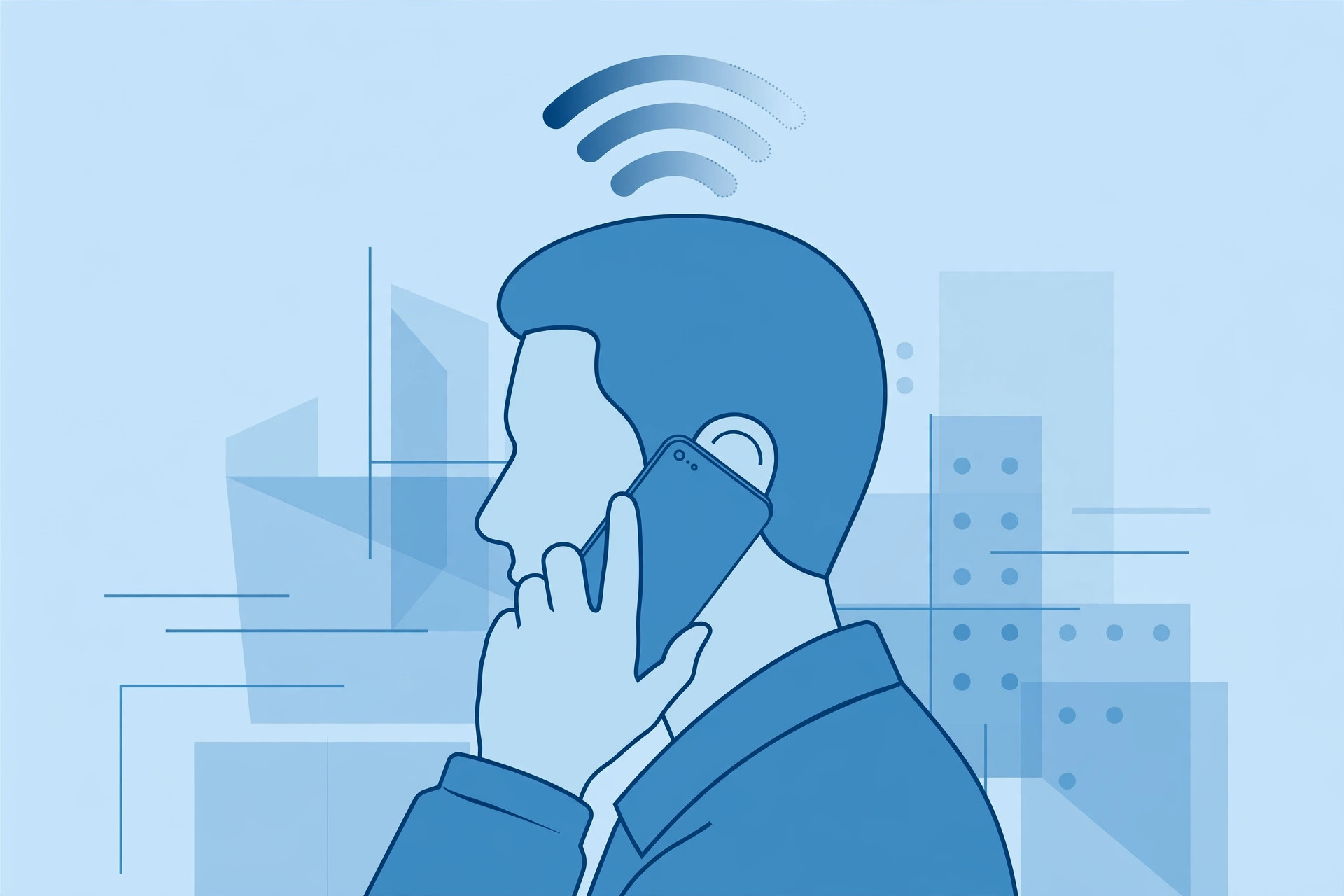
Step 2: Remove whatever is covering the sensor
If the self-test failed, look at what’s on your phone. The usual suspects, in order of guilt:
Cheap screen protectors and films. Low-quality tempered glass or plastic films often cover or partially obscure the proximity sensor area at the top of the display. The sensor can’t see through them properly, so the screen never locks during calls.
Cases with screen-covering flaps. Flip cases and wallet cases are the worst offenders — the flap folds right over the sensor. Even bulky rugged cases with raised edges around the top can interfere.
Dirt and grime. A surprising amount of pocket lint, makeup, or screen gunk can accumulate over the sensor window.
Peel off the protector, take off the case, and wipe the top of the screen clean. Then repeat the self-test from Step 1. If the screen now dims when your hand approaches, you’ve solved it — replace the protector with a quality one that has a proper cutout, and pick a case that doesn’t cover the front. Apple’s support guidance on iPhone call issues covers the official checks as well.
Step 3: Rule out the carrier with a different SIM
If the sensor works fine but calls still drop, the network might be to blame rather than the phone. Borrow a SIM from a different carrier (or use an eSIM trial) and test a few calls. If calls stay connected on the other SIM, your carrier’s coverage or network settings are the issue — contact them. If calls drop on both, the phone itself is the problem. For SIM-related setup, see our guide on how to verify your SIM card, and if you use Focus mode, make sure it isn’t interfering with calls from a specific SIM.
Step 4: Restore the firmware
When hardware checks out but calls keep dropping, suspect a software glitch. Back up your iPhone, then restore it through a computer (Finder on Mac, or the Apple Devices app / iTunes on Windows). Set it up and test calls before restoring your backup — if calls are stable on a fresh system but break after the backup returns, some corrupted setting in your backup is the cause, and it’s worth rebuilding your settings manually.
If it still doesn’t work
If a clean firmware install still drops calls and the proximity sensor fails the hand test even with nothing covering it, the sensor itself is likely faulty. This is a hardware repair — take the iPhone to Apple or an authorized service center. Don’t attempt to open the phone yourself; the sensor sits in a delicate assembly with the front camera and earpiece.
Frequently asked questions
Why do calls drop only sometimes?
Intermittent drops usually mean something is partially blocking the sensor — a slightly misaligned screen protector, or a case that only covers the sensor at certain angles. The hand self-test may pass in some positions and fail in others. When in doubt, strip everything off and retest.
Can a software update fix dropped calls?
Sometimes. Carrier settings updates and iOS bug fixes can resolve call-stability issues, so make sure you’re on the latest iOS and that carrier settings are up to date (Settings → General → About will prompt you if an update is available). But if the cause is a blocked proximity sensor, no software update will help.
The bottom line
Nine times out of ten, dropped calls on an iPhone come down to the proximity sensor not doing its job — usually because a screen protector or case is in the way. Run the hand test, strip off the accessories, and retest. It’s a two-minute diagnosis that solves the problem for most people.





