
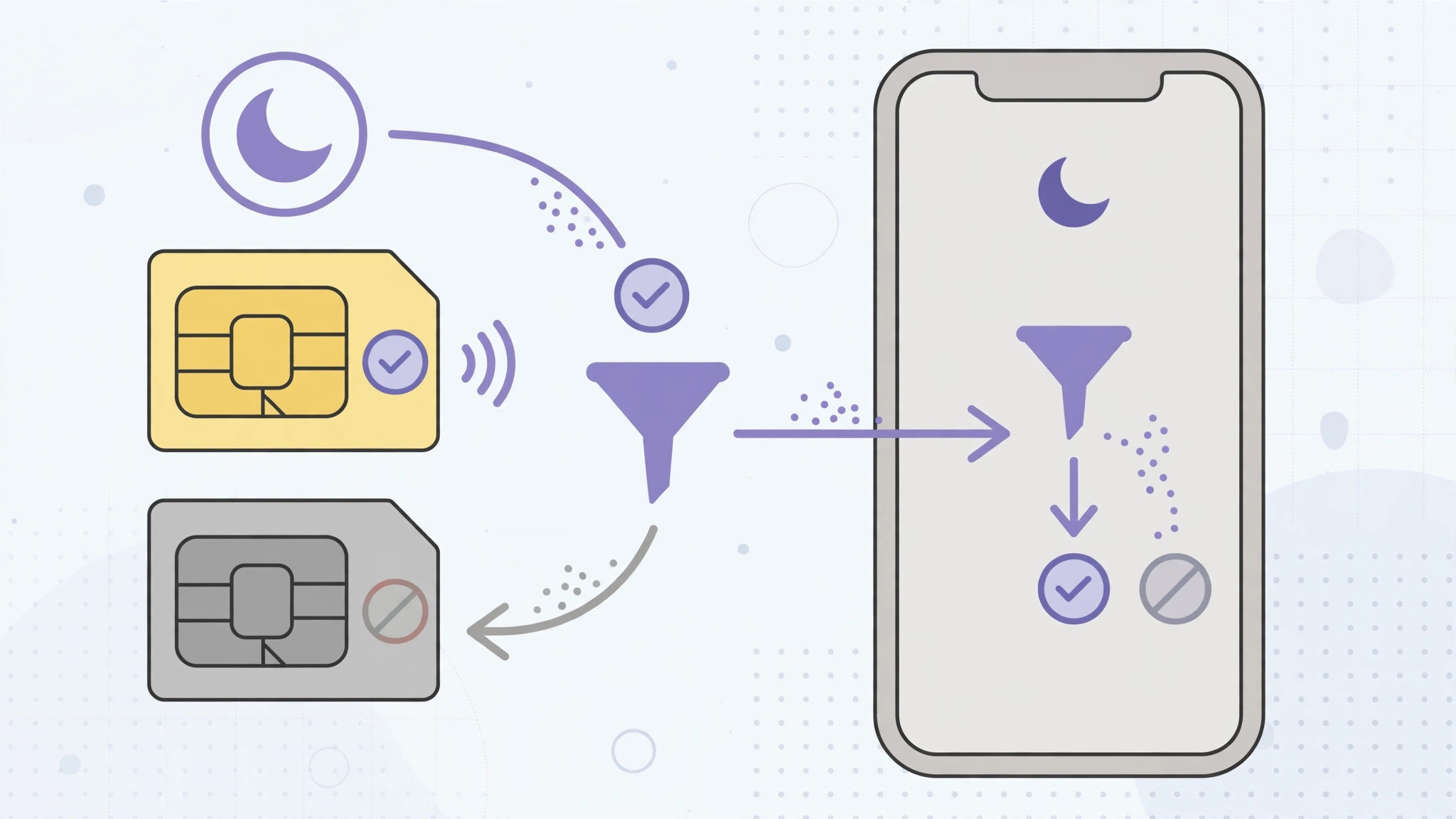
Why silence one SIM in Focus mode?
Two numbers on one iPhone is everyday life now: a personal SIM next to a work line, or a travel eSIM paired with your home number. The trouble starts after hours, when work calls keep buzzing on the line you’d rather forget until morning. iOS 26 finally offers a clean fix — Focus modes can now filter phone calls per SIM, so you choose exactly which line is allowed to ring while a profile is active. For an overview of everything new in this release, see Apple’s official iOS 26 page.
What you need before you start
You need an iPhone running iOS 26 or later with two active lines — any combination of nano-SIM and eSIM works. Pick the Focus profile that should carry the rule: Do Not Disturb is the natural choice for evenings, but a custom Work or Personal profile does the job too. MacRumors keeps a running list of iOS 26 changes if you want to see what else arrived in this update.
Allow calls from only one SIM in a Focus mode
- Open Settings and tap Focus. You will see your profiles: Do Not Disturb, Personal, Sleep, Work, and any custom ones you created.
- Choose the profile where the second line should stay quiet — for example, Do Not Disturb for your evenings off.
- Scroll to Focus Filters and tap Add Filter. Filters let a Focus mode adjust how specific apps and system features behave while it runs.
- Select Phone from the list of available filters.
- Tick the SIM whose calls you want to receive. Label your lines first under Settings > Cellular so you don’t mix them up — “Work” and “Personal” beats “Secondary” and “Primary”.
- Make sure the Focus mode actually turns on. Enable it manually or confirm its schedule or automation is configured correctly.
That is all there is to it. While the Focus mode is active, calls and messages addressed to the unselected SIM stay silent, while your chosen line rings through as usual. If you enjoy fine-tuning your iPhone’s behavior, our guide on how to add and change the iPhone startup sound in iOS is worth a read next.
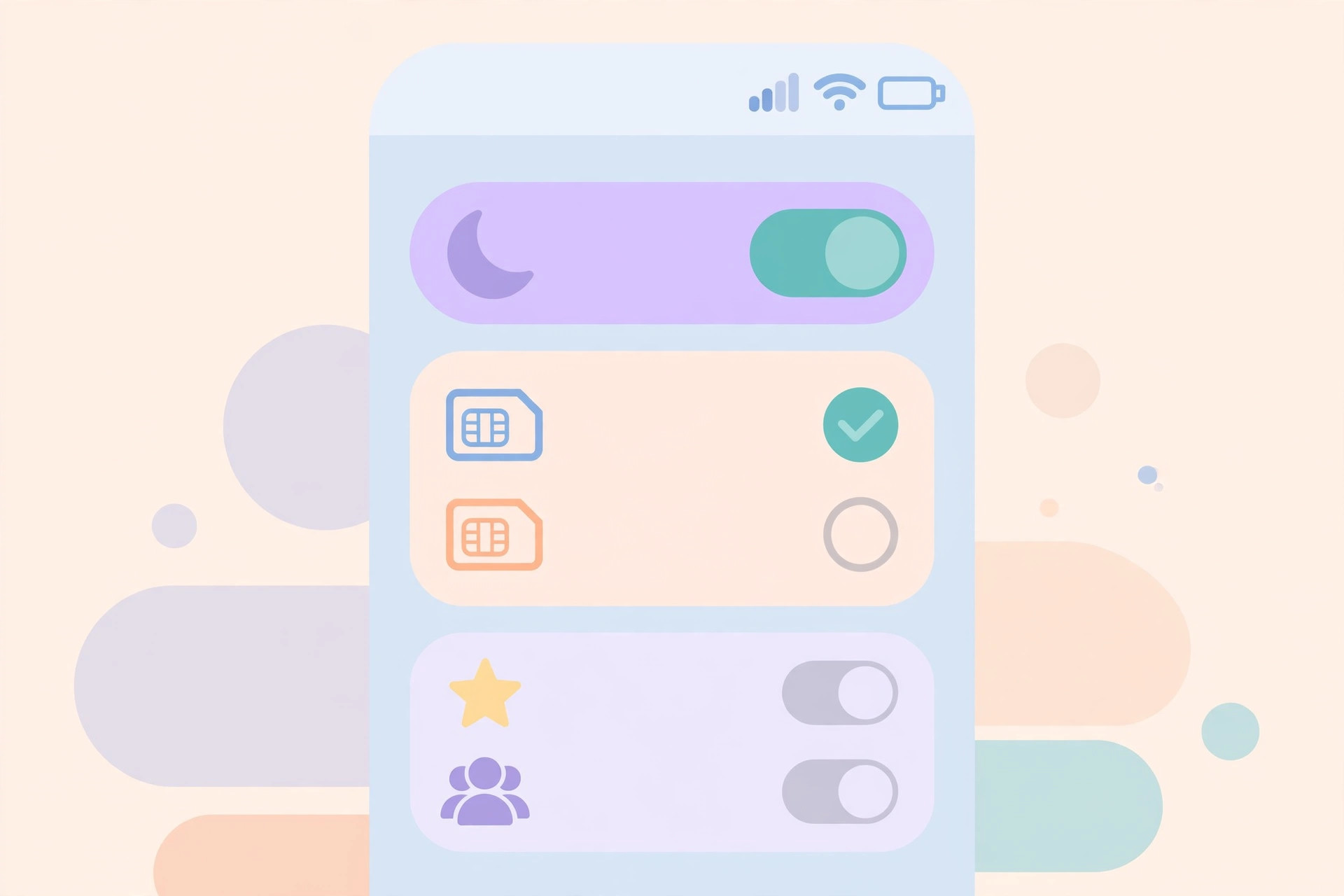
If it still doesn’t work
First, confirm the iPhone runs iOS 26 or newer — the per-SIM Phone filter doesn’t exist in earlier versions. Next, make sure the Focus mode is genuinely active when you test: the filter applies only while the profile is on, not while it sits configured but idle. If calls still break through, reopen the filter and check you ticked the right line — similarly named eSIMs are an easy mix-up. A quick restart clears the occasional stuck Focus state. And if sound starts misbehaving in other ways, read how to stop iPhone from switching audio from headphones to a speaker or car stereo.
Frequently asked questions
Does the filter silence text messages from the other SIM too?
Yes. The Phone filter quiets both calls and messages sent to the unselected line while the Focus mode runs — neither will light up your screen nor play a sound.
Can I allow a different SIM in each Focus mode?
Absolutely, and that is where the feature shines. Allow only your personal line under Do Not Disturb, only the work line under your Work profile, and both lines everywhere else — each profile keeps its own independent Phone filter.
The bottom line
Per-SIM Focus filters turn your second line from a constant interruption into something you control on a schedule. Configure the filter once per profile, and your Focus modes will finally respect the boundary between work and personal time. For another handy iPhone trick, see how to automatically identify songs playing nearby on iPhone. Prefer video walkthroughs? Apple’s YouTube channel and @AppleSupport on X regularly post setup tips.






[…] — it wakes the location module only when your position changes meaningfully. And for quiet hours, limiting calls to a specific SIM card in Focus mode keeps a school or work SIM silent while your child’s calls still reach you. MacRumors […]
[…] you juggle two numbers, you can also control which SIM handles calls in Focus mode once both lines are […]
[…] finer control over who reaches you? See how to allow calls only from a specific SIM card in Focus Mode — and if audio keeps jumping between devices when a call does come through, our guide on stopping […]