
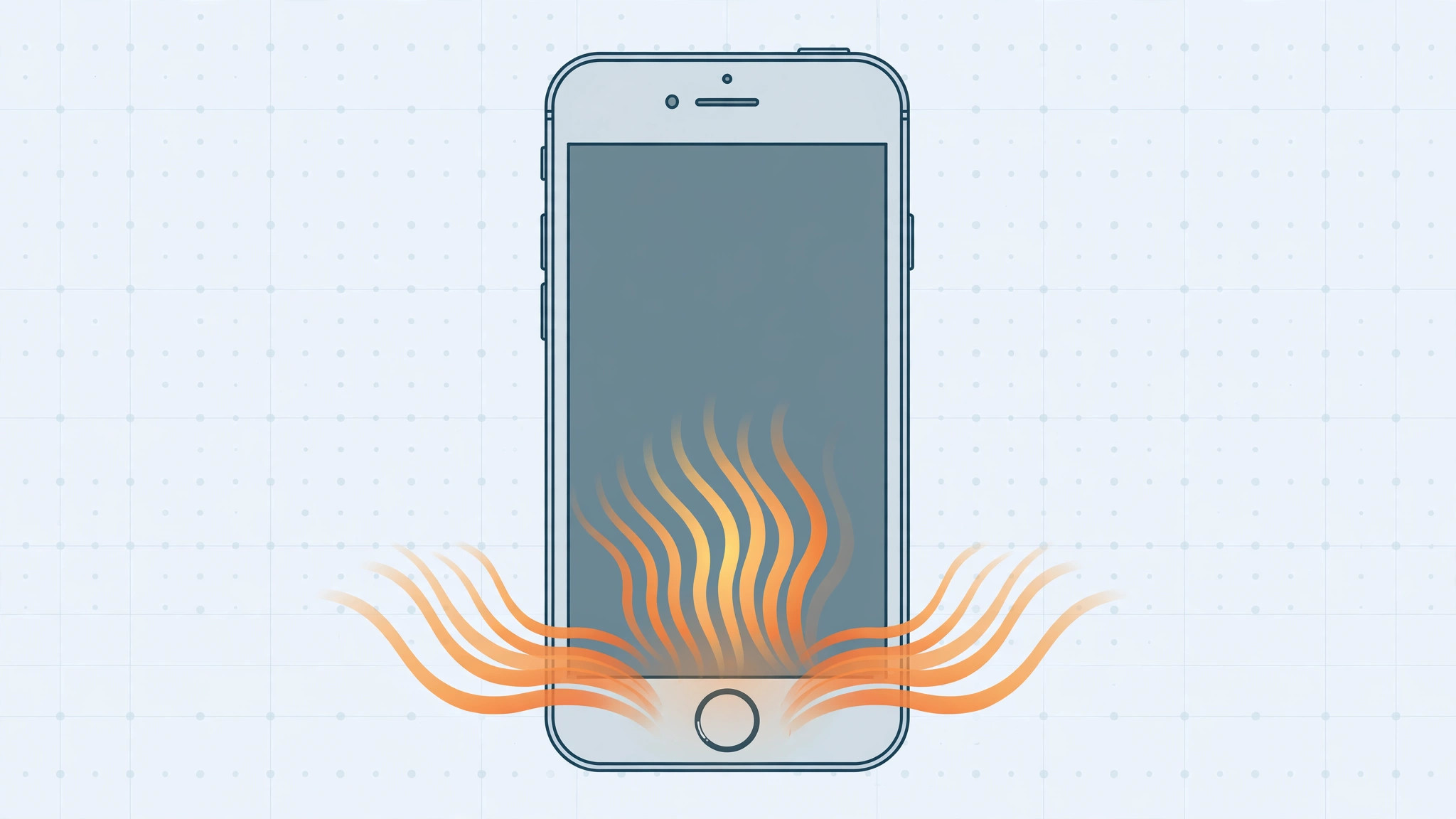
An iPhone that runs warm during a long gaming session is normal. An iPhone that’s hot in one specific spot — right around the Home button — is a different story. That localized heat deserves attention, because the Home button area houses the Touch ID sensor, and a hot Touch ID assembly can signal a hardware problem rather than ordinary warmth.
Here’s how to tell normal heat from a warning sign and when to get the phone serviced.
1. Rule out the normal causes first
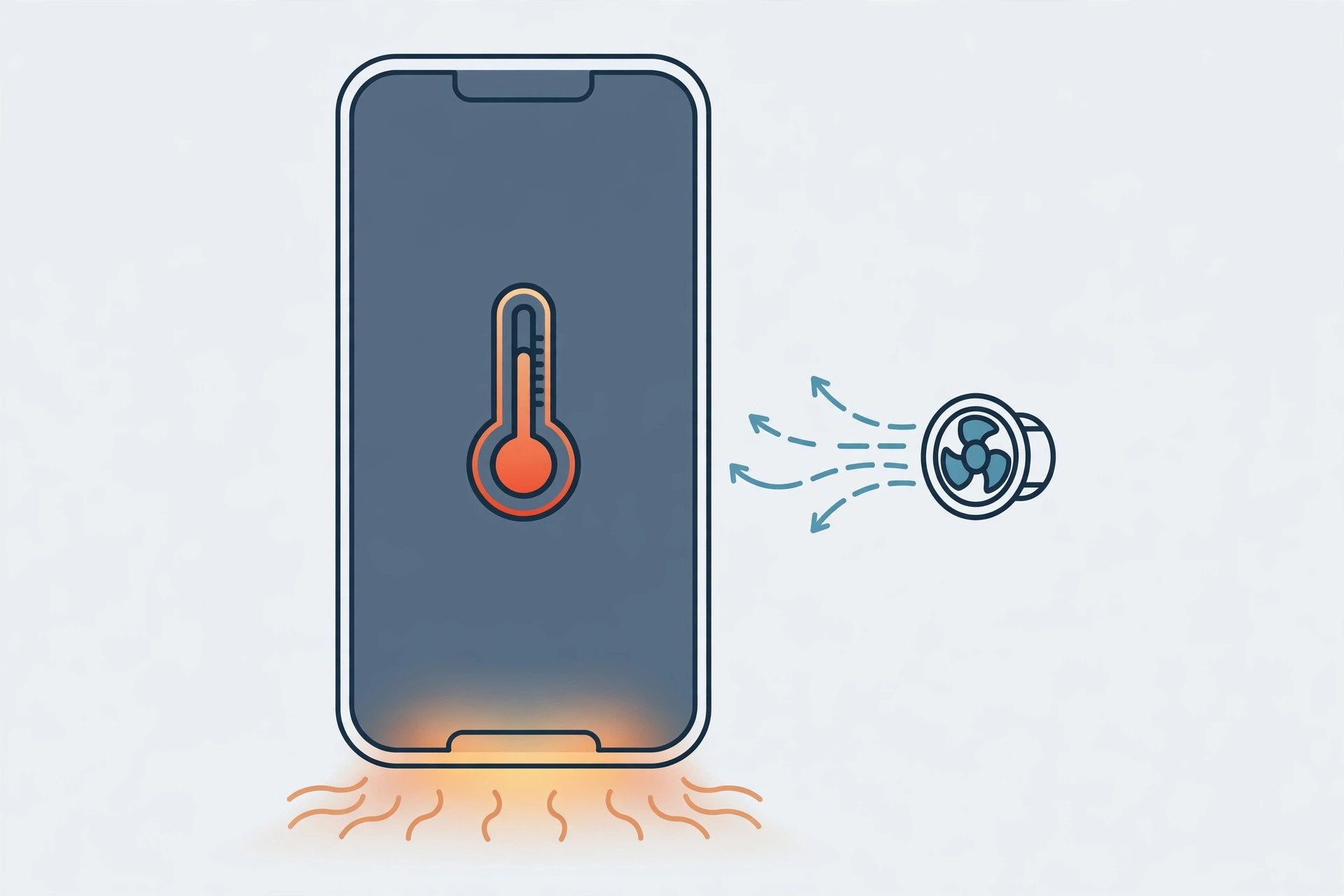
Rule out heavy load (gaming, 4K video recording), charging (especially fast charging), hot environments (a car dashboard in summer), and the first day or two after an iOS update, when background indexing runs hard. If the whole phone is evenly warm in one of these situations, that’s expected. The concern starts when heat concentrates around the Home button while the rest of the phone feels normal.
2. Understand what localized Home-button heat means
Heat concentrated around the Home button/Touch ID area — rather than spread across the body — often points to the Touch ID sensor or its flex cable drawing excess current. A known pattern, especially after a screen replacement. iFixit‘s repair guides document the Touch ID assembly and its fragile cable.
3. Try the software fixes
Some cases of localized warmth are software-driven — a stuck process can keep a sensor awake. Force-restart the iPhone (the button combo varies by model; Apple Support lists them all), update to the latest iOS, and check Settings → Battery for abnormal background activity. If heat fades after a restart and doesn’t return, a runaway process was likely the cause.
4. Know when it’s a service-center problem
If the button area stays hot to the touch and the battery drains unusually fast, stop troubleshooting and back up your data. Localized heat plus rapid drain can indicate a short in the Touch ID circuitry — not something to ignore, since electrical faults can worsen. Take the phone to Apple or an authorized service provider and describe exactly where the heat is. (Charging quirks can be related: our guide to an iPhone that stops charging from a computer covers another power-path oddity.)
5. Meanwhile: reduce the heat
Avoid gaming and video calls while charging (the two biggest heat sources combined), remove the case so heat dissipates, and keep the phone out of direct sun. If your iPhone keeps warning you about power, our guide to silencing adaptive power notifications in iOS 26 may also help. MacRumors tracks iPhone thermal and battery reports with each iOS release.
If it still doesn’t work
If the Home button area remains noticeably hotter than the rest of the phone after restarts and updates, treat it as hardware until proven otherwise — back up and book a service appointment. Don’t attempt to open the phone yourself: the Touch ID sensor is paired to its logic board, and DIY repairs can permanently disable Touch ID.
FAQ
Is it normal for an iPhone to get warm near the Home button while charging?
Mild, even warmth across the lower half while charging is normal. A distinctly hot spot centered on the Home button is not; run the checks above.
Can a screen replacement cause Home button overheating?
It can contribute. The Touch ID flex cable is delicate, and if it was stressed or pinched during a screen replacement, it can draw excess current. If the heat started right after a repair, take it back to the shop that did the work.
Conclusion
Warm under load is normal; hot in one spot around the Home button is a signal. Rule out the everyday causes, try a force restart and an iOS update, and if the heat persists — especially with fast battery drain — back up and get the phone serviced.





