
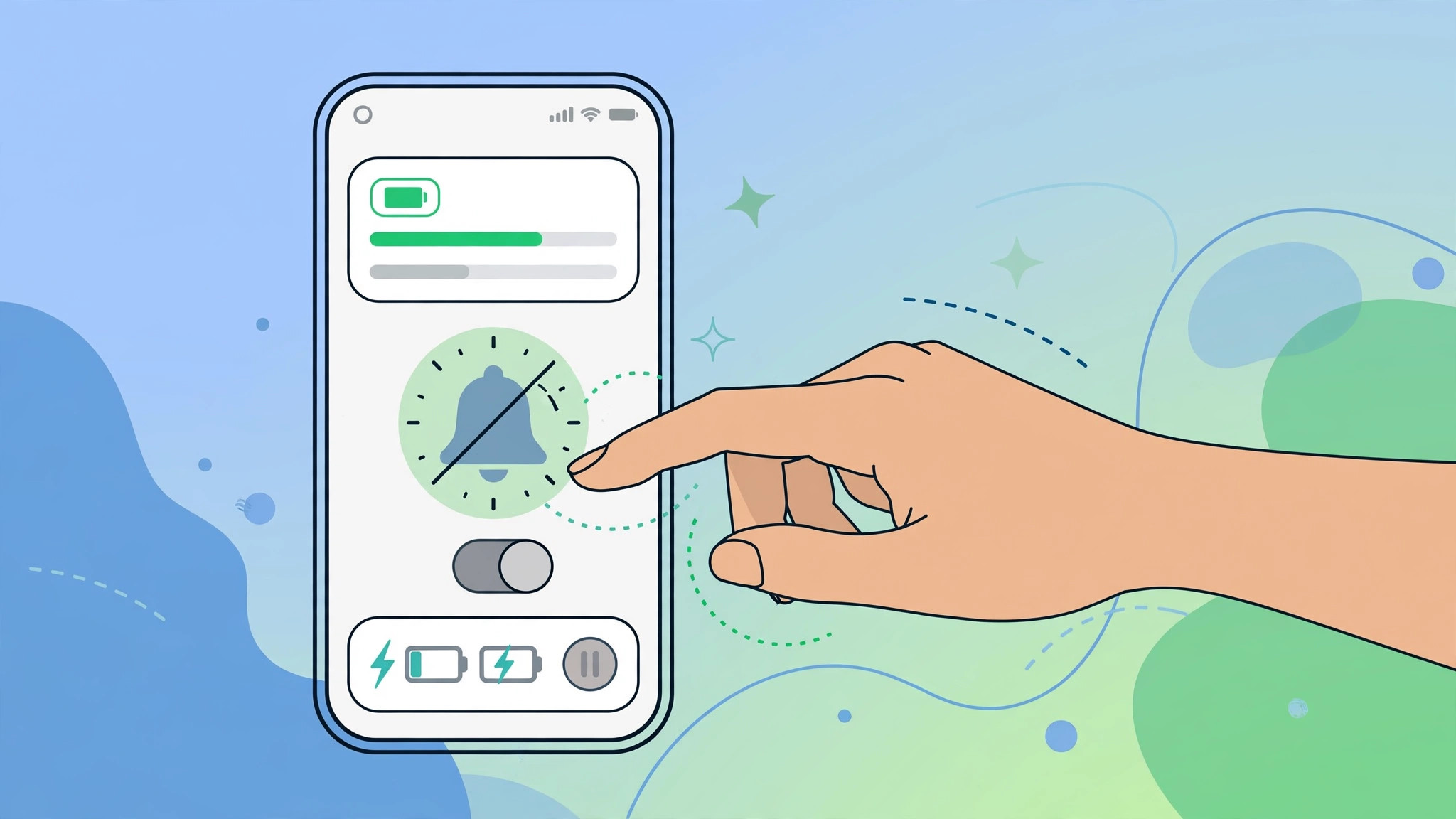
iOS 26’s Adaptive Power Mode is genuinely clever: powered by Apple Intelligence, it learns how you use your iPhone and quietly trims power-hungry background activity to stretch your battery life. The annoying part? Every time it kicks in, iOS announces it with a notification — as if your phone wants applause for saving battery.
The good news: you can silence just the alerts while keeping the battery savings running. It is a single toggle buried in Settings > Battery, and it takes about ten seconds. Here is how to do it — plus how to bring the notifications back, or switch the whole mode off, if you change your mind.
What Adaptive Power Mode needs
A quick requirements check first: the mode relies on Apple Intelligence, so it only appears on the iPhone 15 Pro and 15 Pro Max, the iPhone 16 series, and the iPhone 17 series, all running iOS 26. If you do not see the option in Settings, your iPhone does not support it. Apple details the Apple Intelligence device requirements on its site.
How to silence the notifications
To stop the announcements without losing the battery savings:
- Open Settings and tap Battery.
- Tap Power Mode.
- Toggle off “Adaptive Power Notifications.”
That is it — Adaptive Power Mode keeps working silently in the background, squeezing out extra battery life without the play-by-play. MacRumors has a rundown of how Adaptive Power Mode behaves in iOS 26 if you want the full picture.
If it still doesn’t work
- Make sure Adaptive Power Mode itself is still on — the notifications toggle sits right under the main mode toggle, and it is easy to switch off the wrong one.
- Notifications can lag a few minutes behind the actual mode change; give it a little time.
- Still seeing alerts? Restart the iPhone and check the toggle again.
- iOS 26 has other chatty new tricks too — our guide to turning off the Liquid Glass effect in iOS 26 tames another one.
Frequently asked questions
Will turning off the notifications disable battery saving?
No. The toggle controls only the alerts. Adaptive Power Mode continues optimizing power in the background — you just will not hear about it.
How do I get the notifications back?
Return to Settings > Battery > Power Mode and toggle “Adaptive Power Notifications” back on. To disable the feature entirely, switch off Adaptive Power Mode with the main toggle above it. Video walkthroughs on YouTube show both toggles in action if you prefer watching.
Conclusion
Adaptive Power Mode is genuinely useful — the constant announcements, less so. Silence the notifications, keep the savings, and enjoy an iPhone that sips battery quietly. And if iOS 26’s other new tricks are getting on your nerves, our guides on rearranging lock screen widgets and setting up the Liquid Glass effect on the lock screen clock have you covered.






[…] you have explicitly allowed it. If you also wrestle with other notification quirks, our guide to silencing adaptive power notifications in iOS 26 covers another common source of alert […]