
There is little more maddening than an iPhone that connects to the internet just long enough to give you hope, then drops it again. The good news: the cause is usually one of a handful of things — a tired SIM card, confused network settings, or a carrier-side hiccup — and each has a straightforward fix. Work through these steps in order.
Find out whether it’s your SIM or your iPhone
1. Test your SIM in another phone
Before touching any settings, isolate the fault: move your SIM into a different smartphone. If the internet drops there too, the problem is the SIM or your carrier — jump to step 7. If the other phone works fine, the fault is in your iPhone, and the steps below should fix it. While you’re at it, verify your SIM card’s status so you know it’s properly activated.
2. Toggle Airplane Mode for 10–15 seconds
Open Control Center, switch Airplane Mode on, count to fifteen, then switch it off. This forces the iPhone to drop its connection and re-register on the carrier’s network from scratch — a quick radio reset that clears many transient glitches.
Reset the iPhone’s side of the connection
3. Restart the iPhone
Hold the Side button with either volume button, slide to power off, wait half a minute, and power back on. A plain restart clears most temporary radio glitches — Apple’s own troubleshooting guidance puts this near the top for a reason.
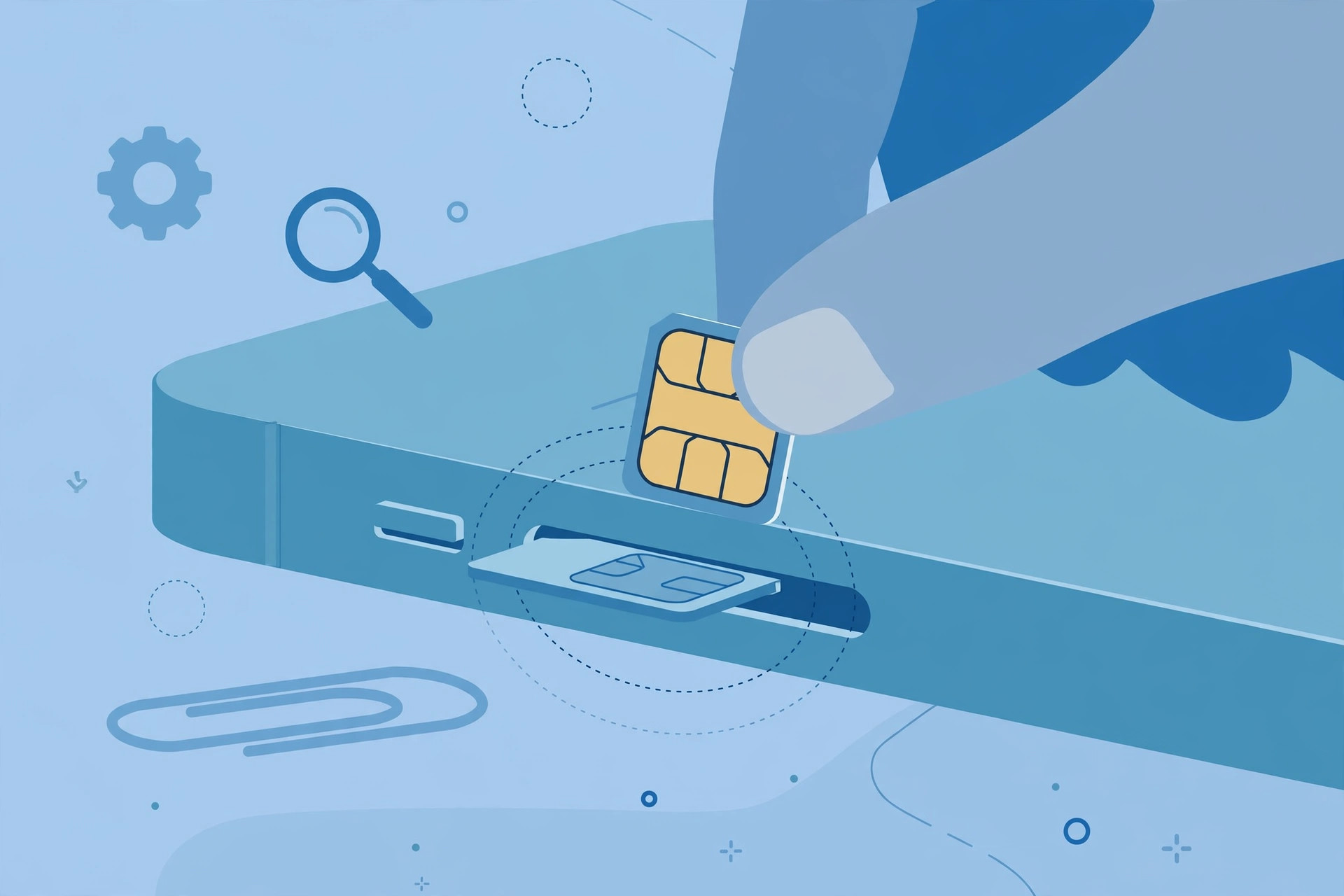
4. Reinsert the SIM card
Power off, eject the SIM tray, gently wipe the SIM’s gold contacts with a soft dry cloth, and check the tray for damage. Reseat the SIM firmly and power on. A dusty or slightly loose SIM produces exactly this kind of intermittent connection.
5. Reset network settings
Go to Settings → General → Transfer or Reset iPhone → Reset → Reset Network Settings. This returns all network-related settings — saved Wi-Fi networks and passwords, cellular settings, VPN configurations — to factory defaults, clearing whatever corrupt setting is behind the drops. You will need to re-enter your Wi-Fi passwords afterward.
Rule out the carrier
6. Install carrier settings and iOS updates
Open Settings → General → About; if a carrier settings update is available, a prompt appears within about 15 seconds — install it. Then check Settings → General → Software Update, since MacRumors regularly reports iOS releases fixing cellular and modem bugs.
7. Compare Wi-Fi and cellular, then contact your carrier
Test Wi-Fi and cellular separately. If Wi-Fi is solid but cellular drops (and the SIM failed step 1), it’s a carrier-side issue: call them with that detail and ask for a line reset or a replacement SIM. On eSIM models there is no physical card — ask the carrier to re-provision your eSIM profile instead. And if you rely on your phone to get your Mac online, set up automatic hotspot connection on your Mac so your work survives these dropouts.
If it still doesn’t work
If the drops continue after a network-settings reset and a fresh SIM, you may be looking at a failing cellular modem or antenna — book a diagnostic at an Apple Store or authorized provider, and mention what you’ve already tried so they don’t repeat it.
Frequently asked questions
Will Reset Network Settings delete my photos or apps?
No. It only erases network-related data — saved Wi-Fi networks and passwords, cellular settings, and VPN configurations. Your photos, apps, messages, and other personal data are untouched.
Why does cellular drop while Wi-Fi works fine?
That pattern points to the cellular path: your SIM, the carrier’s network, or the iPhone’s cellular radio. Step 1’s SIM swap test is the fastest way to tell which one it is.
Conclusion
Start with the SIM swap test, then move from the quick radio resets up to a full network-settings reset. The drops stop before step 7 for most people — but if they don’t, that SIM swap result is exactly what your carrier needs to fix it fast.





