

Suddenly a pop-up window with an ad appears on your iPhone, even though you have no suspicious apps installed and no strange notifications enabled. Before you blame iOS, know this: these pop-ups almost always come from your SIM card, not from Apple. Many carriers use a built-in SIM menu (the SIM Toolkit) to send promotional push messages to subscribers. The good news is that you can switch this advertising off yourself in a couple of minutes.
Step-by-step: turn off carrier push ads
- Understand what you are dealing with. If the pop-up appears over any app, looks like a bare text box with one or two buttons, and shows up right after you restart the phone or switch mobile data on, it is a carrier SIM message. It cannot be removed through iOS Notification Center, so do not waste time digging through app notification settings.
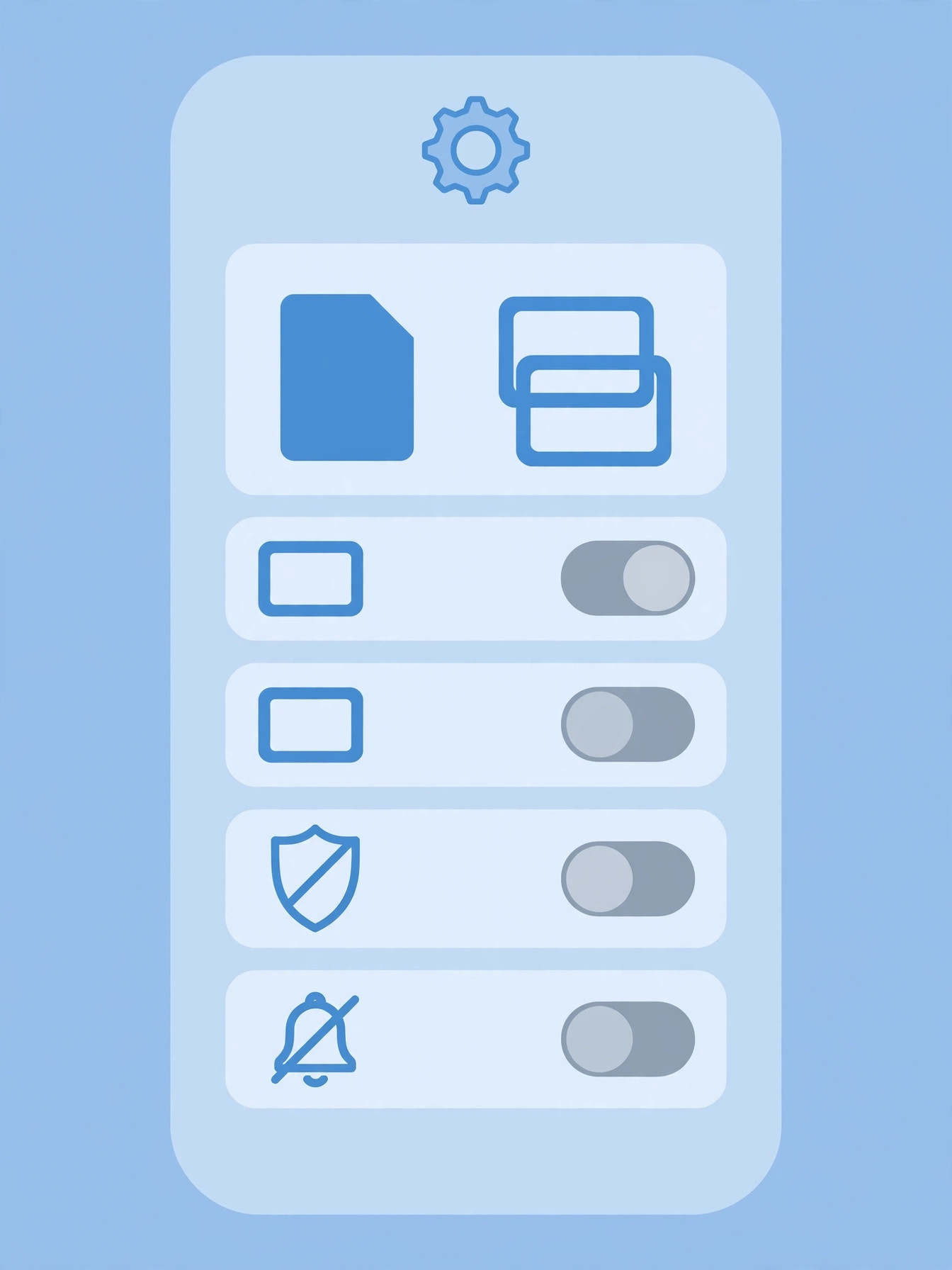
- Open the SIM applications menu. Go to Settings > Phone. On newer iOS versions (iOS 18 and later) the same section lives under Settings > Cellular, as Apple’s guide to iPhone cellular settings confirms.
- Find SIM Applications / SIM Programs. Tap it to open your carrier’s service menu stored on the SIM card itself. The exact name varies by carrier and region — it may also be called “SIM Toolkit” or “Carrier services.” If you recently switched carriers, it is worth also checking our guide on how to verify your SIM card to make sure everything else on the line is set up correctly.
- Switch off the advertising section. Inside the carrier menu, look for a section related to promotions — it can be named “Advertising,” “Info messages,” “Promo,” or something similar. Every carrier names it differently. Open it and choose the disable / unsubscribe option. Confirm if asked.
- Alternative: use a USSD code. Many carriers offer a short USSD request code that manages the same SIM services. The exact code depends on your provider, so check your carrier’s official website or support page (carriers often document this in their help centers, as sites like 9to5Mac have noted in their coverage of carrier features).
- No such menu? Contact the carrier. If your SIM shows no applications menu at all, call your carrier’s support line or open their official app and ask them to disable promotional push messages on your line. This is usually done in seconds once a representative finds the right toggle on their side.
If it still doesn’t work
Restart your iPhone after making the change — SIM service settings sometimes need a reboot to take effect. Make sure iOS is up to date, since carrier settings bundles are delivered with updates. Note that SIM push advertising is mostly a legacy-carrier phenomenon and is rare on major US carriers; if pop-ups keep appearing and look like ordinary notifications, an app may be the culprit — check Notification Center for suspicious entries. And if you juggle two lines, our guide on allowing calls only from a specific SIM in Focus mode can help you manage dual-SIM behavior.
FAQ
Are these pop-up ads coming from Apple?
No. Apple does not push ads onto your iPhone’s screen this way. The messages are sent by your mobile carrier through the SIM Toolkit interface on the SIM card. Turning them off inside the carrier menu is safe and does not affect iOS, iMessage, or your data plan.
Will disabling these ads block important messages from my carrier?
No. This toggle only affects promotional and marketing push messages. Service messages about your plan, billing, or network maintenance are handled separately and will still come through.
Conclusion
Carrier push ads are annoying, but they are not an iPhone problem — they are a SIM-card feature you can simply turn off. A quick visit to Settings > Phone (or Cellular) > SIM Applications is usually all it takes to make those pop-ups disappear for good. Enjoy your ad-free screen.





