
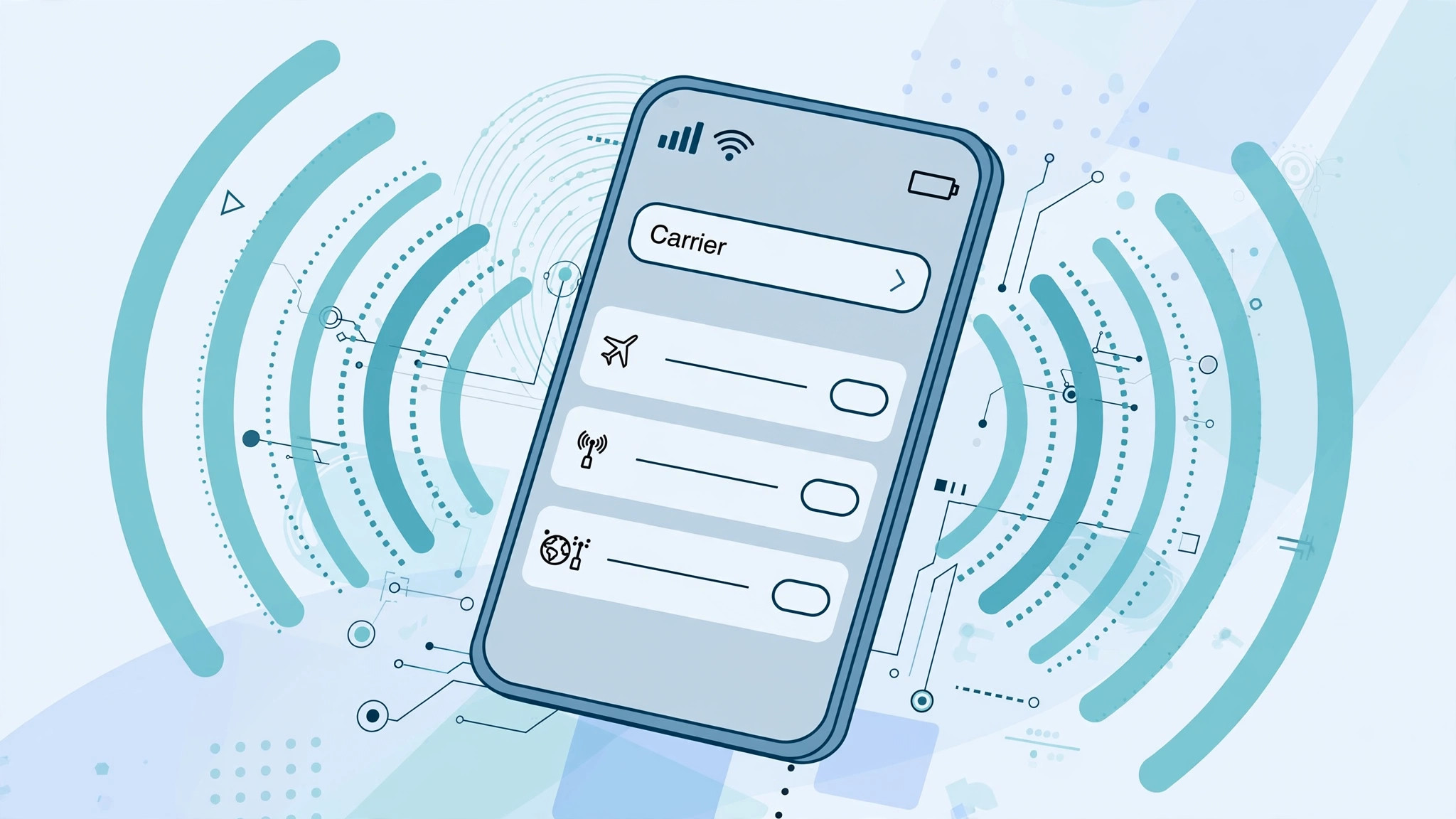
Open Settings > General > About on your iPhone and scroll down: among the model numbers and serial codes there’s a field labeled Carrier. Most of the time it shows your operator’s name — but sometimes it just says the word “Carrier”. What does that mean, and should you worry?
What the Carrier field shows
1. Find the field. Go to Settings > General > About and look for the row labeled Carrier (on modern iOS versions it’s listed under Settings > General > About > Carrier). This is where iOS displays the name of the mobile operator your iPhone is registered with.
2. Know where the name comes from. Your iPhone doesn’t invent this name — it receives it from the cellular network when the phone registers, reading the operator identity from your SIM card and the network itself. Think of it as the phone asking the network “who are you?” and writing down the answer.
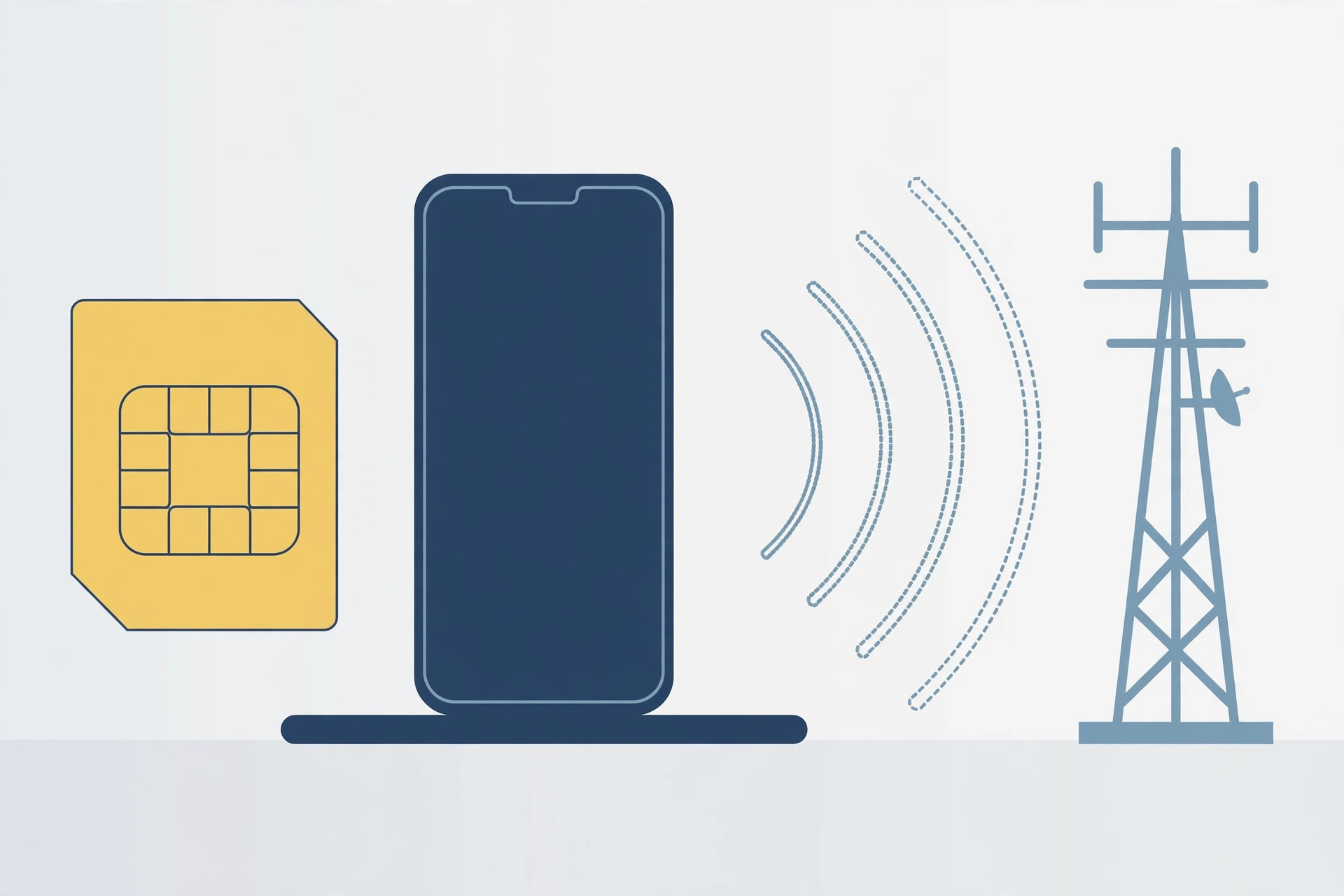
3. Understand the generic “Carrier” label. If the field shows the plain word “Carrier” instead of an operator name, it simply means the phone could not read the operator’s identity — the name is unresolved, not missing. This is not an error message and nothing is broken; it happens with new SIMs, some virtual operators, or before activation completes. Apple’s guide on manually updating carrier settings explains how the carrier profile works behind the scenes.
How to get your operator’s name to appear
4. Reseat the SIM and check for an update. Power off the iPhone, remove the SIM card, put it back in firmly, and power on. Then open Settings > General > About and wait a few seconds — if a carrier settings update is available, iOS will prompt you to install it. If you’ve had SIM troubles before, our guide on verifying your SIM card covers the basics.
5. Work through the quick checks. If the generic label persists: toggle Cellular Data off and back on (or restart the phone), make sure Airplane Mode is off, and confirm with your operator that the SIM is active on their side. Network-side hiccups do happen — MacRumors recently covered carrier-related iPhone connectivity issues that needed cooperation between Apple and the operator to resolve.
If it still doesn’t work
If the field still shows the generic “Carrier” after reseating the SIM, updating carrier settings, and restarting, the issue is almost certainly on the operator’s side — an unprovisioned SIM or a network profile problem. Contact your carrier’s support and ask them to check the SIM’s activation status; they can usually push a fresh carrier profile. Also see our tips on managing SIM settings in Focus mode if you use dual SIM.
FAQ
Does “Carrier” mean my iPhone is unlocked or locked?
Neither. The Carrier field only shows the operator name iOS resolved — it says nothing about SIM-lock status. To check whether your iPhone is unlocked, look at Settings > General > About > Carrier Lock, which explicitly says “No SIM restrictions” on unlocked phones.
Will updating carrier settings delete anything?
No. Carrier settings updates are tiny configuration files from your operator that adjust things like network, hotspot, and voicemail settings. They don’t touch your photos, apps, or personal data, and installing one takes seconds.
Conclusion
The Carrier field is simply your iPhone’s name tag for the network it’s on. If it shows your operator’s name, everything is fine; if it shows the generic “Carrier”, the phone just couldn’t read the name — reseat the SIM, accept the carrier update, and it will sort itself out.





