
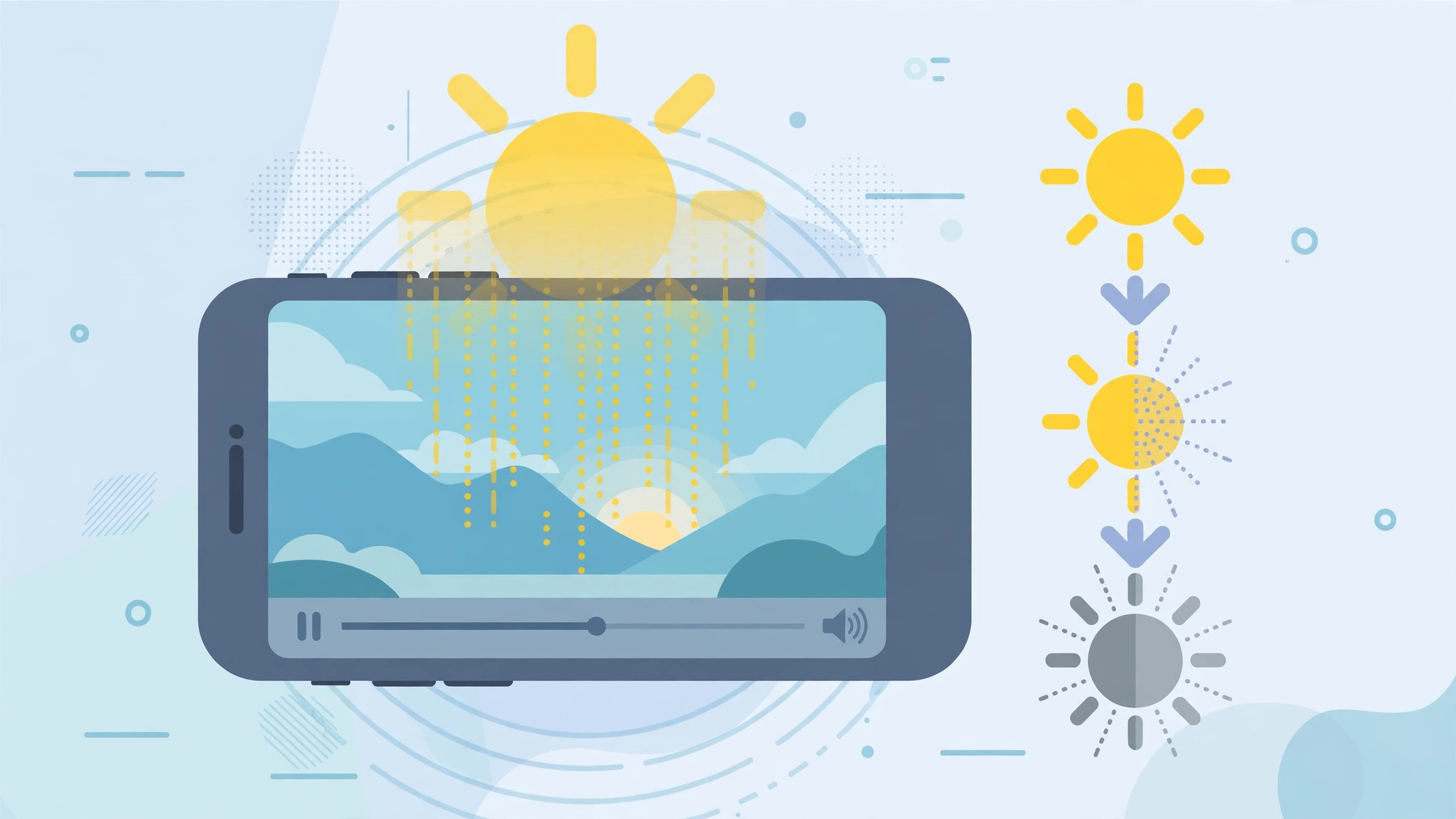
Why your iPhone screen dims while watching videos
You settle in to watch a video, and a few minutes later the screen has quietly gone dim — even though you never touched the brightness. The classic diagnosis names two culprits: an iOS bug or a faulty update. On modern iPhones, though, there is a third, more common cause: Apple’s own “helpful” features. Auto-Brightness, Attention Aware Features, True Tone, Night Shift, and Low Power Mode can all dim the display on their own, and video playback is exactly the kind of situation that confuses them. The fixes below start with the original two-cause check and then move on to the modern primary fixes.
How to stop the iPhone screen dimming during videos
- Update iOS — or restart if the problem is new. Go to Settings > General > Software Update and install any available update, since Apple routinely patches display bugs. If the dimming started right after an update, restart the iPhone first: a glitchy install is the “bad update” half of the classic two-cause diagnosis, and a simple restart often clears it.
- Turn off Auto-Brightness. Go to Settings > Accessibility > Display & Text Size and switch off Auto-Brightness. The ambient light sensor can misread your room lighting while you watch — a dark scene on screen can trick it into dimming the display further. Apple’s guide to adjusting the brightness on your iPhone explains exactly how this sensor-driven feature behaves.
- Turn off Attention Aware Features (Face ID models). Go to Settings > Face ID & Passcode and switch off Attention Aware Features. This feature uses the TrueDepth camera to check whether you are looking at the phone, and dims the display when it thinks you are not. Watching videos at an angle — propped on a table or held low — can fool it into dimming the screen mid-playback.
- Disable the other automatic display tweaks. Under Settings > Display & Brightness, turn off True Tone and Night Shift — both shift color temperature in ways that can look like dimming in a dark room. Then go to Settings > Battery and switch off Low Power Mode, which aggressively reduces brightness. Finally, set the brightness manually from Control Center and leave it there. If you enjoy fine-tuning the display, our guide to turning off the Liquid Glass effect in iOS 26 covers another display tweak in the same spirit.
On iOS 26, note that the newer Adaptive Power Mode can also meddle with brightness behavior when it decides you need to save battery. If you use it, you may want to read our guide to silencing Adaptive Power notifications in iOS 26 so at least the announcements stop nagging you.
If it still doesn’t work
Check whether the dimming happens in every video app or only one — some streaming apps have their own brightness or power-saving logic, so test with Apple’s own TV or Photos app as a baseline. If every app dims, restart once more and, as a last resort, reset all settings via Settings > General > Transfer or Reset iPhone > Reset > Reset All Settings. That resets system preferences without deleting your photos or apps. The Mac Observer has covered similar iPhone display quirks and generally lands on the same verdict: it is almost always one of these automatic features, not failing hardware.
FAQ
Why does the screen only dim during videos, not in other apps?
Because the automatic features misread the situation. A dark video scene fools the ambient light sensor, and holding the phone at an odd viewing angle fools the attention sensor. Everyday scrolling keeps both sensors “awake,” so the dimming only shows up during playback.
Will turning off Auto-Brightness drain my battery?
Slightly, if you leave the brightness high all the time. The practical compromise is to set a comfortable manual level in Control Center and only nudge it up when you need to. The battery cost of a fixed mid-level brightness is modest.
Conclusion
An iPhone that dims during video playback is rarely broken — it is usually an iOS bug, a bad update, or one of Apple’s automatic display features doing its job a little too eagerly. Work through the steps: update, restart, then switch off Auto-Brightness and Attention Aware Features, and tame True Tone, Night Shift, and Low Power Mode. In most cases the screen will stay put for the rest of the movie.





