
You film a great moment, play it back — and there’s no sound. The video looks perfect, but the audio track is empty. Don’t panic: silent iPhone videos are almost always caused by a simple setting or a blocked microphone, not by a dead phone. Work through these checks in order.
Quick checks first
1. Flip the mute/silent switch
Start with the obvious: the physical Ring/Silent switch on the side of the iPhone. If it’s flipped to silent, your videos may record without audio. Make sure it isn’t silenced. This is a long-standing quirk MacRumors readers have flagged for years.
2. Disconnect Bluetooth audio devices
If your AirPods, earbuds, or a Bluetooth speaker are connected, the iPhone may try to record through them instead of its built-in microphones — and if that device is in your pocket or another room, the video comes out silent. Disconnect them in Settings > Bluetooth, or toggle Bluetooth off temporarily. If Bluetooth routing is a recurring headache, see our guide to stopping the iPhone from auto-switching audio away from your headphones.
3. Check the Camera’s microphone permission
The Camera app needs explicit permission to use the microphone. Go to Settings > Privacy & Security > Microphone and make sure Camera is enabled. If it was off, your videos were literally recorded without an audio source — turn it on and test again.
Test the microphone itself
Open Voice Memos and record a short clip. If it records fine, the microphones work and the problem lives in camera settings. If the Voice Memo is silent or distorted, the mic may be blocked or damaged — keep reading. Apple’s microphone and camera troubleshooting guide covers the same isolation test.
Clean the microphone holes
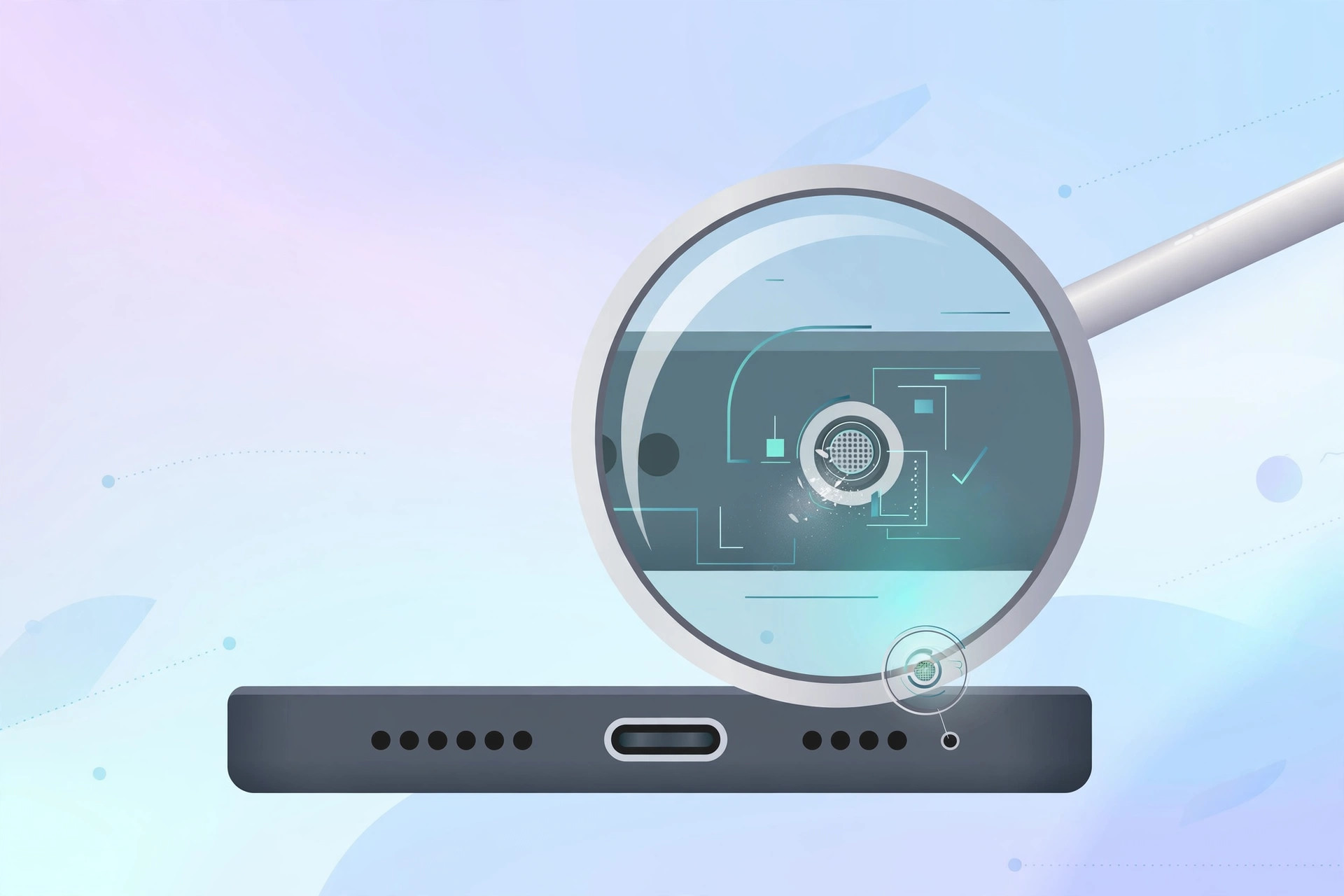
The iPhone has several microphones: tiny holes next to the rear camera, near the front camera/earpiece, and by the bottom speaker grille. Dust, lint, and pocket debris can block them completely. Remove your case first — cases sometimes cover a mic — then inspect the holes and gently clear debris. Never poke sharp metal into them.
Restart and update
Force-close the Camera app and restart your iPhone — a glitchy camera session can record silently until it’s reset. Then check Settings > General > Software Update: 9to5Mac has documented iOS bugs that affected audio recording, and updates often include the fix.
Isolate a hardware fault
Record a short video with the rear camera, then one with the front camera. Each camera uses a different microphone: if one works and the other doesn’t, the failing mic is likely hardware-damaged and needs Apple service. If neither records sound, and Voice Memos was also silent, book a repair rather than resetting the phone again and again. For related audio quirks, our guide to adding and changing the iPhone startup sound covers more of iOS’s sound settings.
If it still doesn’t work
If every software check passes and the mic test in Voice Memos is dead on both cameras, the microphone module itself is probably faulty. Back up your data and take the iPhone to Apple or an authorized service provider — don’t keep factory-resetting a hardware problem. Third-party repair shops can replace microphone assemblies, but water-resistant sealing is hard to restore, so official service is the safer call.
Frequently asked questions
Why does my video have sound in preview but not after saving?
That’s usually an editing or playback issue rather than a recording problem — try playing the clip in the Files app or on a computer to confirm whether the audio track is really missing.
Can screen recordings lose sound too?
Yes — screen recordings mute the microphone by default. Long-press the Screen Recording button in Control Center and enable the microphone before you start if you want voiceover included.
Conclusion
Nine times out of ten, silent iPhone videos come down to the mute switch, a Bluetooth hijack, a denied mic permission, or blocked microphone holes. Check those first, test with Voice Memos, and you’ll know within minutes whether you need settings tweaks or a trip to the repair shop.





