
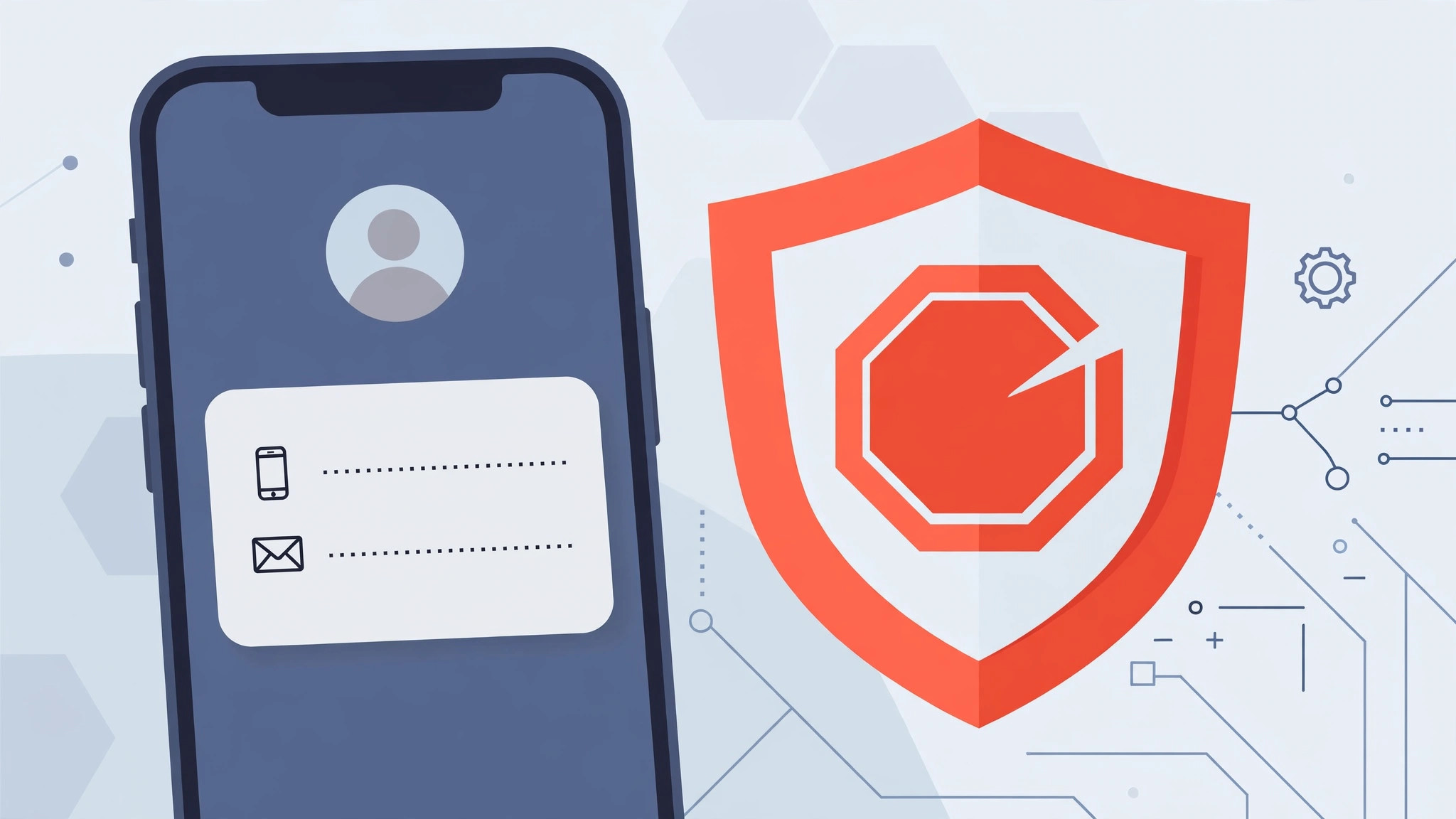
Getting calls or texts from a number you never want to hear from again? In iOS 10, Apple tucked the block option into the Messages app in a spot most people never look — but once you know where it lives, blocking takes about ten seconds. Here’s the quick guide.
How to block a contact in iOS 10
Follow these steps to block a caller straight from a conversation:
- Open Messages and go to the conversation with the person you want to block.
- Tap the “i” (details) icon in the top-right corner of the conversation.
- Tap the contact’s avatar — the gray silhouette next to the phone number.
- Scroll down and choose “Block this Caller”.
That’s it. The number is added to your blocked list immediately, and you won’t receive calls, texts, or FaceTime calls from it anymore. If you’re also tidying up old conversations, our guide to permanently deleting text messages from iPhone and iCloud pairs well with this.
What the blocked caller hears
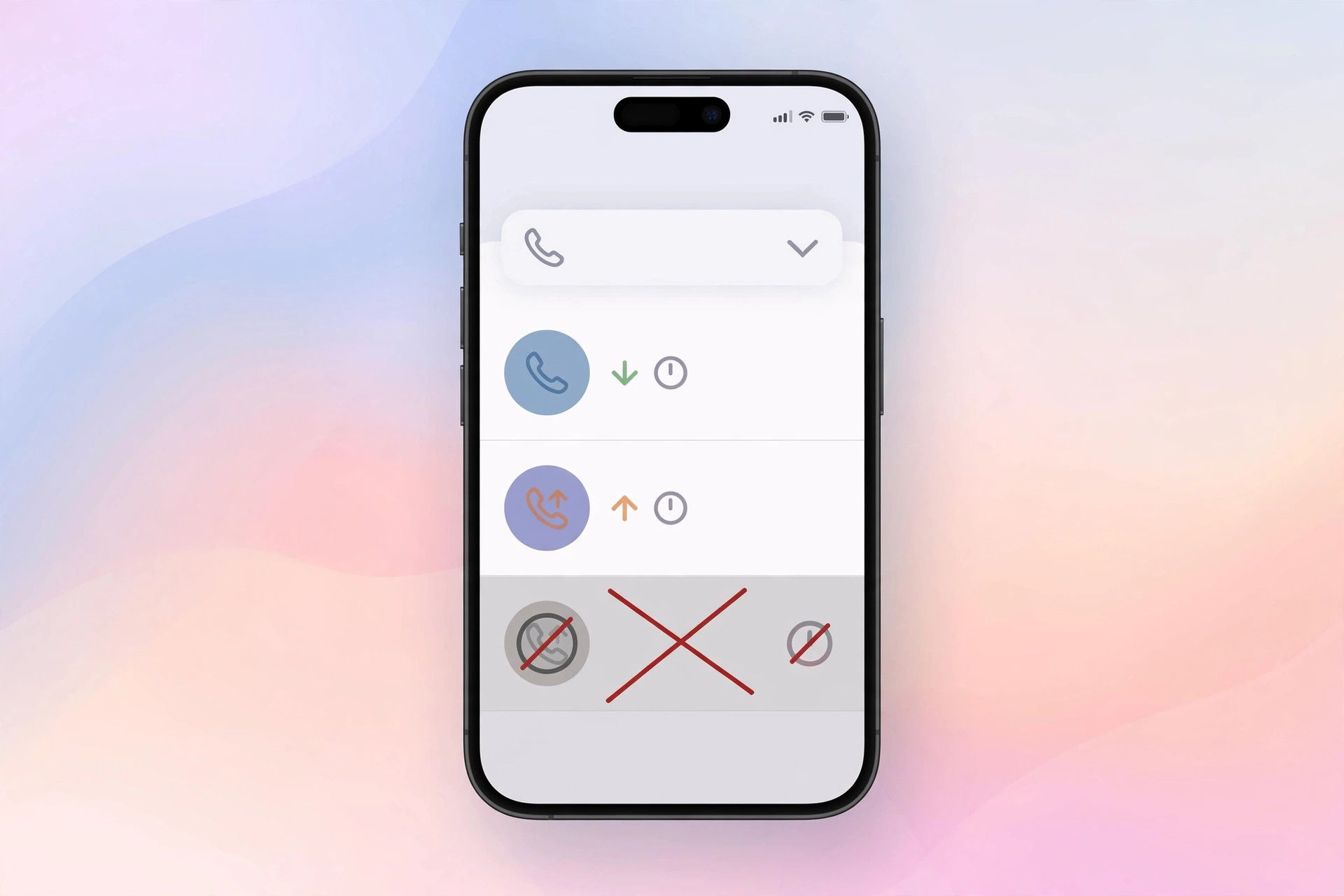
A blocked caller doesn’t get a “you’ve been blocked” announcement. Instead, when they call, they hear ringing that indicates the subscriber is busy — so from their side it just looks like you didn’t pick up. Their texts and calls never reach your phone. Apple documents this behavior in its support article on blocking phone numbers and contacts.
Same trick works in Phone and FaceTime
You don’t have to go through Messages every time. The same “Block this Caller” option lives in two other places:
- Phone app: open the contact or a recent call, tap the “i”, then choose “Block this Caller”.
- FaceTime app: open the contact or recent call, tap the “i”, then choose “Block this Caller”.
And if your conversations live on more than one device, our guide to setting up message sync between iPhone and Mac keeps everything in the same place before you start blocking numbers.
If it still doesn’t work
If a blocked number is still getting through, double-check the exact digits — spammers often call from similar-but-different numbers, and each variant needs its own block entry. Also make sure you blocked the number in the Contacts/Recents entry you actually receive calls from, since a contact can carry multiple numbers. As MacRumors has covered, carrier-level spam filters and apps can add a second layer of defense for robocalls that keep changing numbers.
Frequently asked questions
Can I unblock someone later?
Yes. Go to Settings > Phone > Blocked Contacts, find the number, swipe left, and tap Unblock — or open the contact and choose Unblock this Caller.
Does blocking stop iMessage too?
Yes — blocking a contact blocks their calls, SMS/MMS texts, iMessages, and FaceTime calls all at once. There’s no way to block only one channel.
Conclusion
Blocking in iOS 10 hides in plain sight: Messages > conversation > “i” > avatar > “Block this Caller.” Ten seconds, and the spam calls and texts never reach you again.





