
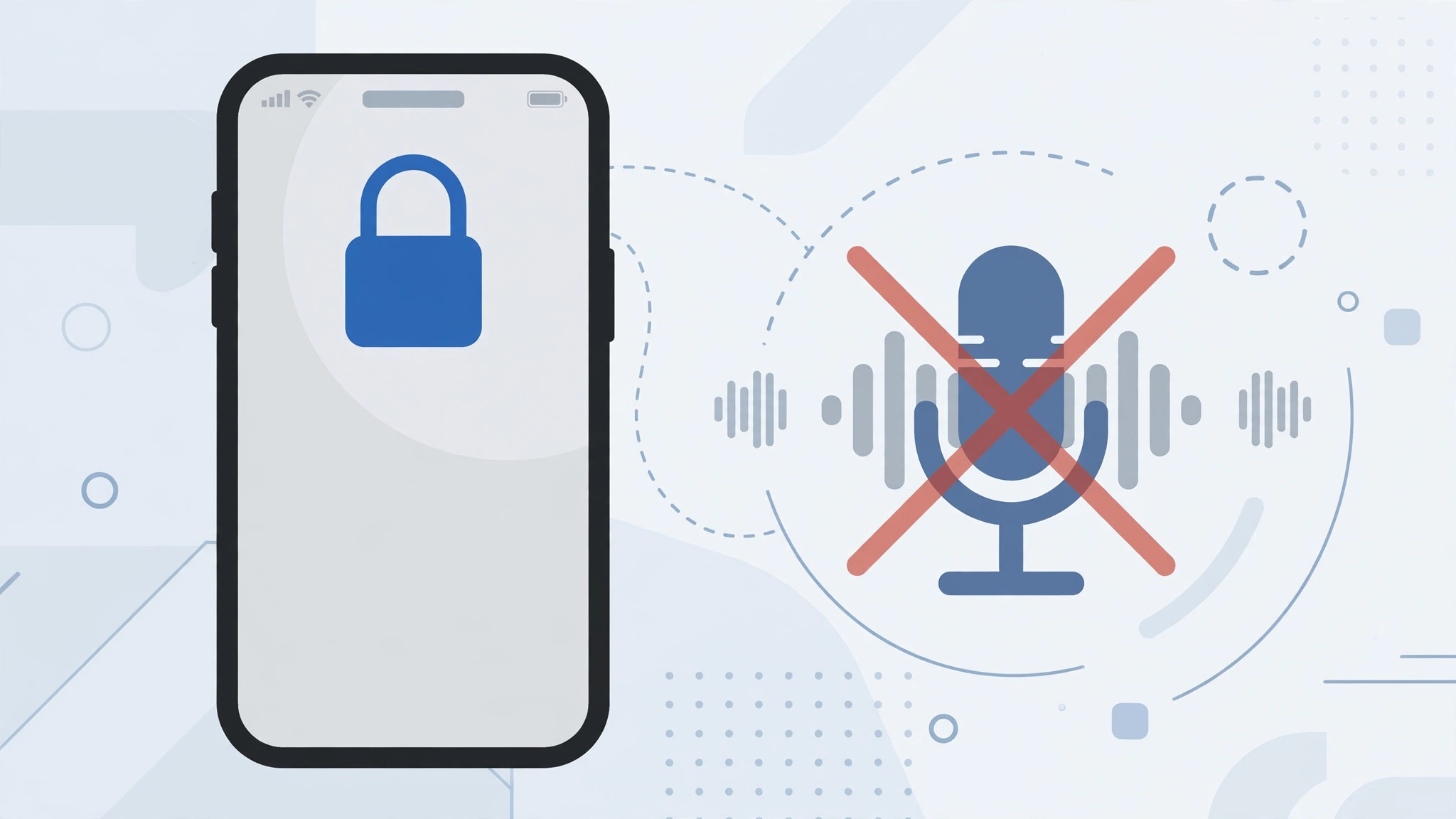
A Siri that wakes up unprompted on a locked iPhone is annoying — and a small security hole. Anyone holding your phone can ask for messages, recent calls, or personal details without unlocking it. Accidental triggers are common too: digging the phone out of a pocket or bag can hold down the side button, and the voice-dictation mic in the keyboard stays one tap away even on the lock screen.
There is no single switch for this — three separate settings need changing. It takes about two minutes, and Siri keeps working normally once the phone is unlocked.
Why lock Siri out of your lock screen
Privacy is the biggest reason: if your iPhone reads Siri’s answers out loud on the lock screen, people nearby hear them too. Accidental activations are just as irritating — every false trigger interrupts you and sips battery. Finally, limiting what a stranger can launch without your passcode is a basic hardening step. Tech outlets like 9to5Mac regularly highlight buried toggles like these, and the setup takes a minute once you know where to look.
Step by step: disable Siri and dictation on the lock screen
Follow the steps in order. The second toggle only appears when the first condition is met.
- Make sure Siri is enabled. Open Settings → Siri (on newer iOS versions, “Apple Intelligence & Siri”). Siri must be on for the lock-screen options to appear. Disabling Siri completely is a different change — this guide assumes you still want the assistant on your unlocked phone.
- Turn off “Allow Siri When Locked”. In Settings → Siri, find the switch labeled Allow Siri When Locked (older versions may say Access on Lock Screen) and turn it off. This stops voice activation from answering while the phone is locked. For the full rundown, see Apple’s guide to using Siri on iPhone.
- Block Siri in the passcode settings. Go to Settings → Face ID & Passcode (or Touch ID & Passcode on Home-button iPhones), enter your passcode, and scroll to Allow Access When Locked. Turn off Siri there. This stops a long press of the side button from launching Siri — or dictation — on the lock screen, as Apple’s Face ID & Passcode support article explains.
- Bonus: turn off Raise to Wake. Open Settings → Display & Brightness and switch off Raise to Wake. Available on iPhone 6s, iPhone SE, iPhone 7, and later models, this feature lights up the screen every time you lift the phone. With it off, the screen stays dark in your pocket and stray taps cannot reach Siri or dictation. While you are locking down the lock screen, you may also like our guide to disabling the quick camera launch from the iPhone lock screen.
If it still doesn’t work
Double-check that you changed both Siri screens — most people forget the Face ID & Passcode toggle. Restart the iPhone and test again with the screen locked. If Siri still answers to your voice, retrain it under Settings → Siri → Listen for. A work profile or Screen Time restriction can gray out a toggle; look for a “managed” note, then remove the restriction or ask your administrator. If dictation keeps popping up in the Messages keyboard, switch it off in Settings → General → Keyboard. And if you enjoy customizing this screen, try moving your lock screen widgets down for a cleaner look.
Frequently asked questions
Does this turn off Siri completely?
No. These settings only block Siri on the lock screen — once you unlock the phone, Siri works exactly as before, whether you long-press the side button or say “Hey Siri”.
Can I keep voice activation but block the side button on the lock screen?
Yes. Leave Allow Siri When Locked on and turn off only the Siri toggle under Face ID & Passcode settings. That keeps “Hey Siri” listening while blocking button-press access — handy if you also want to bring back the classic alarm stop button.
Conclusion
You don’t have to choose between Siri and lock-screen privacy. Three toggles — in Siri settings, passcode settings, and Display & Brightness — keep the assistant quiet until you unlock. Set them once: your phone stays silent in your pocket, and Siri is still ready the moment you need it. For more iPhone how-tos, MacRumors keeps a regularly updated collection of iOS tips.





