
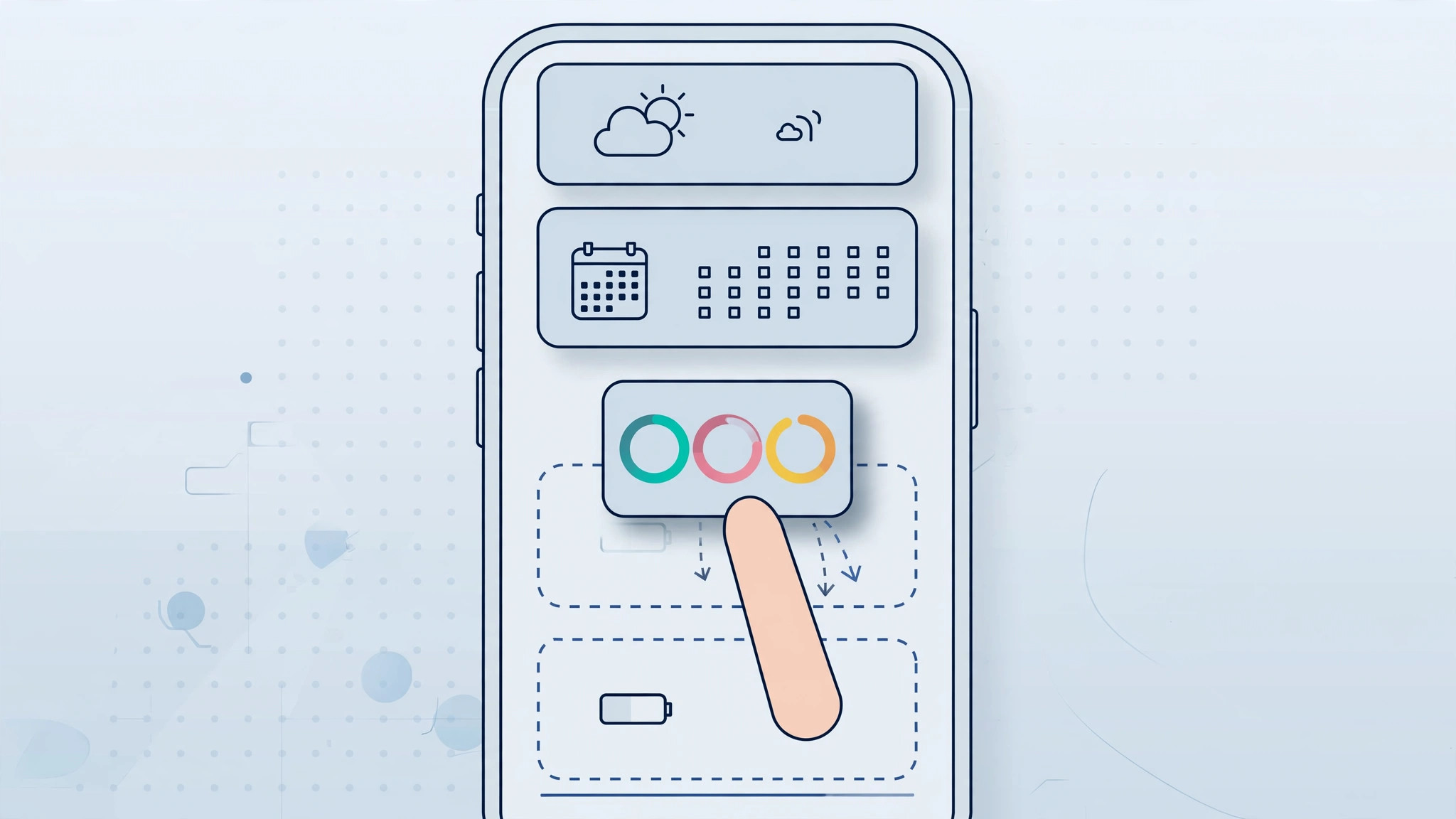
iOS 26 brought one of the most noticeable lock screen changes in years: the widget strip is no longer glued to the top of the screen. You can now slide it down toward the bottom, which is handy if you want your wallpaper’s subject fully visible or you simply prefer your widgets within thumb’s reach. Most of the time, moving the panel takes a single swipe — but on some iPhones the gesture refuses to cooperate. This guide covers both the normal method and the reliable workaround that gets the panel moving again.
Move the widget panel with a swipe
The intended way to reposition the widgets takes only a few seconds:
- Wake your iPhone so the lock screen is visible, then touch and hold anywhere on the screen until the wallpaper gallery appears.
- Tap Customize on the lock screen you want to change.
- Place your finger on the widget row and swipe downward — the panel should glide toward the bottom of the screen.
- Tap Done in the top-right corner to save your layout.
If the panel follows your finger, you’re done. If it stays stubbornly in place, use the wallpaper method below — it resets whatever is blocking the gesture.
Rebuild the lock screen to unstick the widget panel
When the swipe gesture doesn’t respond, creating a fresh lock screen clears the glitch. The trick is to temporarily enlarge the clock, which forces the widget panel to drop down on its own:
- Open Settings and go to Wallpaper.
- Tap Add New Wallpaper.
- Choose a wallpaper and set it up as your new lock screen.
- In the customization view, drag the clock’s resize handle outward to make the clock bigger. The widget panel automatically moves down to make room for it.
- Drag the handle back to return the clock to its original size, finish any other tweaks you want, then tap Add or Done to save the lock screen.
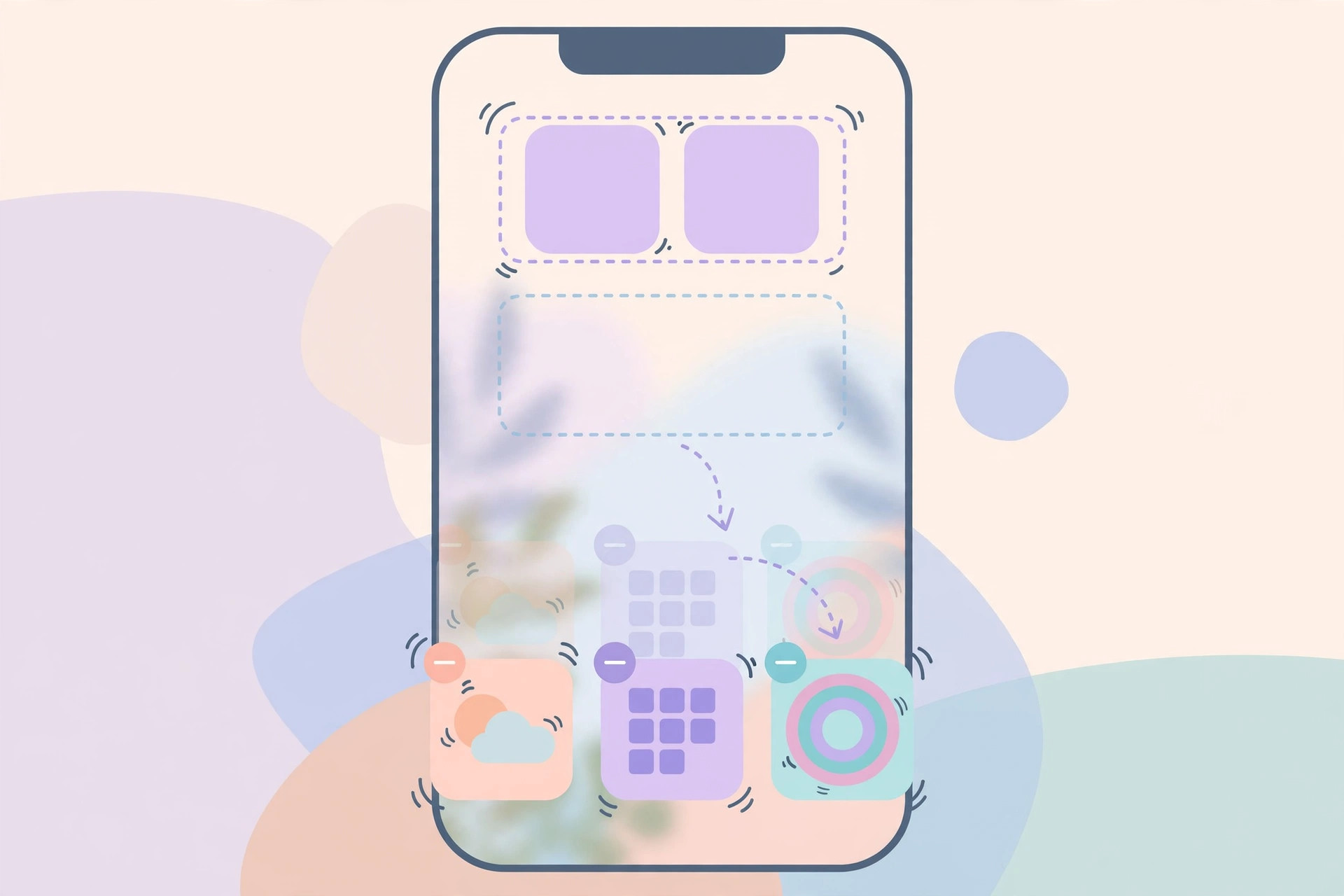
This works because the layout engine recalculates widget placement whenever the clock size changes. Once the panel has dropped, it stays where you put it. If you enjoy restyling the lock screen, take a look at our guide to the Liquid Glass clock effect in iOS 26.
If it still doesn’t work
A few things to check before giving up:
- Restart your iPhone and try the swipe again — a temporary system glitch is the most common cause.
- Confirm you are actually running iOS 26 under Settings → General → Software Update. The movable widget panel doesn’t exist on older versions. If you’ve been holding back, read how to completely block iOS 26 updates on iPhone to understand your options.
- Remember that the widget position is stored per lock screen wallpaper. If you use different wallpapers with Focus modes, repeat the steps for each one.
- If the panel jumped back up right after a software update, simply recreate the lock screen with the method above.
FAQ
Can I place the widgets anywhere I want on the lock screen?
No. iOS 26 supports two positions for the widget panel: the default spot near the top and the lowered position near the bottom. You can’t drag widgets to arbitrary places on the screen or stack them vertically.
Will moving the widgets down hide my notifications?
No. Notifications keep appearing in their usual area below the widget panel. Moving the panel only changes where your widgets sit — banners, alerts, and media controls are unaffected. If the new translucent look bothers you, you can turn off the Liquid Glass effect for a flatter appearance.
Conclusion
Moving the lock screen widgets down in iOS 26 is a small change that makes a big difference to how your iPhone feels day to day. Try the swipe first — and if it won’t budge, the add-new-wallpaper trick with the clock handle gets the job done. For a broader look at what’s new in this release, MacRumors’ iOS 26 roundup and 9to5Mac’s iOS 26 guide are worth bookmarking, and AppleInsider’s iOS 26 hub tracks every minor change. You can also find hands-on lock screen walkthroughs on YouTube.






[…] battery quietly. And if iOS 26’s other new tricks are getting on your nerves, our guides on rearranging lock screen widgets and setting up the Liquid Glass effect on the lock screen clock have you […]
[…] Yes, the feature survived the beta and is still in Settings > Face ID & Passcode on modern iOS — and if you’re customizing your lock screen these days, see our guide on moving lock screen widgets in iOS 26. […]
[…] habit change beats straining your thumb. If you like customizing the lock screen anyway, see how to move lock screen widgets down in iOS 26 — and never miss an important ping again with alarms for urgent reminders in iOS […]
[…] Lock screen privacy goes hand in hand with other notification tweaks. If previews also bother you in StandBy, see how to hide notification previews in StandBy mode. If alerts never arrive at all, read why notifications don’t arrive when your iPhone is locked, and tidy the layout with moving lock screen widgets down in iOS 26. […]