
You tap your usual shortcut to switch the keyboard layout — and nothing happens. You tap it a second time, and only then does the language actually change. Every time. If your Mac insists on needing two presses to switch input languages, the keyboard itself is fine: the problem is a settings conflict, and it takes about a minute to fix.
The real cause: a shortcut conflict
When a layout switches only on the second press, the root cause is almost always a shortcut conflict — the same key combination is assigned to two different actions. The first press gets swallowed by the competing action (often Spotlight), and only the second press reaches the input-source switcher. The fix is to give each action its own shortcut and make sure nothing else claims your combo.
Fix the conflict step by step
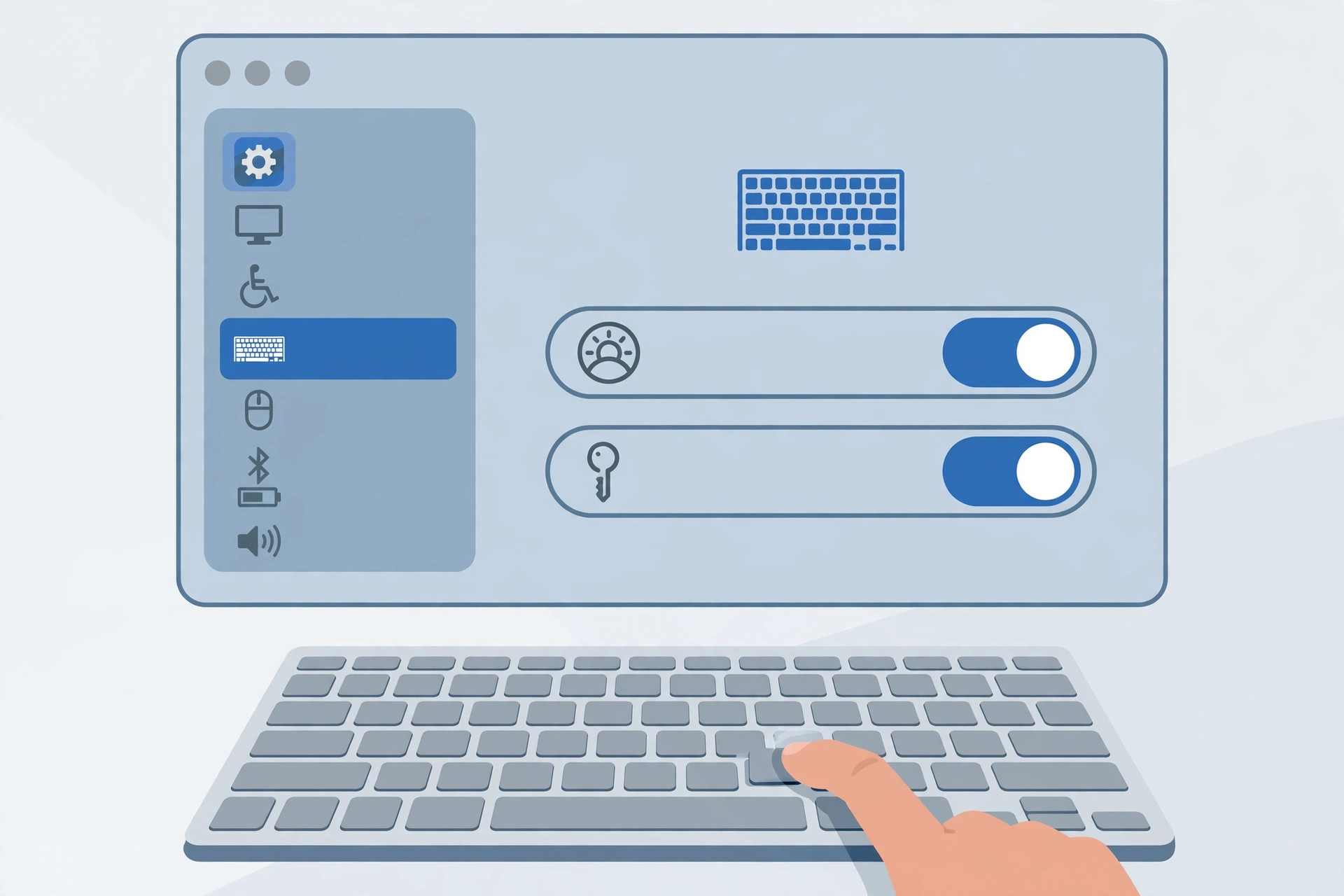
- Open the Keyboard Shortcuts settings. Go to System Settings → Keyboard → Keyboard Shortcuts. Apple Support documents every macOS keyboard shortcut and where each one is configured.
- Check the Input Sources section. In the sidebar, select Input Sources. Find the “Select the previous input source” action and assign it your preferred combination — for many people that is Cmd+Space. Make sure the checkbox next to it is on.
- Check the Spotlight section. Still in Keyboard Shortcuts, select Spotlight in the sidebar. Make sure no Spotlight action uses that same combination — this is the classic duplicate. Change or disable any Spotlight shortcut that collides with your input-switch combo. MacRumors has long threads from users who hit exactly this double-press behavior after a macOS update.
- Turn off automatic input switching. Go back to System Settings → Keyboard, open the Input Sources tab, and uncheck “Automatically switch to a document’s input source.” This stops macOS from quietly changing layouts behind your back.
- Use Apple’s stock input sources. Prefer Apple’s built-in keyboard layouts over third-party PC-adapted ones, which are more likely to register conflicting shortcuts.
If it still doesn’t work
After cleaning up the duplicates, test the shortcut in a text field — the layout should change on the first press. If an app still misbehaves, restart that app, or log out and back in so every process picks up the new shortcut map. While you are in System Settings, you might also want to open the installed apps list quickly on macOS 26 to check for keyboard utilities you forgot about, or set up an automatic hotspot connection from your iPhone on Mac — both live in the same neighborhood of settings.
FAQ
Why does the layout switch on the second press but not the first?
Because two actions claim the same shortcut. The first press is consumed by the other action — usually Spotlight or a utility — and only the second press reaches the input-source switcher. Removing the duplicate assignment makes the first press work.
Can I just use a different shortcut instead of Cmd+Space?
Yes. In Keyboard Shortcuts → Input Sources you can assign any free combination to “Select the previous input source.” Pick something no other action uses, and the conflict disappears regardless of which keys you choose.
Wrapping up
A keyboard layout that only switches on the second press is not a hardware fault — it is a shortcut conflict. Assign “Select the previous input source” its own combination in Keyboard Shortcuts, clear the duplicate out of Spotlight, and turn off automatic input switching. One press, one layout switch, exactly as it should be.





