

You have probably wondered about this while eyeing that sleek white stylus on your desk: can you use an Apple Pencil on your iPhone? Maybe you even held it near the iPhone’s edge, hoping it would magnetically snap on the way it does with an iPad. It won’t. Here is the full story — what works, what definitely doesn’t, and what to use instead.
The short answer: no iPhone supports Apple Pencil
As of 2026, no iPhone model — not the newest Pro Max, not any older model — supports any Apple Pencil. That includes the original Apple Pencil (Lightning), Apple Pencil (USB-C), Apple Pencil (2nd generation), and Apple Pencil Pro. If you open Bluetooth settings and hold the Pencil nearby, nothing happens, because the pairing handshake only works with compatible iPad hardware.
Why? The Pencil needs a special display digitizer layer that samples the stylus tip at high frequency for pressure and tilt detection. iPhone screens, as good as they are, don’t have that layer — MacRumors and other outlets have long documented that Apple never brought Pencil support to the iPhone, despite years of rumors.
Step 1: Check Apple’s official compatibility list
- Go to Apple Support and search for “Apple Pencil compatibility.”
- You’ll see the list: iPad Pro, iPad Air, iPad mini, and iPad models — zero iPhones.
- Each Pencil generation maps to specific iPads: Pencil Pro works with recent iPad Pro and iPad Air models, the 2nd generation with USB-C-era iPads, and so on.
This is the definitive source — if your device isn’t on that list, no software update or trick will enable support.
Step 2: Don’t waste time trying to pair it
Plugging a 1st-generation Pencil into an iPhone’s port, or double-tapping a 2nd-generation Pencil near the phone, accomplishes nothing. The iPhone will either ignore it or, in the case of the Lightning model, just charge the Pencil without any data handshake. Save yourself the trouble.
Step 3: Use a third-party capacitive stylus instead
- Any generic capacitive stylus (the rubber-tipped kind) works on an iPhone — it mimics your finger.
- You won’t get pressure sensitivity, tilt, or palm rejection, but for tapping, signing documents, or basic sketching it does the job.
- Brush up on touch technique first: our guide to iPad gestures covers habits that translate well to precise iPhone touch work.
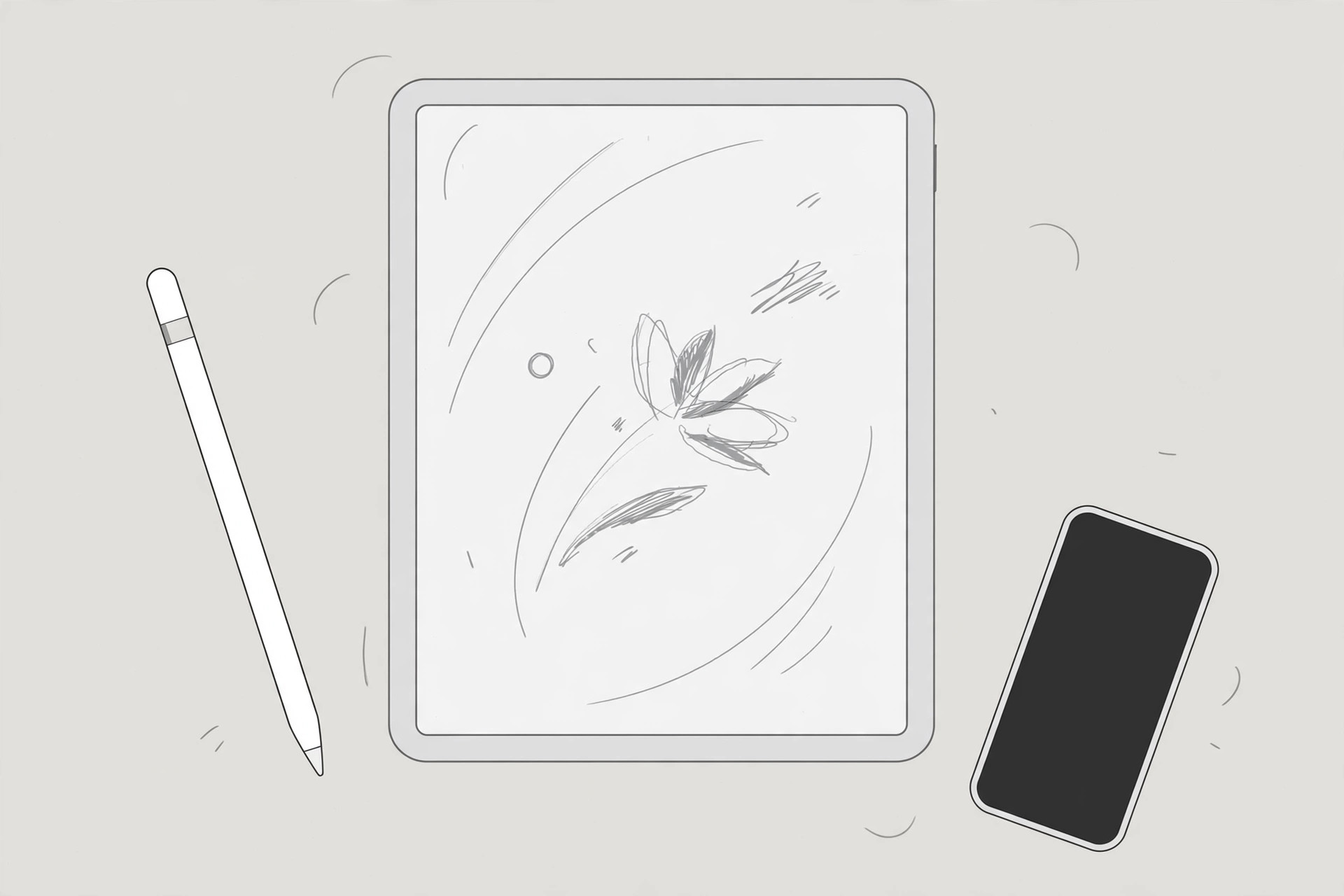
Step 4: Get an iPad if you need the real Pencil experience
If you genuinely need pressure-sensitive drawing or handwriting, the answer is an iPad. Even a base-model iPad supports the USB-C Apple Pencil, and current iPad Air and Pro models pair with Pencil Pro. A 120Hz ProMotion display makes the experience even better — see how to enable 120Hz in Safari on iPad Pro for a taste of what those screens can do. Setting one up for a kid? Guided Access on iPad keeps them locked into the drawing app.
If it still doesn’t work
There is no workaround: no adapter, no jailbreak tweak, and no settings toggle makes an Apple Pencil function as a Pencil on iPhone. The hardware digitizer simply isn’t there. 9to5Mac and AppleInsider have covered this repeatedly — anyone selling a “Pencil for iPhone” adapter is selling a plain capacitive stylus at a markup.
FAQ
Will Apple ever add Apple Pencil support to iPhone?
Apple has never announced it, and the smaller screen plus the cost of the digitizer layer make it unlikely. Check Apple’s YouTube channel for product announcements — if it ever happens, it will be headline news there first.
Can I at least use the Apple Pencil as a basic stylus on iPhone?
No — the Pencil tip only emits a signal that the iPad digitizer can read; it doesn’t register as a capacitive touch at all. A cheap third-party stylus will actually work better on an iPhone than a $129 Apple Pencil.
Conclusion
The Apple Pencil and iPhone are simply not a match: no iPhone has the digitizer hardware the Pencil requires. Use a generic capacitive stylus for casual iPhone input, or step up to an iPad for the full pressure-sensitive experience. Now you can stop tapping that white stick against your phone.





