

If you have ever swiped an email in the iPhone’s Mail app expecting it to disappear, only to find it later sitting in your Archive, you are not alone. By default, a left swipe on a message archives it rather than deleting it. The good news is that one small account setting flips this behaviour, so a single swipe sends emails straight to the trash.
Why swipes archive instead of delete
The confusion comes from the fact that the swipe itself is only half of the story. A swipe in the Mail app does not directly “delete” or “archive” — it triggers the “discard” action, and each mail account decides where discarded messages go. Most accounts ship with that destination set to Archive. So the fix is not in the swipe settings at all: it is a per-account mailbox setting. As 9to5Mac has noted over the years, this trips up plenty of iPhone owners, because the setting that controls it is buried a few taps deep.
Step 1: Open your mail account settings
- Open the Settings app and tap Mail, then Accounts.
- Tap the email account you want to change — Gmail, iCloud, or whichever one you swipe through most.
- Open the account’s settings. On most accounts you will find an Advanced section at the bottom of the account page; that is where the mailbox behaviours live.
One quick note: older guides point you to Settings → Passwords & Accounts. That path is outdated — Mail → Accounts is the modern route, and Apple Support documents the current Mail settings there.
Step 2: Tell the account to use the trash
- Inside the account settings, look for “Move discarded messages into” (on some accounts it appears under “Mailbox Behaviours”).
- Change it from Archive to Deleted or Trash.
- Go back to save the change — there is no extra confirmation step. From now on, swiping left on any message in this account sends it straight to the trash.
While you are tidying up the Mail app, you may also want to silence its sounds: our guide on how to turn off the sent-mail sound in the iPhone Mail app walks through that in a minute.
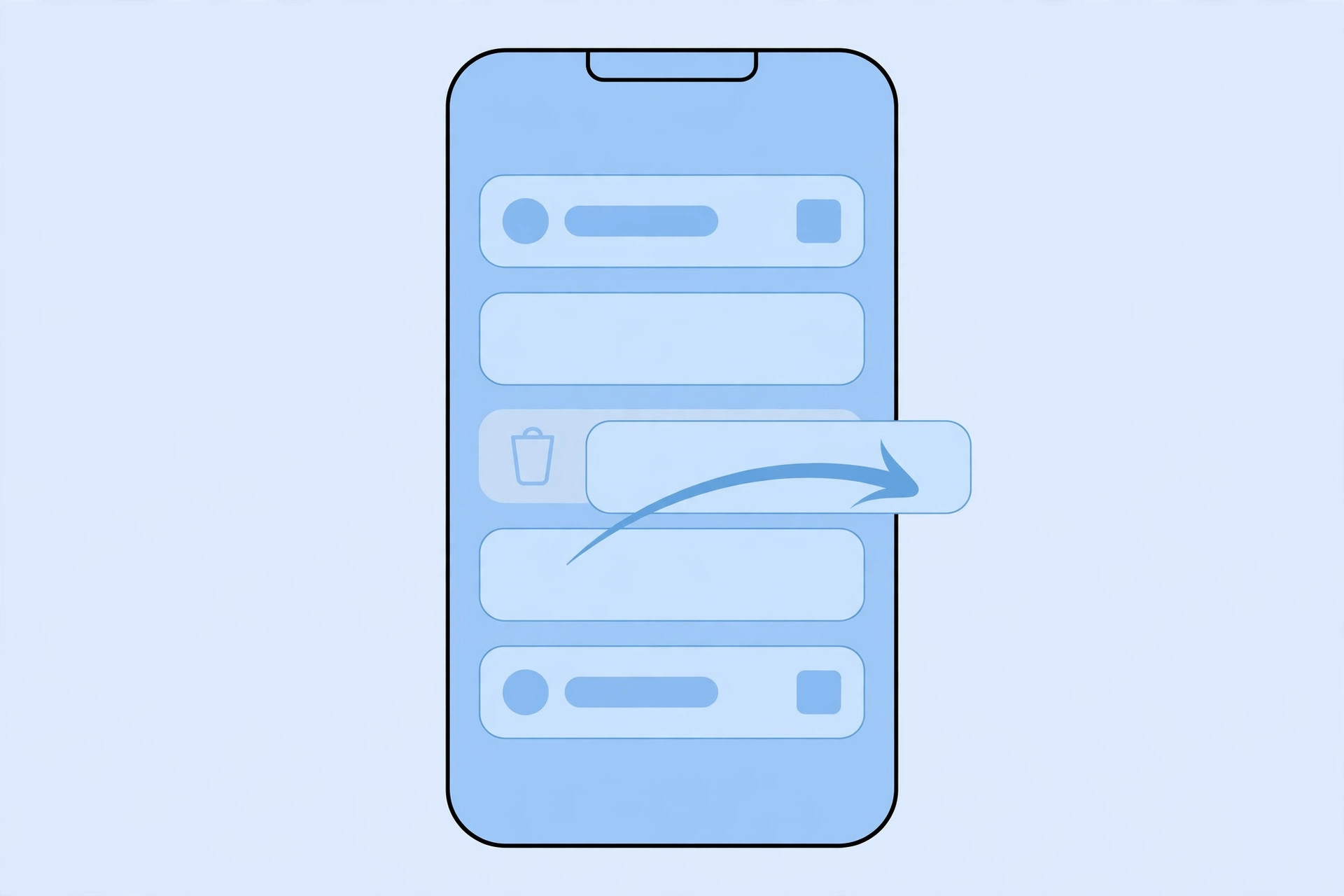
Step 3 (optional): Customise what each swipe does
If you want finer control, open Settings → Mail → Swipe Options. There you can assign different actions to the left swipe and the right swipe — for instance, delete on the left and mark-as-read on the right. This is purely a preference: the account setting from Step 2 is what decides whether “discard” means delete or archive.
If it still doesn’t work
If swipes still archive after the change, double-check that you edited the right account — the setting is per-account, so a Gmail change will not affect your iCloud mailbox. Some providers also have their own server-side archive setting (Gmail’s web settings, for example), so make sure those agree. Finally, force-quit the Mail app and reopen it so the new behaviour takes effect everywhere.
Frequently asked questions
Will this delete emails I already archived?
No. The setting only affects future swipes. Messages you already archived stay in the Archive (or All Mail) folder until you move or delete them yourself.
Can I switch back to archiving with a swipe?
Yes — the change is fully reversible. Go back to the same “Move discarded messages into” setting and choose Archive again. And if inbox noise is the real problem, you might prefer to mute mail notifications for specific contacts on macOS instead of deleting everything.
Conclusion
Deleting emails with a single swipe on iPhone takes less than a minute: open Settings → Mail → Accounts, pick the account, and switch “Move discarded messages into” from Archive to Trash. Pair that with customised swipe actions and your inbox triage gets noticeably faster.





