
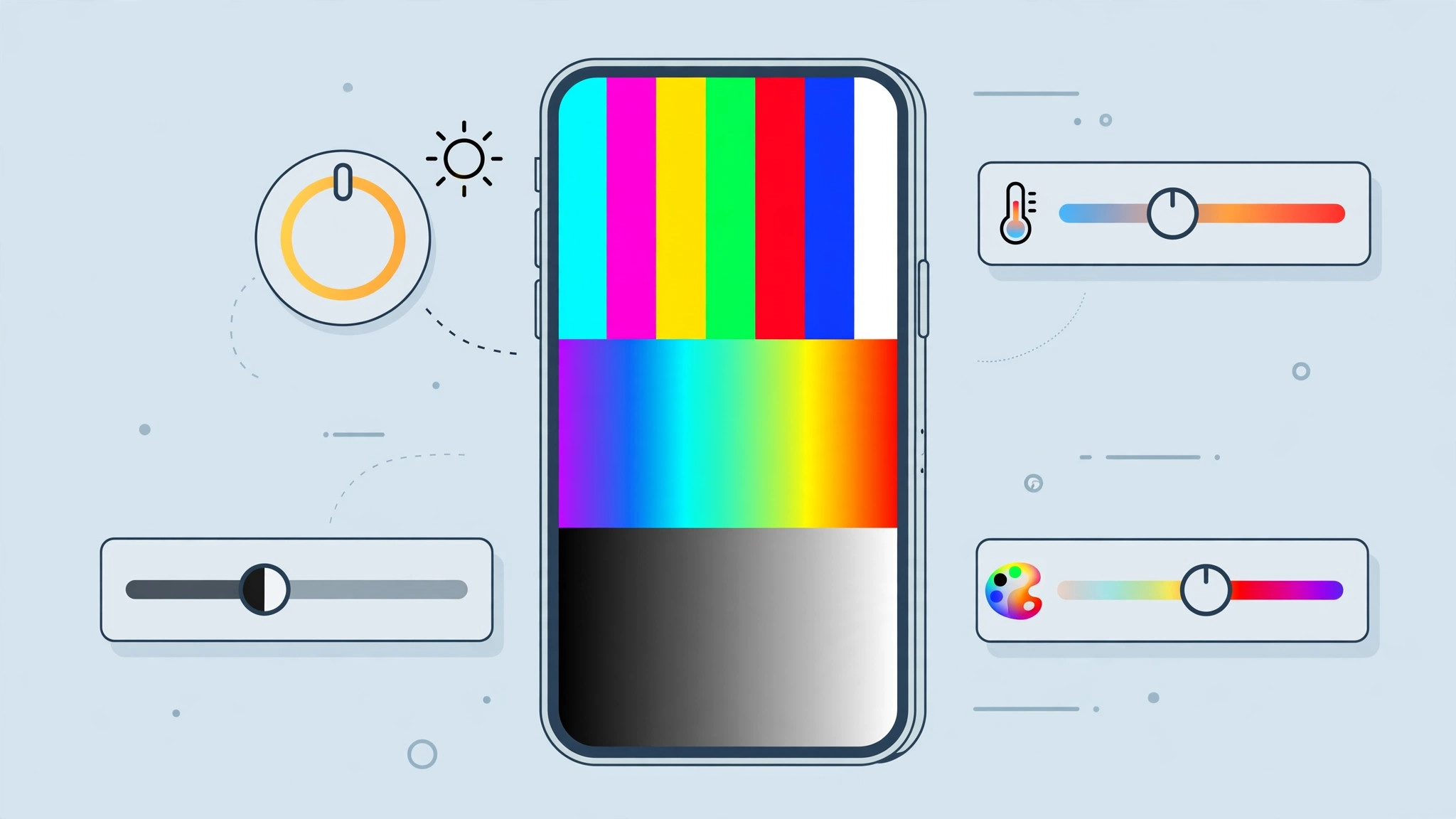
A yellowish cast over everything, a screen that suddenly turned black and white, or a red tint that was not there yesterday — iPhone screen color problems look alarming, but they are almost never a hardware fault. In nearly every case, an accessibility setting got toggled — sometimes by a curious child, sometimes by your own pocket. Here is how to fix it in minutes.
How to fix iPhone screen color, step by step
- Turn off Color Filters. This is the culprit behind red, blue, green, and grayscale tints. Open Settings → Accessibility → Display & Text Size → Color Filters and make sure the toggle is off. If it was on, note which filter was active — Grayscale, Red/Green, or one of the tint options — because the Intensity and Hue sliders on that screen shaped the exact cast. Apple Support’s iPhone display guides document the same screen.
- Turn off Night Shift for a yellow screen. A warm, yellowish cast — especially one that appears in the evening — is usually Night Shift. Go to Settings → Display & Brightness → Night Shift and switch it off, or at least check it is not on a schedule. A screen that looks normal at noon and yellow at 9 p.m. is Night Shift doing its job a little too enthusiastically — much like iPhone screen brightness changing by itself on a forgotten schedule.
- Switch off the other Display & Text Size toggles. While you are in Settings → Accessibility → Display & Text Size, confirm these are all off: Increase Contrast, Differentiate Without Color, Smart Invert, Classic Invert, and Reduce White Point. Any one of them can wash out or invert your colors. (Reduce Transparency — the toggle used to turn off the Liquid Glass effect in iOS 26 — only affects frosted panels, not colors, so it can stay as you like it.)
- Check True Tone. In Settings → Display & Brightness, try toggling True Tone off and back on. It adapts the white balance to ambient light, and a confused ambient-light sensor can leave a persistent warm cast. If the tint vanishes with True Tone off, the sensor — not the screen — was the problem.
- Restart and compare. Display filters can linger in the graphics pipeline until a reboot, so power the iPhone fully off and back on. Then sanity-check your colors against a known photo — or take a screenshot and view it on another device, since HDR screenshots on iPhone and iPad capture exactly what the display pipeline renders.
If it still doesn’t work
If every toggle above is already off and the tint survives a restart, use Settings → General → Transfer or Reset iPhone → Reset → Reset All Settings — it returns every system toggle to defaults without touching your data. Genuine hardware failure looks different: discoloration in bands or patches that no setting changes. A uniform tint is software; a patchy one is hardware — the same distinction AppleInsider and 9to5Mac repair guides draw before recommending a service visit.
Frequently asked questions
Why did my iPhone screen suddenly turn black and white?
That is the Grayscale color filter, almost always enabled by accident — the classic story is a child tapping through Settings, or the triple-click Side button shortcut firing in a pocket. Switch it off at Settings → Accessibility → Display & Text Size → Color Filters, and if it keeps returning, remove Color Filters from Settings → Accessibility → Accessibility Shortcut.
Can Night Shift make my screen look permanently yellow?
Only if it gets stuck on. Night Shift is meant to warm the display on a schedule, usually sunset to sunrise. If the schedule glitched, the yellow cast stays around the clock — turning Night Shift off in Settings → Display & Brightness clears it instantly.
Conclusion
A strangely colored iPhone screen is rarely broken — it is just misconfigured. Work through Color Filters, Night Shift, and the Display & Text Size toggles before visiting a repair shop, and the problem usually vanishes in under five minutes.





