
You installed the latest macOS update, everything looks shiny — except the brightness keys on your keyboard suddenly do nothing. The screen is stuck at one level, and pressing the sun icons just beeps at you. This is a common post-update annoyance on MacBooks, and it is almost always software, not a dying display. Here is how to track down the culprit.
1. Check whether the update flipped your function-key setting
A macOS update can silently change how the top row of your keyboard behaves. If those keys now act as plain F1–F12 function keys, the brightness symbols printed on them stop working. To check:
- Open System Settings (or System Preferences on older macOS) and go to Keyboard.
- Look for "Use function keys as standard function keys" — on newer macOS the wording varies by model, but the idea is the same.
- If the option is turned on and your keyboard's top row now triggers F-keys instead of the printed symbols, turn it off and test the brightness keys again.
- On a MacBook with a Touch Bar, open the same Keyboard settings and make sure the Touch Bar shows app controls with brightness controls available, then expand the Control Strip to reveal the brightness slider.
For the exact location of these settings on your macOS version, Apple Support documents each layout change as releases roll out.
2. Look for apps that hijack your hotkeys
If the setting is fine, the next suspect is a third-party utility that intercepts key presses before macOS sees them. Keyboard remappers are the usual offenders:
- Open the installed apps list on your Mac and look for BetterTouchTool, Karabiner-Elements, or any other keyboard or macro utility.
- Quit the app completely (not just close its window — right-click its menu-bar icon and choose Quit).
- Press the brightness keys. If they work now, the app was swallowing them — check its settings for a brightness-key mapping, remove it, and restart your Mac.
- Also check System Settings → Login Items for anything that launches at startup and might grab the keys silently.
3. Use a temporary workaround while you fix it
If you need brightness control right now, the free Brightness Slider utility puts a slider in your menu bar that adjusts the display directly, bypassing the keyboard entirely. It is not a fix, but it saves your eyes while you work through the steps above. 9to5Mac has covered several similar menu-bar utilities over the years if you want alternatives.
4. When it is a deeper software glitch
If no remapping app is installed and the keys still refuse to cooperate, the update itself likely corrupted something in the system:
- Restore from a Time Machine backup made before the update. Boot into Recovery, choose Restore from Time Machine, and pick the pre-update snapshot.
- If you have no backup, reinstall macOS: boot into Recovery Mode, choose Reinstall macOS, and let it lay down a clean copy of the system. Your files stay in place, but back them up first anyway.
A clean reinstall resolves the stubborn cases where a driver or preference file from the old system keeps fighting the new one.
If it still doesn't work
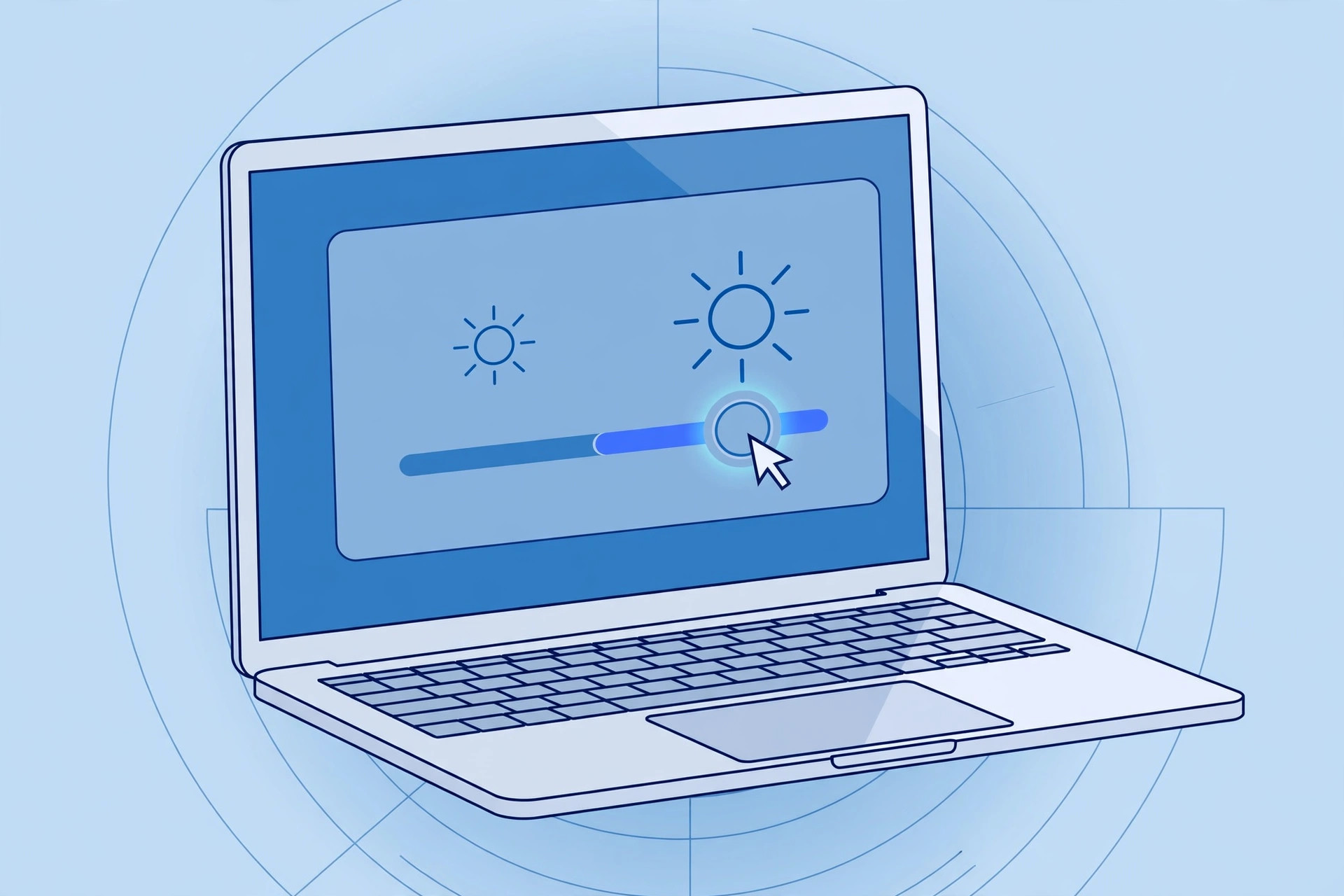
Try an SMC reset on Intel Macs, or simply shut the Mac down fully for a minute rather than restarting on Apple silicon. If brightness is stuck and the screen also flickers or shows lines, that points to hardware — book a Genius Bar appointment, since no software fix will repair a failing backlight.
Frequently asked questions
Why did this happen right after updating macOS?
Updates rewrite keyboard drivers and preference files. If a setting or a third-party extension does not migrate cleanly, key mappings — brightness included — can silently break even though everything else works.
Can I adjust brightness without the keyboard at all?
Yes. Use the brightness slider in Control Center, the Displays section of System Settings, or a menu-bar utility like Brightness Slider. And if you do video calls in dim rooms, our guide to face lighting during video calls on Mac has related display tips.
Conclusion
Start with the function-key setting, then hunt down hotkey-remapping apps, and only reach for a Time Machine restore or clean macOS install if those come up empty. In the vast majority of cases, one of the first two steps brings the brightness keys back to life.





