
Voice Control is handy when your hands are full, but it can drive you up the wall when it launches every time you grip your iPhone a little too long. Whether you’re dealing with the classic version that hijacks the side button or the full accessibility feature with its blue microphone icon, turning it off takes less than a minute. Here’s exactly how.
Step 1: Figure out which Voice Control you have
There are two different features with almost the same name. Classic Voice Control is the older system that starts listening when you press and hold the Home or side button. The newer Voice Control (an accessibility feature) puts a blue microphone icon in the status bar and lets you operate the entire phone by voice. If you also use Siri, our guide on typing to Siri instead of speaking shows another way to keep voice features quiet. The steps below cover both.
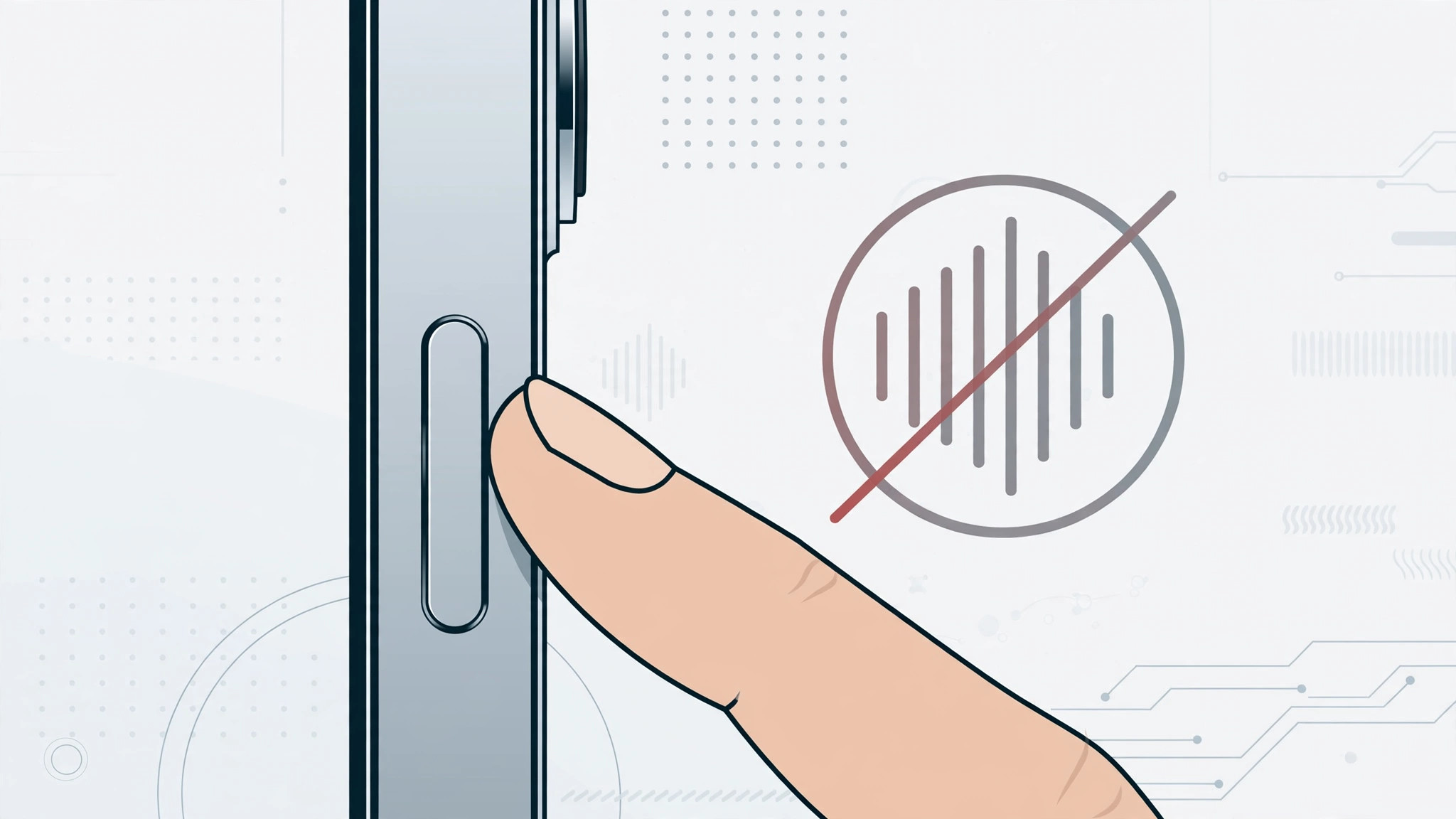
Step 2: Change what the side or Home button does
- Open Settings > Accessibility.
- On iPhones with Face ID, tap Side Button. On iPhones with a Home button, tap Home Button.
- Under “Press and Hold to Speak,” choose Siri or Off. Picking Siri replaces Classic Voice Control with the smarter assistant; Off makes the long-press do nothing at all.
Apple documents this setting in its Apple Support accessibility guides, and outlets like 9to5Mac and MacRumors regularly cover how these button behaviors change between iOS releases.
Step 3: Switch off the accessibility Voice Control feature
- Go to Settings > Accessibility > Voice Control.
- Toggle Voice Control off. The blue microphone icon disappears from the status bar immediately.
- If you rely on voice features elsewhere, note that macOS has its own equivalent — see our guide on controlling macOS with voice commands.
Step 4: Stop voice dialing on the Lock Screen (optional)
- Open Settings > Face ID & Passcode (or Touch ID & Passcode) and enter your passcode.
- Under “Allow Access When Locked,” turn off Voice Dial. This prevents accidental voice dialing from a locked phone — a classic pocket-dial culprit.
- While you’re in Accessibility, Guided Access is worth a look if you want to lock the phone to a single app for kids or kiosk use.
If it still doesn’t work
Restart your iPhone and check Settings > General > Software Update — a stuck Voice Control toggle is occasionally an iOS bug fixed by updates. If Voice Control keeps activating on its own even with everything off, the side or Home button itself may be sticking; try a firm press-and-release a few times, and if it persists, reach out to Apple Support on X or book a repair. The official Apple YouTube channel also posts walkthroughs of accessibility settings after major iOS updates.
FAQ
What’s the difference between Voice Control and Siri?
Classic Voice Control is the older, offline system that mainly handles calls and music. Siri is Apple’s full voice assistant with internet-powered answers and app control. Switching “Press and Hold to Speak” to Siri gives you the better of the two.
Can I turn off Voice Control but keep Siri?
Yes. In Settings > Accessibility > Side Button (or Home Button), set “Press and Hold to Speak” to Siri. That disables Classic Voice Control while keeping Siri available on the long-press.
Conclusion
Turning off Voice Control on iPhone comes down to two toggles: the “Press and Hold to Speak” setting under Accessibility’s Side/Home Button menu, and the Voice Control switch in Accessibility itself. Set both the way you like, and your iPhone will stop listening when you don’t want it to.





