
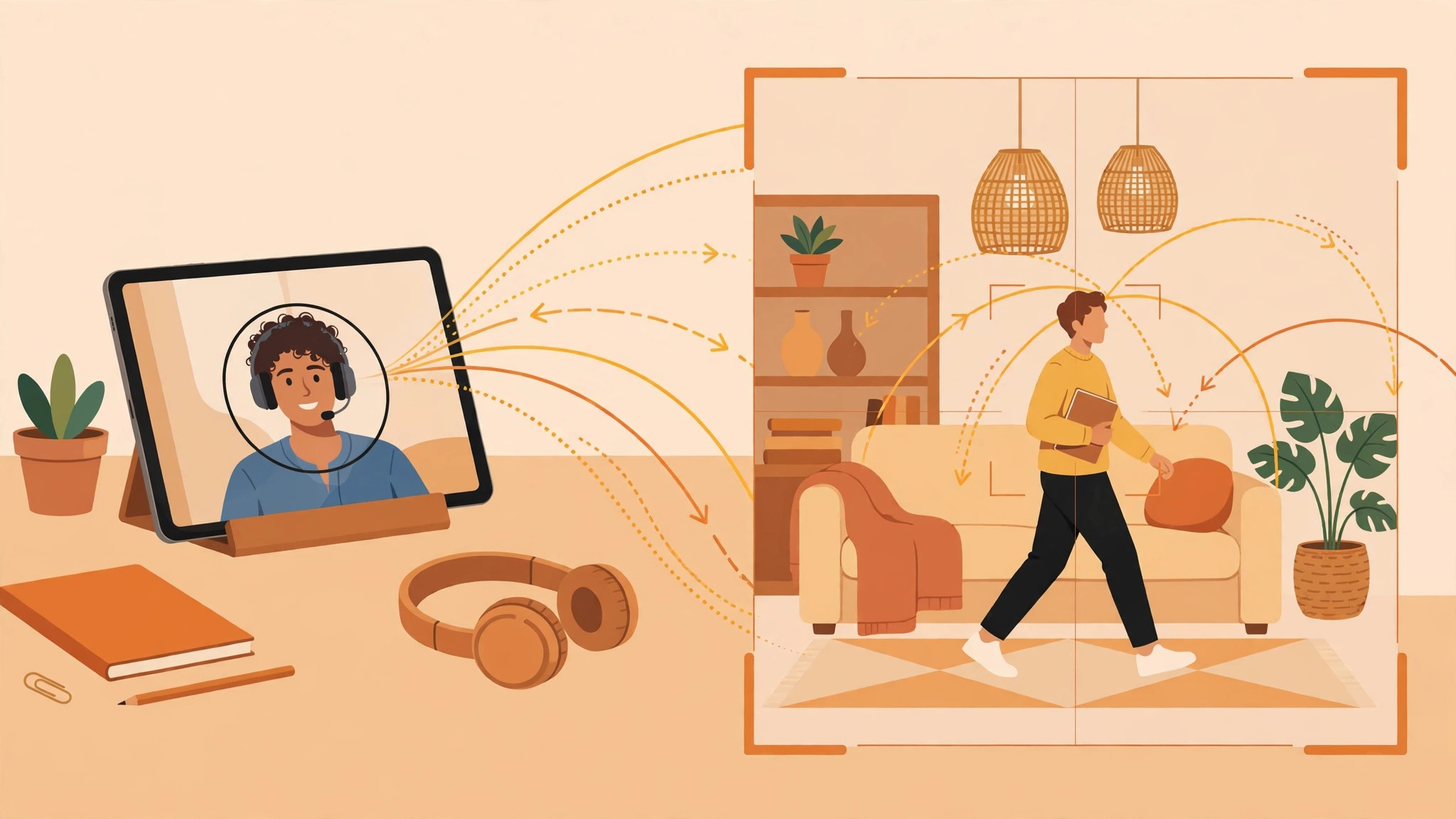
Staying centered on a video call is harder than it sounds. You lean over to grab your coffee, shift in your chair, or pace while you talk — and suddenly you are half out of frame. Apple’s Center Stage feature solves this on the iPad: it uses the ultra-wide front camera to digitally pan and zoom, tracking you automatically so you stay in the shot no matter how much you move.
The toggle takes about five seconds to find once you know where Apple hid it. Here is how to switch it on, which iPads support it, and what to do when the option does not show up.
Check that your iPad supports Center Stage
Center Stage relies on specific hardware — an ultra-wide front camera — and requires iPadOS 15 or later. It is available on these models:
- iPad Pro 11-inch (3rd generation and later) and iPad Pro 12.9-inch (5th generation and later)
- iPad Air (4th generation and later)
- iPad mini (6th generation and later)
- iPad (9th generation and later)
If you are not sure which iPad you own or which software it runs, open Settings > General > About and Settings > General > Software Update. Apple Support maintains the full compatibility list if you want to double-check.
Turn on Center Stage during a video call
There is no global on/off switch in Settings — Center Stage is enabled per call from Control Center. It works in FaceTime and in third-party apps such as Zoom that adopt Apple’s video effects.
- Start or join a video call. Open FaceTime, Zoom, or another supported app and get the call going with your camera on.
- Open Control Center. Swipe down from the top-right corner of the screen.
- Tap the Video Effects tile. Look for the video-camera icon near the top of Control Center.
- Tap Center Stage to enable it. The tile highlights when active, and you will see the camera start tracking you right away.
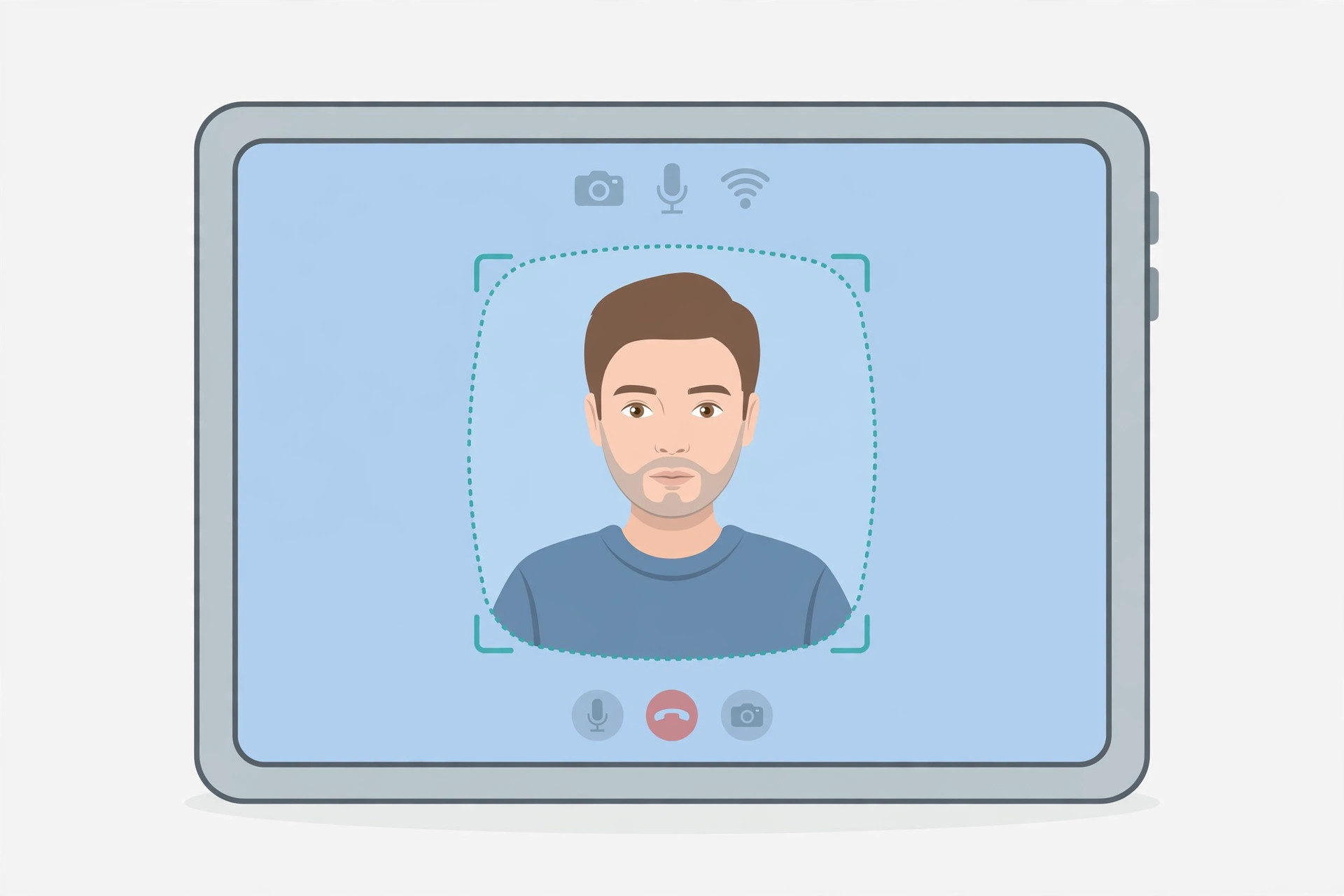
Once it is on, the camera follows you as you move, panning and zooming digitally to keep you framed. If another person walks into view, Center Stage smoothly zooms out so you both fit; when they leave, it tightens back in. MacRumors has praised how naturally the tracking holds up, even in rooms with uneven lighting.
If you enjoy polishing your on-camera setup, our guide on how to enable face lighting during video calls on Mac covers Apple’s studio-style lighting effects for the Mac camera.
Turn Center Stage off again
Not every call needs a roaming camera. To switch tracking off, repeat the same steps: open Control Center mid-call, tap the Video Effects tile, and tap Center Stage so it is no longer highlighted. In FaceTime, you can also toggle it from your own video preview — tap your thumbnail and look for the Center Stage control.
Want to grab a still from the call while you are at it? See our walkthrough on taking HDR screenshots on iPhone and iPad.
If it still doesn’t work
- Update iPadOS. Video Effects need iPadOS 15 or later, and later releases refined the feature — install the newest update available.
- Check the app. Not every video app supports Apple’s video effects. FaceTime always does; for others, make sure the app is updated and advertises Center Stage support.
- Confirm camera permission. Go to Settings > Privacy & Security > Camera and verify the app is allowed to use the camera.
- Rejoin the call. The Video Effects tile sometimes only appears once the camera is actively streaming — hang up and rejoin if the toggle is missing.
On a related note, if your iPhone’s camera keeps launching from the lock screen by accident, here is how to disable the quick camera launch gesture.
Frequently asked questions
Does Center Stage work in Zoom and Teams, or only in FaceTime?
Any video app that adopts Apple’s video effects framework can offer it. FaceTime supports it natively and Zoom added support early; 9to5Mac tracks which third-party apps have picked it up, so check there if your preferred app does not show the toggle.
Does Center Stage drain the battery faster?
Only marginally. The tracking runs on the iPad’s image signal processor, which is built for exactly this kind of workload. On very long calls the iPad may feel slightly warmer, but for normal use the impact is negligible.
The bottom line
Center Stage turns your iPad into a surprisingly capable video-conferencing camera. Swipe into Control Center, tap the Video Effects tile, and switch Center Stage on — after that you can pace, gesture, and reach for your coffee without drifting out of frame. Toggle it off the same way whenever you want a fixed shot.





