
There’s a special kind of annoyance reserved for iPhone owners who delete an old email account, only to have the Mail app keep knocking on its door. Password prompts resurface, and the old address still lurks somewhere in the settings. You deleted it — so why won’t it stay deleted?
The answer is that deleting a mailbox isn’t a single switch. The account can live on in several places on your iPhone at once, and if even one copy survives, Mail will keep trying to connect to it. Here’s what’s going on, and the steps that actually remove it for good.
Why your iPhone still tries to reach a deleted mailbox
There are three usual suspects.
First, the account may still exist under Settings > Mail > Accounts — or under Calendar, Contacts, or Notes. An email account on iPhone is really a bundle of services, and removing the mailbox view in the Mail app doesn’t always remove the underlying account. If the account is still listed anywhere in those settings, iOS will keep logging in to it.
Second, iCloud Keychain can keep resurrecting it. If another device signed in to the same Apple Account — a Mac, an iPad, an older iPhone — still has the account configured, its credentials and account details sync back through iCloud Keychain, and the account reappears on your iPhone.
Third, a configuration profile installed by a workplace, school, or carrier can manage the account. Profiles can reinstall or lock mail settings, which means deleting the account manually won’t stick — the profile puts it right back.
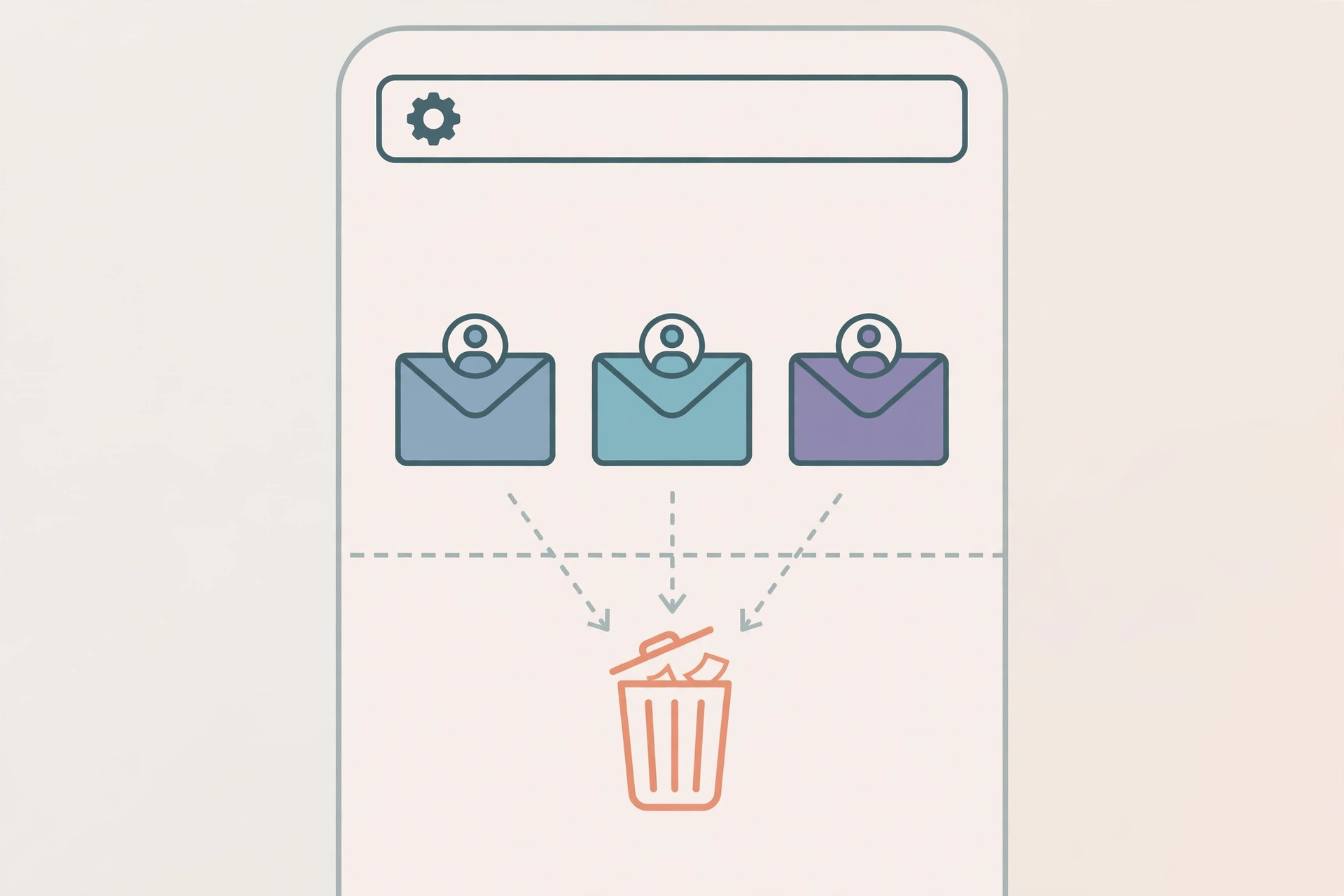
How to stop it for good
- Remove the account from every settings list. Go to Settings > Mail > Accounts and tap each account to confirm the old address is truly gone. Then check Settings > Calendar, Settings > Contacts, and Settings > Notes too — the same account can be enabled separately under each of them.
- Check for configuration profiles. Open Settings > General > VPN & Device Management. If you see a profile related to the old email account — especially a work or school one — you may need to remove it there, or ask the organization’s administrator. A profile can override your manual deletion.
- Delete the saved password. Open Settings > Passwords and search for the old account. Deleting the stored credential stops Mail from attempting to authenticate with the old server. Apple’s guide to adding and removing email accounts on iPhone covers the official steps.
- Break the iCloud Keychain loop. If the account keeps reappearing, check your other devices signed in with the same Apple Account and remove the account there as well. You can also temporarily toggle off iCloud Keychain under Settings > [your name] > iCloud > Passwords — Apple’s iCloud Keychain documentation explains how syncing works across devices.
- Restart your iPhone. After removing the account, its profile, and its credentials, restart the device so the Mail app drops any cached connection attempts. Hold the side button together with either volume button, slide to power off, then turn it back on.
If it still doesn’t work
If the ghost account keeps returning, reset the Mail app’s settings and set up your remaining accounts from scratch. In the meantime, you can mute mail notifications for specific contacts.
Frequently asked questions
Will deleting the account erase my old emails?
With IMAP or Exchange accounts, your messages stay on the provider’s server, so removing the account only deletes the local copy. POP accounts are the exception — mail downloaded with POP may live only on the device, so back up anything important first. See also why deleted emails on iPhone go to Archive instead of Trash.
Why does the password prompt keep popping up for an account I deleted?
Because iOS is still trying to authenticate against the account’s mail server using stale credentials. The prompt disappears once the account — and any profile or keychain entry managing it — is fully removed from every list described above.
The bottom line
An iPhone keeps trying to connect to a deleted mailbox only when some remnant of the account survives: in Mail’s account list, in Calendar or Contacts, in a configuration profile, or in iCloud Keychain on another device. Remove the account everywhere, clear its credentials, and restart — and the phantom login attempts stop for good.





