
Your iPhone keeps restarting on its own — sometimes every few minutes, sometimes in an endless loop that barely lets you use it. This symptom is most famous as the December 2017 iOS 11.1.2 bug, when a notification-triggered SpringBoard crash sent iPhones into reboot loops, but the same fix ladder works for restart loops of any cause. Here’s what to do, in order.
Why your iPhone keeps rebooting
Restart loops usually come from software: a buggy iOS build, a crashing background process, or corrupted system data. In December 2017, a date-related bug in iOS 11.1.2 made third-party notifications crash SpringBoard over and over — Apple shipped an emergency fix in iOS 11.2. That history is useful because it points to the number-one cure: updating iOS.
How to fix the restart loop
- Update iOS — this is the definitive fix. Go to Settings > General > Software Update and install the latest version. Most reboot loops are caused by bugs Apple has already patched, so a fresh update ends the loop for good.
- If the phone won’t stay on long enough to update: calm the notification storm. Go to Settings > Notifications and turn off “Allow Notifications” for third-party apps, then go to Settings > General > Background App Refresh and switch it off. With fewer background triggers firing, the phone often stays alive long enough to install the update. For context on what changed in that era, 9to5Mac’s coverage of the December 2017 fix explains the notification trigger behind the original loop.
- Use the manual-date stopgap. Go to Settings > General > Date & Time, turn off “Set Automatically,” and set the date back to before the problem appeared. This was the go-to workaround during the 2017 bug and can still break a loop long enough to back up your data and update. Remember to turn automatic date back on afterward.
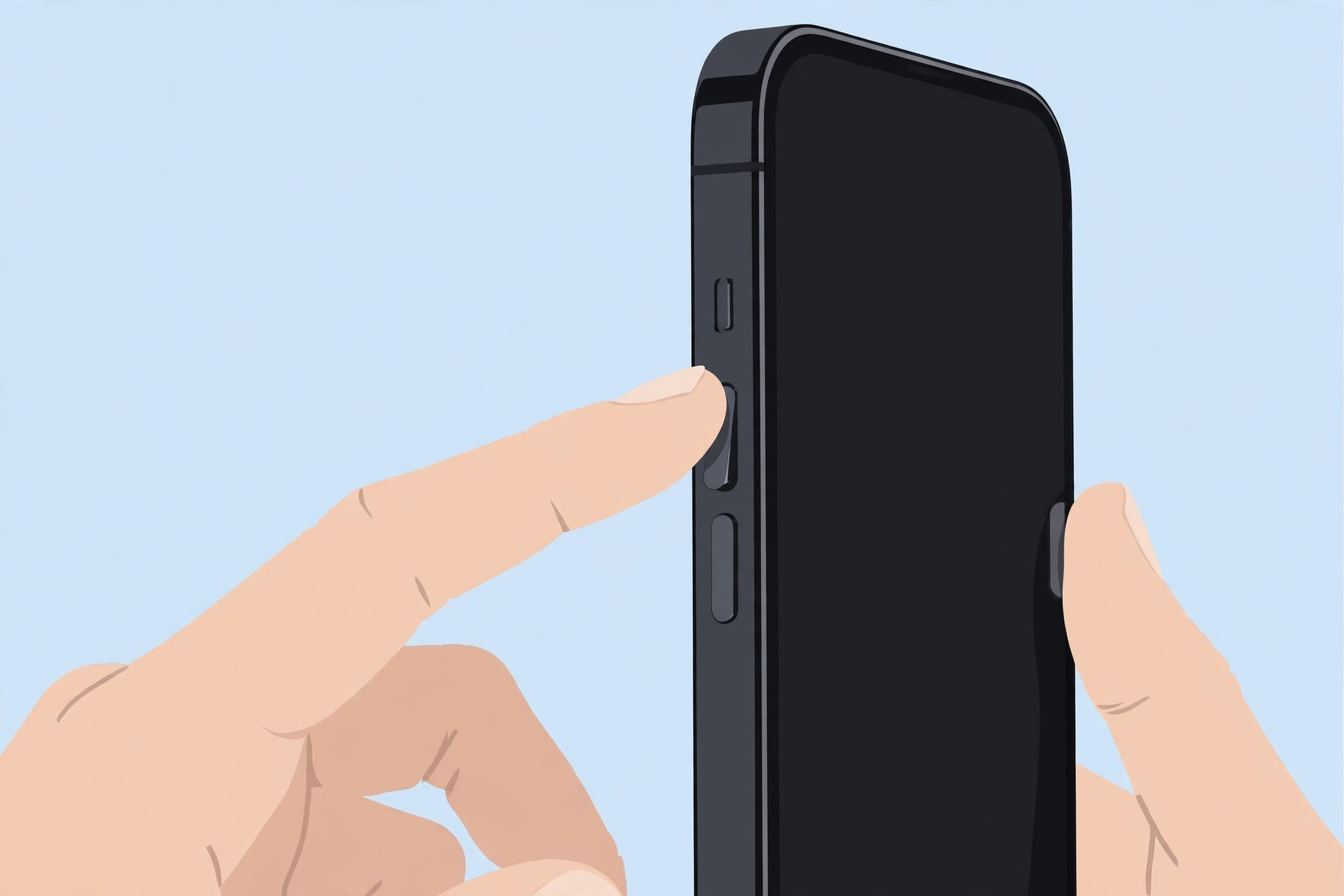
- Force-restart your iPhone. Apple’s force-restart guide covers every model: on iPhone 8 and later, press volume up, then volume down, then hold the side button; on iPhone 7, hold volume down and the side button; on iPhone 6s and earlier, hold the home and sleep/wake buttons together. This clears corrupted in-memory state without touching your data.
- Restore iOS via a computer as a last resort. If the loop survives all of the above, connect the iPhone to a Mac or PC, enter recovery mode, and restore iOS. Back up first if you can — a restore wipes the phone. If you’re cautious about updates in general, our guide on blocking iOS updates on iPhone explains how to control when they install — and on the lighter side, you can even change the iPhone startup sound once it’s booting reliably again.
If it still doesn’t work
If the iPhone keeps rebooting after a restore — or won’t enter recovery mode at all — the cause may be hardware, such as a failing battery or logic board. Take it to Apple Support or an authorized service provider, and note when the reboots happen (during charging, inside specific apps) to speed up diagnosis.
Frequently asked questions
Will updating iOS delete my data?
No. A standard software update keeps your data intact. Only a full restore wipes the phone — which is why the last step above says to back up first.
Why did the reboots start on a specific date?
Some reboot loops are triggered by scheduled notifications or date-dependent bugs, which is why the 2017 bug exploded on December 2. Setting the date back manually is a proven way to break that cycle.
Conclusion
An iPhone stuck in a reboot loop feels alarming, but the fix ladder is straightforward: update iOS, quiet notifications and background refresh, use the date stopgap if needed, force-restart, and restore only as a last resort. Work through the steps in order, and your iPhone will be booting cleanly again.





