
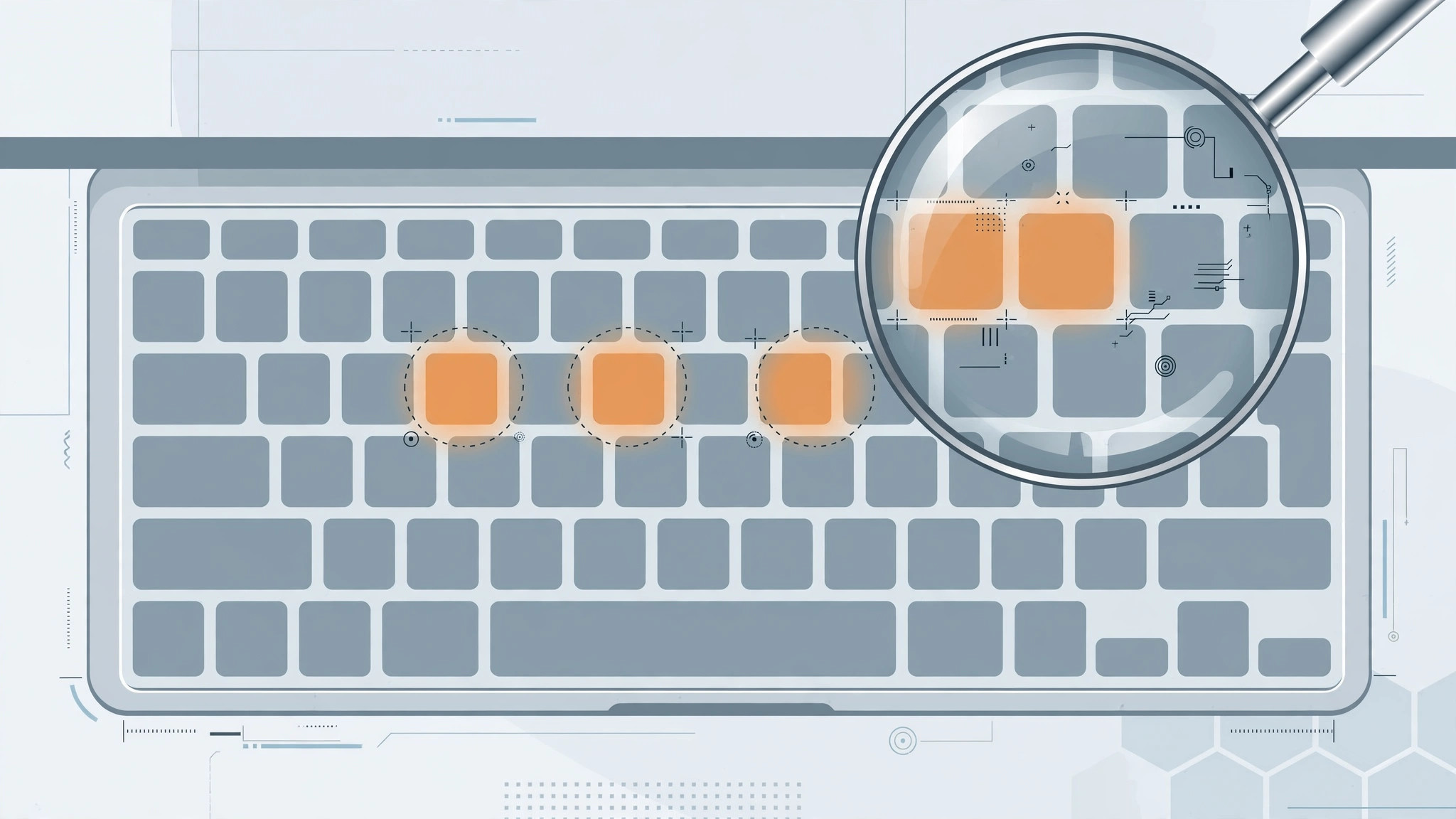
A few dead keys can make your MacBook miserable to use — but before you assume the keyboard is broken, know this: most “some keys don’t work” cases are software. A hijacked accessibility setting or a third-party app can silently disable keys, and those take minutes to fix.
Work through the steps below from easiest to hardest — software first, hardware last.
1. Restart the Mac
It sounds trivial, but a restart clears transient software states that can swallow keystrokes. Restart first; if the keys come back, you’re done.
2. Check Accessibility settings that hijack keys
Two macOS features can silently change how keys behave. Open System Settings → Accessibility → Keyboard and make sure Slow Keys is off — it makes the Mac ignore quick presses. Then go to Accessibility → Pointer Control and turn off Mouse Keys, which repurposes part of the keyboard as a mouse. Either one can make perfectly good keys appear dead. Apple Support‘s “If your Mac keyboard isn’t working” guide lists these settings first for a reason.
3. Verify the keyboard input source
If certain keys type the wrong characters — or nothing at all — check System Settings → Keyboard → Text Input and confirm the correct layout is selected. A mismatched layout (say, British instead of US) changes what several keys type. Remove layouts you don’t use so macOS can’t switch to them by accident.
4. Disable third-party keyboard apps
Key remappers, shortcut helpers, and macro tools sit between your presses and macOS. Quit or uninstall them one by one and retest after each. If the keys work with an app closed, you’ve found the culprit — check its settings or look for an update. Our guide to quickly opening the installed apps list on macOS 26 makes rounding up suspects fast.
5. Boot into Safe Mode
Safe Mode loads macOS without third-party extensions. If the dead keys work in Safe Mode, a third-party app or driver is interfering — remove recently installed software and retest in normal mode. 9to5Mac has a good walkthrough of Safe Mode on Apple silicon and Intel Macs alike.
6. Clean the keyboard
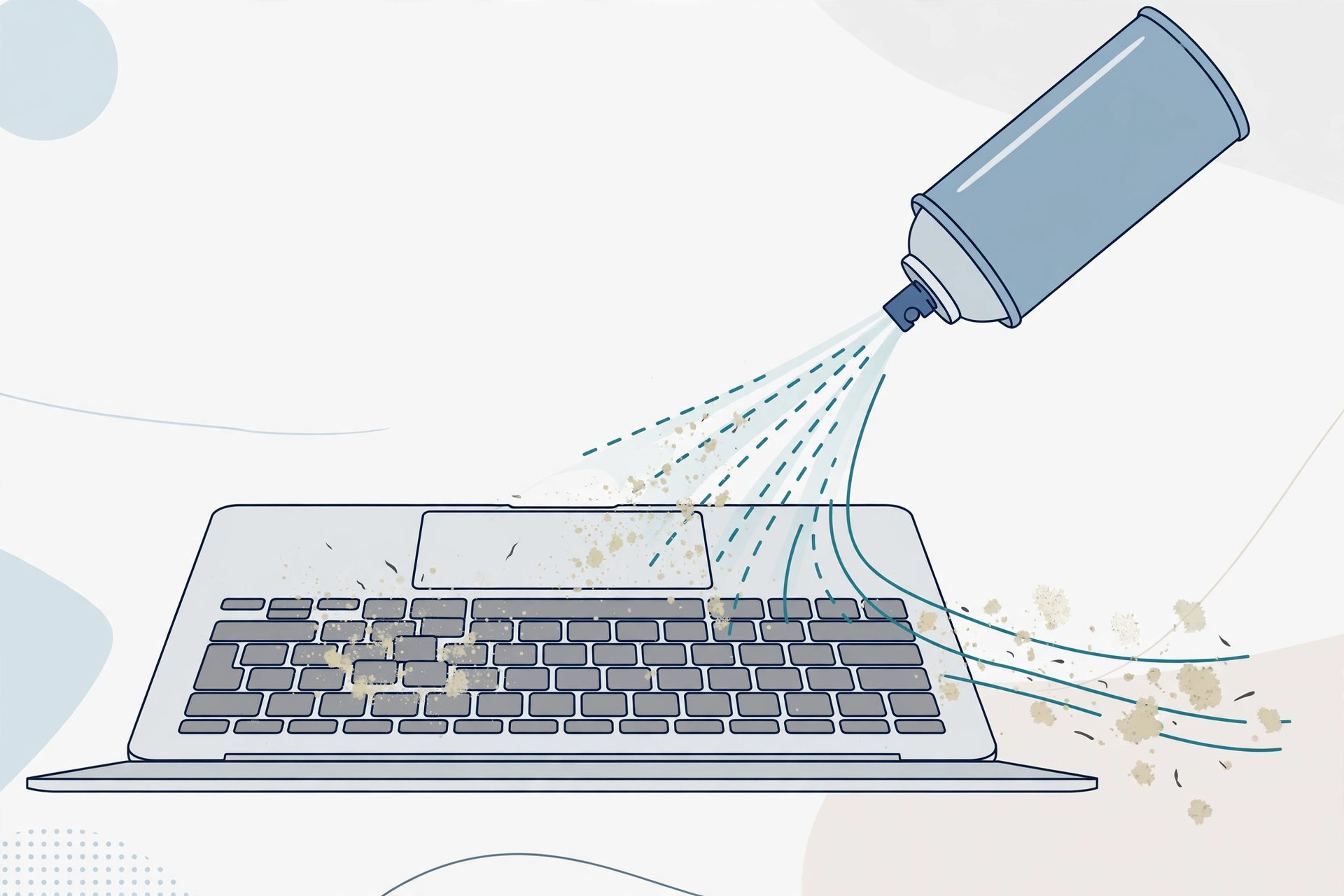
Crumbs and dust under keys are the classic hardware cause. Shut down the MacBook, angle it at about 75 degrees, and blow compressed air in short bursts across the keys, left to right. iFixit‘s keyboard cleaning guides show the technique that avoids pushing debris deeper.
7. Test with an external keyboard
Plug in a USB keyboard. If the same keys fail on both keyboards, the problem is software — revisit steps 1–5. If the external keyboard works fine, the built-in keyboard likely has a hardware fault (liquid damage, ribbon cable, failed keyboard) and needs a service center. Back up your data before you go.
If it still doesn’t work
Specific keys still dead on the built-in keyboard but fine on USB? That’s hardware. Book a service appointment — keyboard replacements can involve the top case, so back up first. While the MacBook is away, you can still take calls from another device — and when you’re back, here’s how to enable face lighting during video calls on Mac.
FAQ
Some keys died right after I spilled something — what now?
Turn the Mac off immediately, don’t try to dry it with heat, and take it to a service center. Liquid damage spreads and corrodes, so speed matters more than any home remedy.
Can I remap a dead key to another key as a workaround?
Yes — tools like Karabiner-Elements can remap keys, which is handy while you wait for a repair. It won’t fix the underlying fault, but it keeps you typing.
Conclusion
Work the list in order: restart, Accessibility settings, input source, third-party apps, Safe Mode, cleaning, then the external-keyboard test. Most cases resolve in the software half — and when they don’t, the USB test tells you it’s time for the service center.





