
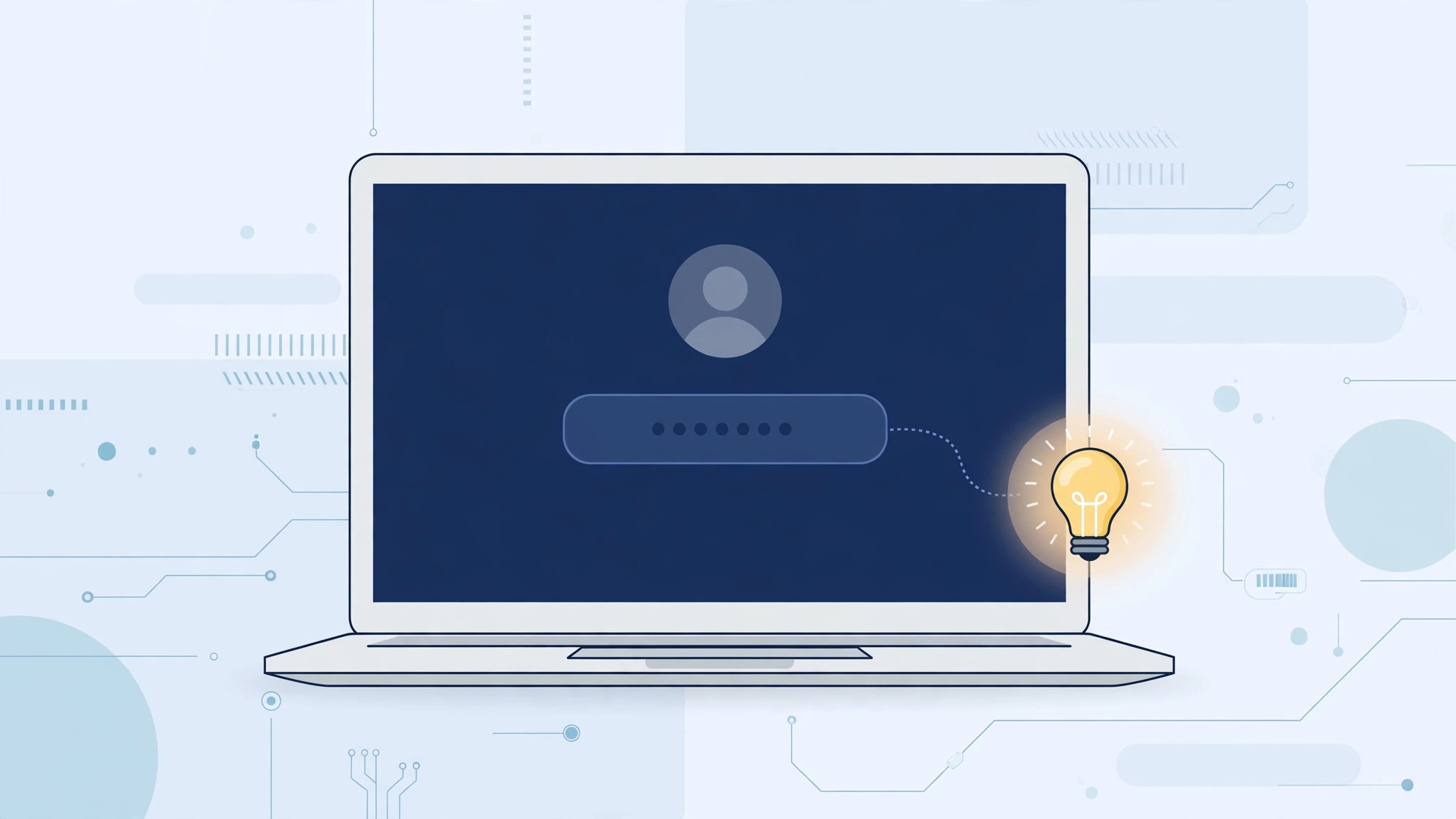
Forgetting your Mac login password is stressful enough without staring at a login screen that offers no help at all. macOS lets you attach a password hint to your user account — a short reminder that appears on the login and lock screens when you need it most. There is just one catch that trips up almost everyone: creating the hint is only half the job.
By default, macOS keeps the hint display switched off. You can type the most brilliant reminder in the world, but it will never appear on the login screen until you flip a second switch in the Lock Screen settings. This tutorial walks you through both steps so your hint actually shows up when it matters.
Step 1: Create the password hint in Users & Groups
Your hint lives with your user account settings:
- Open System Settings (Apple menu > System Settings).
- Go to Users & Groups in the sidebar.
- Click the Info button next to your user account. You may need to authenticate with your password or Touch ID.
- Choose Change Password.
- In the Hint field, type a reminder that will jog your memory — for example, a reference to a favorite book or a childhood street, not anything resembling the password itself.
- Save the new password settings.
One important security rule: never make the hint the password itself, or something a stranger could guess from your social media. A good hint is a personal memory trigger that only makes sense to you. Apple covers the basics in its guide to adding a password hint on Mac.
Step 2: Allow hints to appear on the Lock Screen
This is the step most people miss. Creating the hint does not automatically display it:
- Open System Settings again.
- Go to Lock Screen in the sidebar.
- Turn on Show password hints.
That is it. The next time the login or lock screen appears, your hint will be available — typically shown after a failed login attempt, next to the password field. If you ever get fully locked out, Apple explains the recovery options in its article about what to do when you forgot your Mac login password.
If it still doesn’t work
If the hint still does not appear, double-check both halves of the setup: the hint text in Users & Groups and the "Show password hints" toggle in Lock Screen settings. Make sure you are looking at the right user account, because hints are stored per user. If the setting seems stuck, restart your Mac. Note that on Macs managed by an employer or school, an administrator profile may have disabled password hints entirely.
Frequently asked questions
I set a hint, but I don’t see it on the login screen. Why?
Because macOS hides hints by default. Typing the hint is not enough — you must also enable "Show password hints" in System Settings > Lock Screen. Both steps are required.
Is it safe to use a password hint?
Yes, as long as the hint does not give the password away. Use a personal memory trigger that only makes sense to you, and never write the actual password in the hint field.
Conclusion
A password hint is a small safety net that costs thirty seconds to set up — as long as you remember both halves of the setup. Create the hint in Users & Groups, enable its display in the Lock Screen settings, and you will never face a blank login screen again. While you are in System Settings, you might also like to learn how to quickly open the installed apps list on macOS 26 or mute Mail notifications for specific contacts in macOS.





