

Sold your old iPhone, handed it down to a family member, or traded it in — and only later realized you never signed out of your Apple ID? It happens more often than you’d think. The good news is you don’t need the phone in your hands to fix it. You can remove it from your Apple ID remotely, in under a minute, without ever sharing your password.
Why unlinking matters
As long as an iPhone stays on your Apple ID, the new owner can be blocked by Activation Lock when they try to set it up — Apple Support lists removing the device from your account as the fix. Your messages, contacts and iCloud data can also stay connected to the handset. MacRumors recommends unlinking as standard practice before selling or giving away any Apple product.
Step 1: Unlink from another Apple device
The fastest way uses any other device already signed in with your Apple ID:
- Open Settings on a second iPhone, iPad or Mac and tap your name (account) at the top.
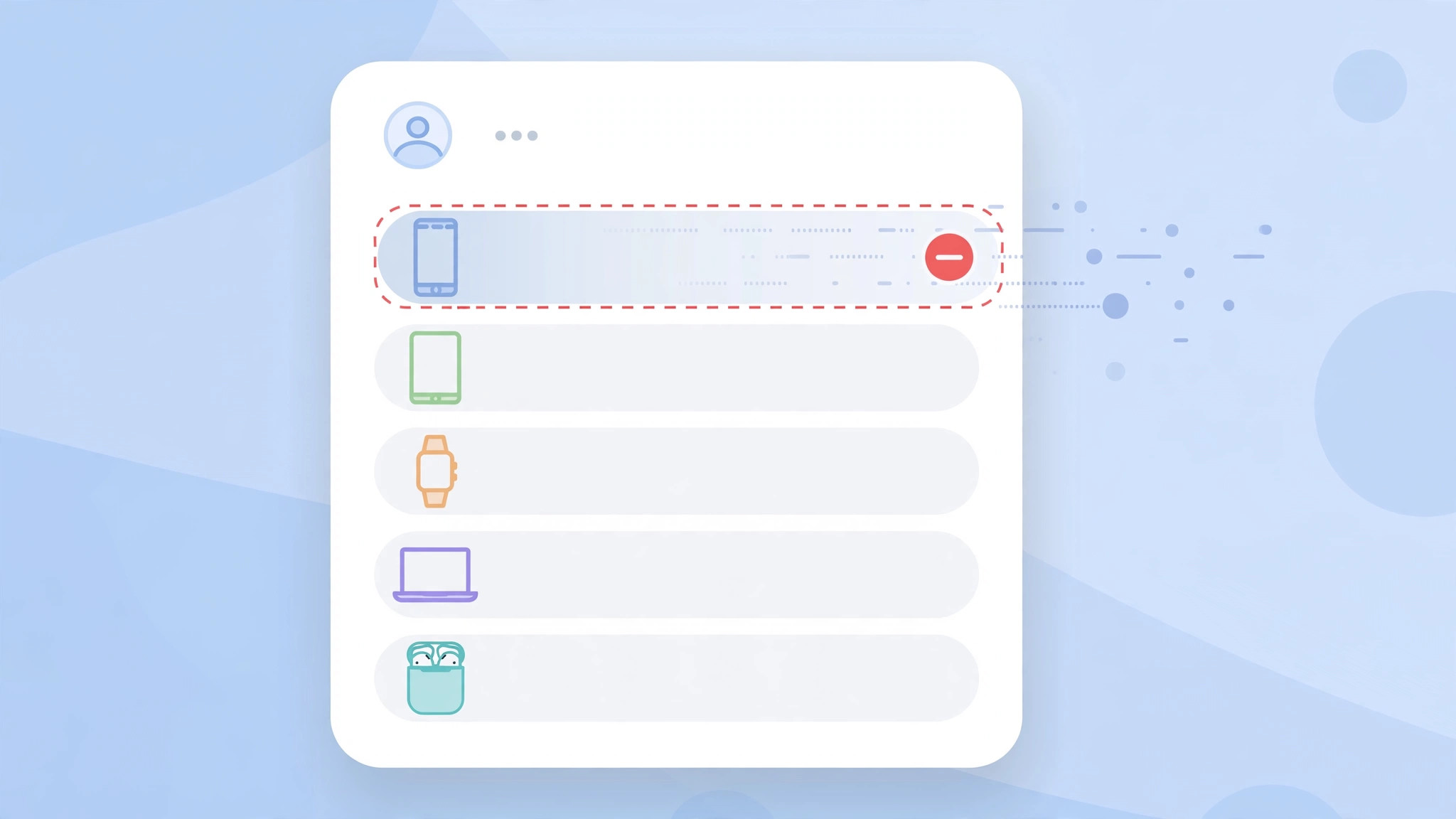
- Scroll down — you’ll see every device on your Apple ID.
- Tap the iPhone you want to unlink.
- Tap “Remove from account” and confirm.
That’s it. The phone is no longer tied to your account, and the new owner can set it up freely — whether it’s sitting in a drawer or across the country.
Step 2: Unlink from a web browser
No spare Apple device handy? Any browser will do:
- Sign in at Apple’s account site (account.apple.com) with your Apple ID.
- Open the Devices section.
- Select the iPhone and choose Remove.
- If two-factor authentication asks for a code, you’ll need one of your own trusted devices nearby to approve the sign-in — 9to5Mac has a handy walkthrough of how Apple’s two-factor flow works.
Don’t skip: erase it and clear Find My
Unlinking breaks the account connection, but for real safety make sure the phone’s data is gone too. If the iPhone is still online and visible in Find My, erase it remotely first, then remove it from the account. If you wiped it before handing it over, the unlink step above is all you need.
If it still doesn’t work
If the iPhone doesn’t appear in your device list, it may already have been removed — or it was signed out during the handover. Double-check you’re signed in with the right Apple ID; many people have an older account they forgot about. If the phone’s number is also changing hands, it’s worth reading our guide on how to verify your SIM card to avoid the cooling-off period so verification texts keep working. And if the device will stay in the family for a while, our guide on how to completely block iOS 26 updates on iPhone can keep it on a stable version.
Frequently asked questions
Can I unlink an iPhone if I don’t have any of my own Apple devices?
Yes — the browser method works from any computer or phone. You only need your Apple ID credentials. Never hand your password to the new owner as a shortcut; unlinking plus a clean setup is the safe path.
Does removing a device from my Apple ID erase anything?
No. Removing breaks the link between the device and your account; it doesn’t delete anything on the phone or in iCloud. To wipe the handset’s storage too, erase it in Find My first.
Conclusion
Selling or giving away an iPhone without signing out isn’t ideal, but it’s fixable in minutes from anywhere. Open the device list on any trusted device or in a browser, tap “Remove from account,” and the phone is no longer yours to worry about. No password sharing, no drama — a clean break for both sides.





