
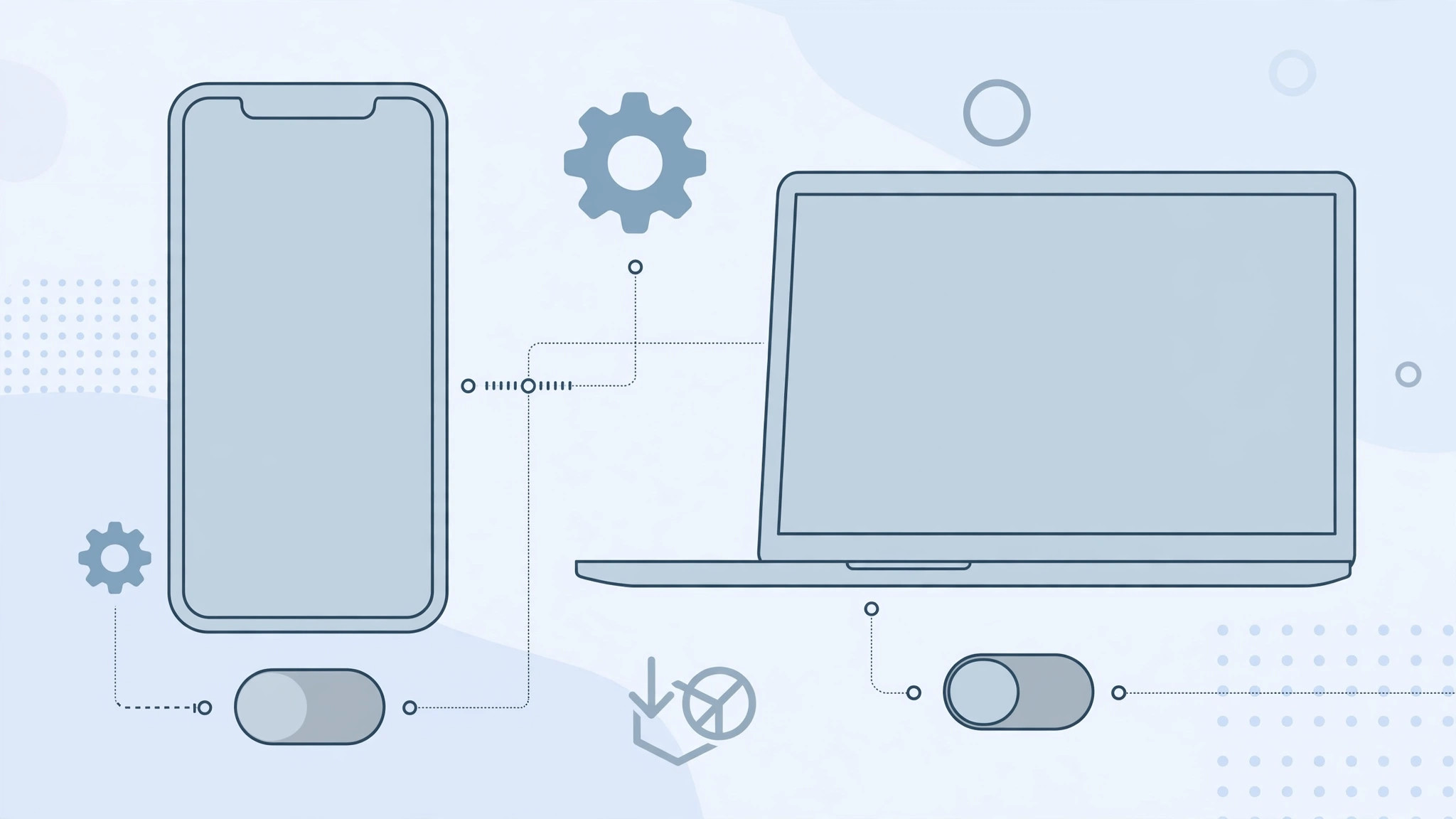
Joining Apple’s public beta program is exciting at first — you get to try the next iOS or macOS months before everyone else. But the thrill wears off when the bugs, app crashes, heavier battery drain, and constant update prompts start getting in the way of your daily work. Fortunately, leaving the beta track is quick and you don’t lose any data in the process. Here is how to stop receiving public betas on both iPhone and Mac.
Turn off beta updates on iPhone and iPad
Apple changed how beta enrollment works in iOS 16.4: instead of installing a configuration profile, beta access is now a simple switch inside Software Update. If your device runs iOS 16.4 or later, this is the path to use.
- Open Settings > General > Software Update and tap Beta Updates.
- Select Off. From now on, your device will only be offered regular public releases.
- When the next stable update appears, install it — that completes your return to official software.
One important detail: turning the switch off does not downgrade you. Your phone stays on the installed beta build until the next public release ships, which then installs over it normally.
On older iOS versions: remove the beta profile
If your iPhone or iPad runs a version older than iOS 16.4, betas are still delivered through a configuration profile. Go to Settings > General > VPN & Device Management, tap the iOS Beta Software Profile, choose Remove Profile, and restart the device. If your goal is to silence updates altogether rather than just betas, our guide on blocking iOS 26 updates entirely covers that as well.
Turn off beta updates on Mac
- Open System Settings > General > Software Update.
- Next to Beta Updates, click the info (i) button or the row itself and choose Off.
- Install the next public macOS release when it becomes available to finish the move back to stable software.
While you are tidying up the Mac, you might also like our shortcut for quickly opening the installed apps list in macOS 26 to remove any beta-era utilities you no longer need.
Leave the Apple Beta Software Program entirely
Switching Beta Updates off stops the downloads, but your Apple Account remains enrolled in the program. To cut ties completely:
- In a browser, open beta.apple.com and sign in with your Apple Account.
- Open the unenrollment section, scroll to the bottom of the page, click Leave the Apple Beta Software Program, and confirm your choice.
Apple’s documentation on unenrolling from the Beta Software Program walks through the same steps, and 9to5Mac regularly covers what changes between beta and public releases if you ever decide to rejoin.
If it still doesn’t work
If beta updates keep appearing after you opted out, check the setting on every device signed in with the same Apple Account — one enrolled device does not affect the others. And remember that no setting can roll a newer beta back to an older public release: until the next stable version ships, your device simply has nothing newer to install, so nothing will be offered.
FAQ
Will opting out erase my data or downgrade my device?
No. Turning off Beta Updates changes nothing on your device — you keep all your data and stay on the current beta build until the next public release installs over it. The only way to leave a beta sooner is to erase the device and restore it, which is exactly why waiting is the easier route.
Can I restore a backup made on a beta after going back to stable?
Only if the stable version is newer than the beta the backup was made on. Backups created on a beta cannot be restored onto an older public release, so keep that in mind before you opt out in the middle of a beta cycle.
Conclusion
Leaving Apple’s public betas takes less than a minute per device: flip Beta Updates to Off in Software Update, remove any old beta profile on legacy devices, and optionally unenroll your Apple Account at beta.apple.com. Then just install the next public release when it lands and you are back on the stable track — no data loss, no drama.





