
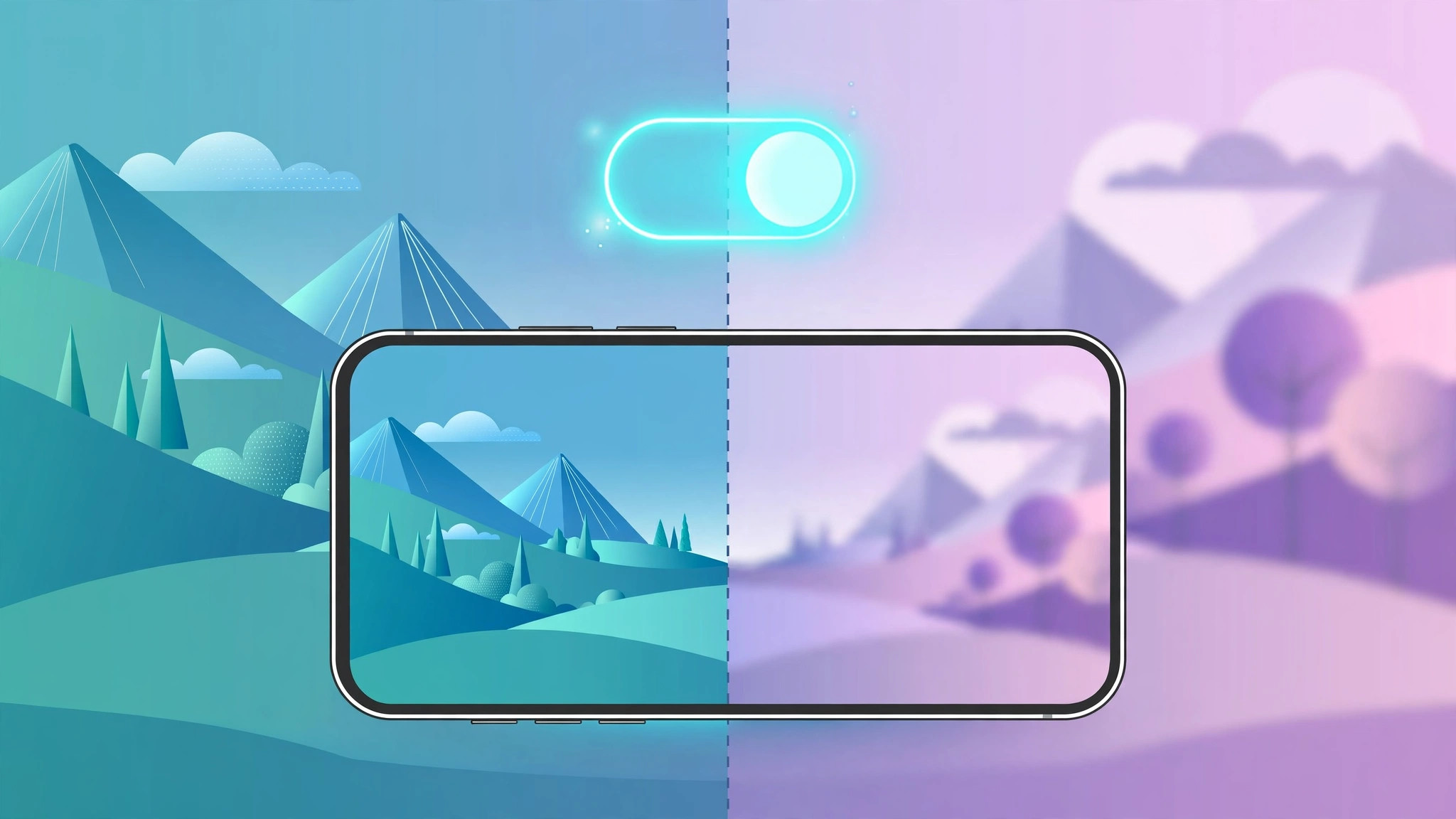
Nothing ruins a great wallpaper faster than unlocking your iPhone and finding your favorite photo hidden behind a frosted haze. If your Home Screen looks softly blurred while your Lock Screen stays perfectly sharp, you are seeing one of iOS’s quietest design choices: Apple blurs the Home Screen wallpaper by default so app icons and labels stay easy to read. The good news is that this effect is entirely optional, and switching it on or off takes about five seconds once you know where the toggle lives.
Whether you want your photo pin-sharp or you prefer the frosted look that keeps your icons legible, here is exactly how to control wallpaper blur on your iPhone.
How to turn wallpaper blur on or off
- Open Settings and tap Wallpaper. You will see your current Lock Screen and Home Screen wallpaper pair at the top of the screen.
- Tap Customize under the Home Screen preview. If you prefer, you can also touch and hold the Lock Screen, tap Customize, then choose the Home Screen thumbnail from the two previews.
- Tap the Blur button — the droplet-shaped icon in the bottom-right corner of the preview — to toggle blur on or off. The preview updates instantly, so you can compare both looks before committing.
- Tap Done in the top-right corner to save your choice. Your Home Screen updates immediately.
A few things worth knowing about this setting: the blur applies only to your Home Screen wallpaper — the screen with all your apps. Your Lock Screen wallpaper always stays sharp no matter how the toggle is set. Apple blurs the background to improve contrast behind icon labels, which is why dark text can suddenly become readable over a bright photo once blur is on. If you use a colorful or detailed photo, turning blur off lets the full image shine through, though very busy images can make icon names harder to read. There is no battery or performance cost either way; it is purely a visual preference.
If it still doesn’t work
If you turned blur off but your Lock Screen still looks dim or hazy — especially late at night — a different feature is responsible. Apple’s Focus modes, particularly Sleep Focus, can dim the Lock Screen on a schedule. Head to Settings > Focus > Sleep and switch off Dim Lock Screen to see your wallpaper at full brightness again. You will find the same option inside any Focus mode you use regularly.
If the Blur button itself does not respond, try this: close the wallpaper editor with Done, reopen it, and tap the toggle again. A quick restart of your iPhone also clears most temporary glitches in the wallpaper editor. And if your Wallpaper screen does not look the way this guide describes, check Settings > General > Software Update — the modern wallpaper editor with the Blur toggle requires a recent version of iOS. For the official rundown of every wallpaper option, check Apple’s own support documentation.
Frequently asked questions
Does the Blur toggle affect my Lock Screen wallpaper?
No. The Blur setting applies exclusively to the Home Screen. Your Lock Screen wallpaper is never blurred by this toggle, so you can keep a crisp full-bleed photo on the Lock Screen while your Home Screen stays softly frosted — or the other way around.
Why does my wallpaper still look blurry with Blur turned off?
The most common culprit is the image itself: a low-resolution photo stretched across a large display will always look soft, so try a higher-resolution image. The other usual suspect is the Dim Lock Screen setting inside Focus modes, which darkens the Lock Screen on a schedule and is easy to mistake for blur. Tech publications like 9to5Mac and MacRumors have both noted how often readers confuse the two effects.
The bottom line
The wallpaper Blur toggle is one of those small iOS settings that makes a big visual difference. Turn it on for a clean, readable Home Screen with frosted depth, or switch it off to let a favorite photo take center stage. Either way, the change is instant and completely reversible, so feel free to experiment.
Keep customizing: learn how to move Lock Screen widgets down in iOS 26 or explore the Liquid Glass Lock Screen clock in iOS 26.





