
There is something quietly exhausting about unlocking your iPhone and finding every app icon stamped with a little red number. Messages says 14, Mail says 231, and that shopping app you opened once insists on 7. Those red counters are called notification badges, and while they are meant to keep you informed, they mostly keep you anxious. The good news: Apple lets you switch them off app by app, or sweep them all away temporarily with a Focus mode. Here is exactly how to do both, plus the one badge you will never be able to remove.
Turn off badges for a single app
The most precise approach is to disable the badge counter for the apps that bother you most while leaving the rest untouched. Apple documents these same toggles in its iPhone notification settings guide, and the whole process takes about ten seconds per app:
- Open the Settings app on your iPhone.
- Scroll down and tap Notifications.
- Tap the name of the app whose badge you want gone.
- Under the Alerts section, switch off the Badges toggle.
The red counter disappears immediately. Importantly, this does not silence the app: banners, sounds, and Lock Screen alerts keep working exactly as configured on the same screen. Only the little number on the icon goes away. If Mail is your biggest offender, you may also want to read our guide on muting Mail notifications for specific contacts in macOS, which covers the desktop side of the same problem. Over the years, 9to5Mac has tracked how these notification controls have evolved with each iOS release, and the per-app Badges toggle has remained the most reliable way to declutter.
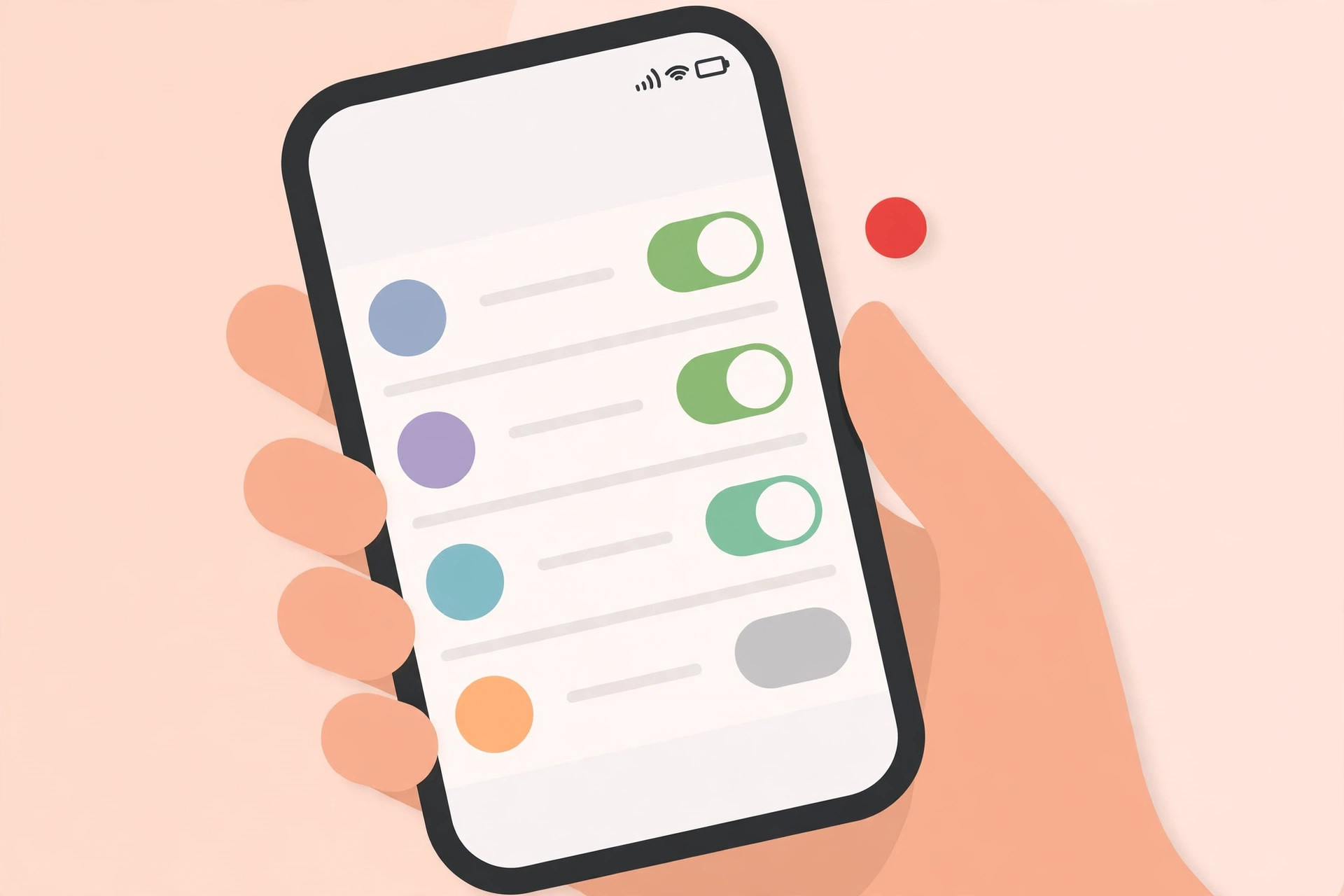
Hide every badge at once with a Focus mode
Sometimes you do not want to reconfigure a dozen apps one by one. You just want a clean Home Screen for the evening, a meeting, or a holiday. That is what the Focus trick is for:
- Open Settings and tap Focus.
- Choose a Focus. Do Not Disturb works fine, or create a new one just for this.
- Tap Options inside that Focus.
- Turn on Hide notification badges.
While that Focus is active, every badge on your Home Screen vanishes. Switch the Focus off and they all come back, so nothing is permanently changed. That makes this ideal for temporary calm rather than a lasting cleanup. As Tom’s Guide notes in its Focus mode coverage, these modes are far more flexible than most people realize: you can even allow calls only from a specific SIM card in Focus mode if you juggle two lines.
The one badge you cannot remove
If the badge bugging you sits on the Settings app itself, do not waste time hunting through the Notifications list. You will not find a Badges toggle for it. That counter appears when a software update is waiting to be installed, and it is controlled by iOS itself. The only way to clear it is to install the pending update under Settings > General > Software Update.
If it still does not work
Badge still showing after you flipped the toggle? Run through these checks:
- Restart your iPhone. A quick reboot resolves most stuck badge counts.
- Confirm you edited the right app. With long Notifications lists it is easy to toggle the wrong entry.
- Check the app’s own settings. A few apps manage their badge count internally and can override the system toggle.
- Look at your Focus modes. If badges vanished and then reappeared, a Focus with Hide notification badges may have switched itself off on schedule.
- Update iOS. Badge glitches are occasionally fixed in newer releases.
Frequently asked questions
Will turning off Badges stop notifications from that app?
No. The Badges toggle only controls the red counter on the icon. Banners, sounds, Notification Center entries, and Lock Screen alerts all continue exactly as you have set them.
Can I remove the red badge from the Settings app icon?
Not through the Notifications settings. That badge is system-controlled and signals a pending software update. Installing the update is the only way to clear it.
The bottom line
Red badge counters are useful in small doses and maddening in large ones. Switch them off per app for a permanent cleanup, or lean on a Focus mode when you just need a few hours of visual quiet. And if notification overload is the real problem, consider setting an alarm for urgent reminders in iOS 26 so the truly important things still reach you while the noise stays hidden.





