
For years, every translation request on the iPhone went through Apple’s Translate app — whether you wanted it or not. That changed with iOS 18.4, which finally lets you pick a different default translator. If you prefer Google Translate or DeepL, you can now make your favorite the system-wide default in under a minute.
Here is what you need, where the setting lives, and how to switch back if you change your mind.
What you need first
Two things have to be in place before the option appears:
- iOS 18.4 or later. Open Settings > General > Software Update and install the latest version — the Translation slot in Default Apps does not exist on older releases.
- A supported third-party translator. Install Google Translate or DeepL from the App Store. Only apps that register themselves as translation providers show up as choices.
Apple Support documents the full list of app categories you can customize, which has been growing with every recent iOS release.
Change the default translator app
Apple tucked the default-app controls into a new Apps section at the very bottom of the Settings app — easy to miss if you stop scrolling too early.
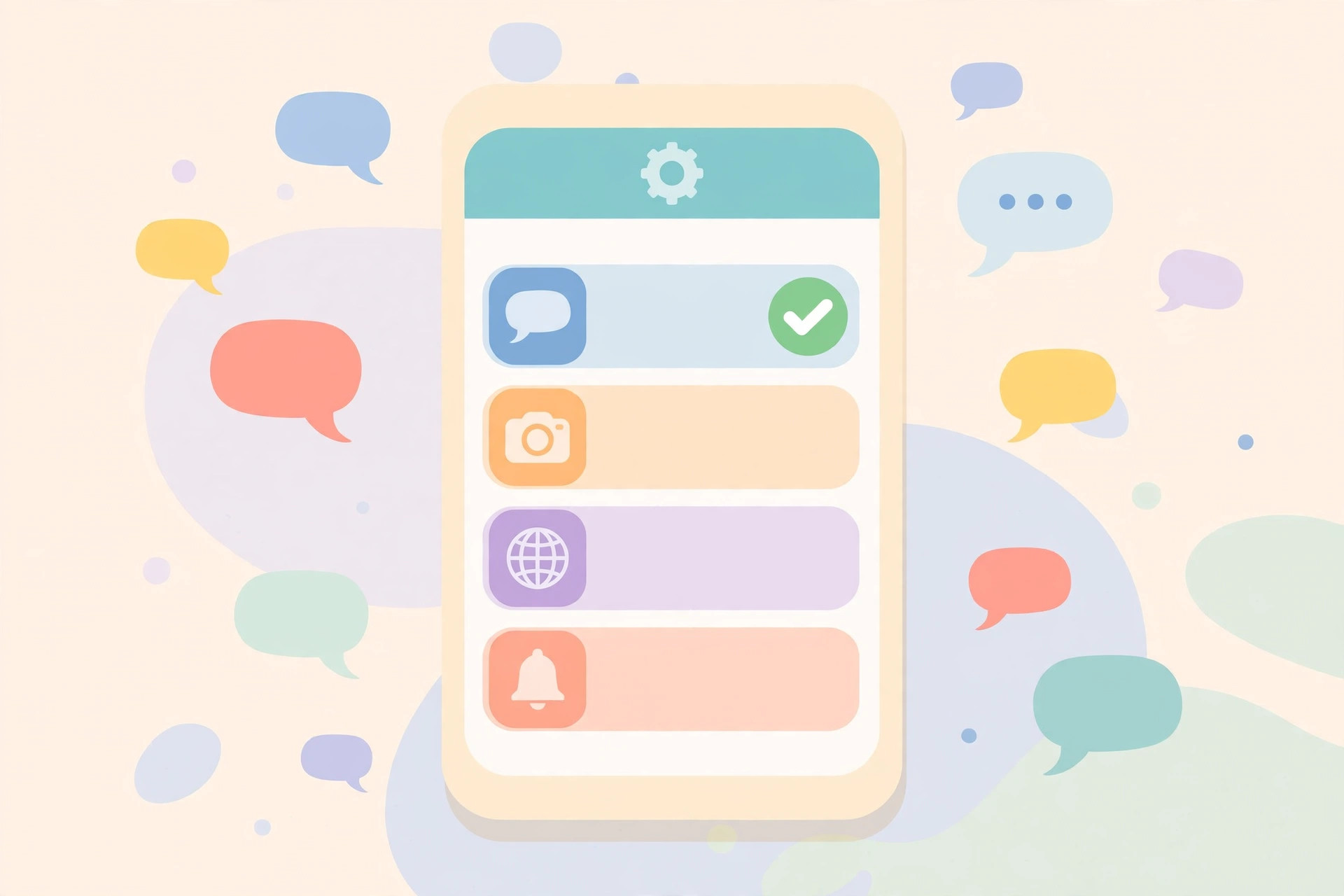
- Open Settings and scroll all the way down. Below all the individual app entries you will find an Apps section — tap it.
- Tap Default Apps. This screen lists every category you can reassign, from browser and email to calling and messaging.
- Tap Translation. You will see Apple’s Translate selected by default, plus any supported third-party translators you have installed.
- Choose your preferred app. Tap Google Translate or DeepL (or whichever you installed). A checkmark confirms your new default.
That is the whole process. From now on, system features that hand off to a translator — like translating selected text or web pages — will use your chosen app instead of Apple’s. AppleInsider notes this is part of Apple’s broader move toward letting users replace more stock apps with third-party alternatives.
If you like trimming down the apps you never use, our rundown of which built-in iPhone apps you can delete pairs nicely with this change.
Switch back to Apple’s Translate anytime
Nothing here is permanent. If your third-party pick misses a feature you rely on — offline language packs, say, or camera translation — just return to Settings > Apps > Default Apps > Translation and select Translate again. Your choice flips back instantly, no restart required.
If it still doesn’t work
- Confirm you are on iOS 18.4 or newer. On older versions the Translation row simply does not exist in Default Apps.
- Open the third-party app once. Some apps only register as translation providers after their first launch — install it, open it, then check the list again.
- Update the app. Translation-provider support may require a recent version of Google Translate or DeepL from the App Store.
- Check your region. Default-app choice availability can vary by country due to local regulations; 9to5Mac has covered how these options rolled out region by region.
Frequently asked questions
Can I set any translator as the default, like Microsoft Translator?
Only apps that declare translation-provider support to iOS appear in the list. If your favorite translator is missing, make sure it is updated — developers add the capability on their own schedule. Apple’s own Translate is always available as the fallback.
Does changing the default affect the Action button shortcut for Translate?
No. The Action button and Control Center shortcuts that open Translate directly still launch Apple’s app; the default-app setting only changes which app the system hands translation tasks to. For more ways to personalize your iPhone, see how to change Safari’s design on iPhone and how to add and change the iPhone startup sound.
The bottom line
Swapping the default translator is one of the quickest wins in iOS 18.4: update your software, install Google Translate or DeepL, then head to Settings > Apps > Default Apps > Translation and pick your favorite. You can reverse the choice just as easily whenever you like.





