
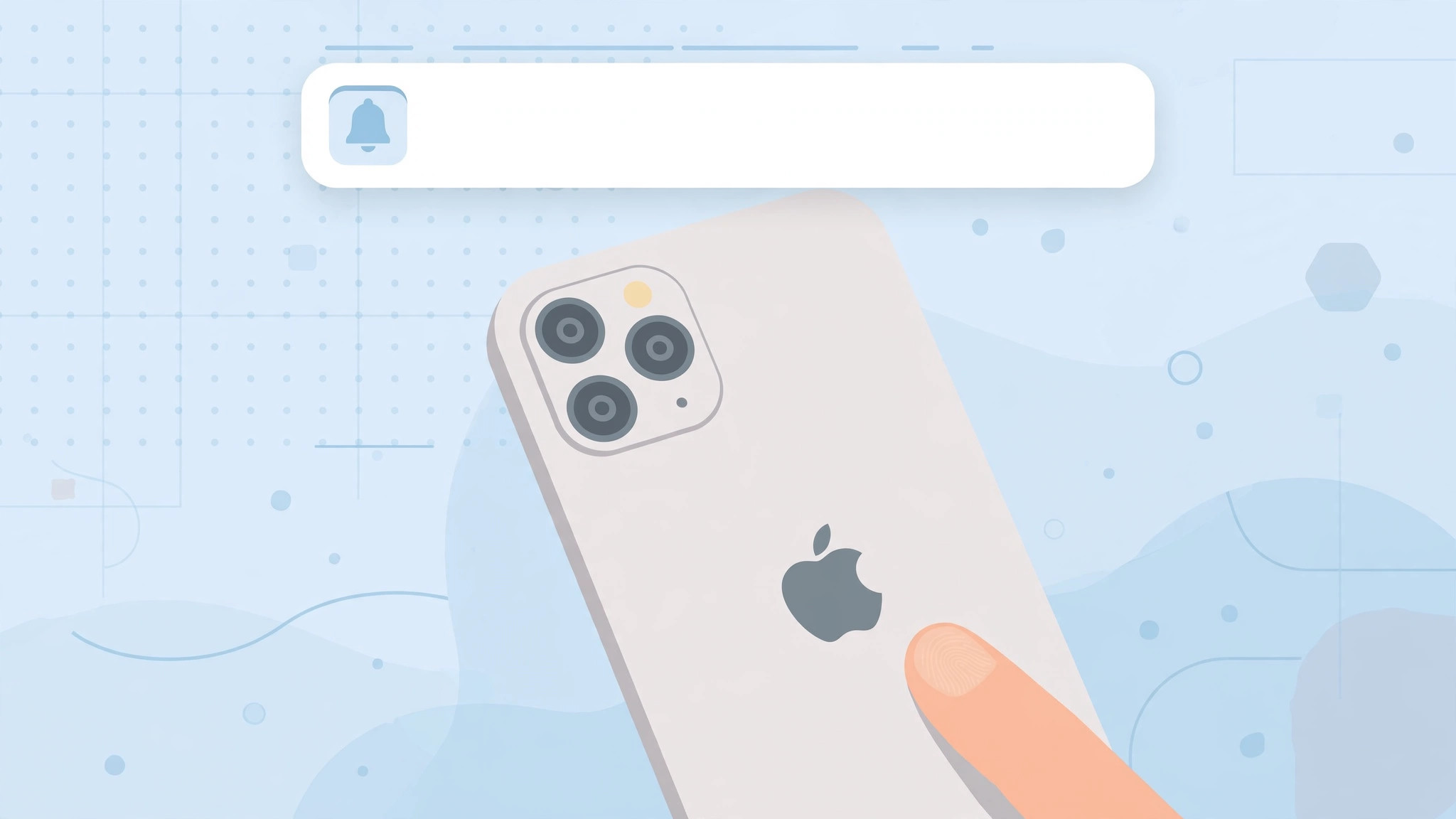
Back Tap is one of the iPhone’s best-kept secrets: tap the back of your phone twice to take a screenshot, three times to open the camera. It is fast, it is convenient — and since iOS 18.5, every tap comes with a banner announcing that Back Tap fired. If you already know you tapped, that notification is pure noise. Here is how to silence it while keeping your taps working.
Turn off the Back Tap banner
The fix is a single toggle buried in the Accessibility settings:
- Open Settings, then tap Accessibility.
- Tap Touch (under the Physical and Motor section).
- Tap Back Tap at the bottom of the Touch screen.
- Switch off “Show Banner”. The toggle sits above your Double Tap and Triple Tap assignments.
That is it. The banner stops appearing, but your double-tap and triple-tap actions keep working exactly as before. Apple Support documents the full Back Tap setup, and 9to5Mac covered the new banner when iOS 18.5 introduced it.
Remove Back Tap actions entirely
If you would rather disable the taps themselves — maybe you trigger them by accident — set each one to None:
- Go to Settings > Accessibility > Touch > Back Tap.
- Tap Double Tap and choose None at the top of the list.
- Do the same for Triple Tap.
With both set to None, tapping the back of your iPhone does nothing at all. You can reassign actions anytime by picking something from the list again.
For more ways to quiet your iPhone, see our guides on stopping the iPhone from auto-switching audio to headphones and turning off AirPods charging case sounds.
If it still doesn’t work
- Check your iOS version. The Show Banner toggle arrived with iOS 18.5 — on older versions there is no banner and no toggle. Update via Settings > General > Software Update.
- Test without a thick case. Heavy or metal cases can interfere with tap detection; Tom’s Guide notes that Back Tap works best with the phone bare or in a thin case.
- Tap firmly near the Apple logo. The sensor zone is centered on the back of the phone — taps near the edges register less reliably.
- Restart your iPhone. If the toggle does not stick, a restart clears the occasional Accessibility settings glitch.
Frequently asked questions
Will turning off Show Banner disable my Back Tap shortcuts?
No. The banner is purely informational — switching it off only hides the notification. Your double-tap and triple-tap actions continue to fire normally.
Which iPhones support Back Tap?
Back Tap requires iPhone 8 or later running iOS 14 or newer. The Show Banner toggle specifically needs iOS 18.5 or later. If you like customizing iPhone sounds too, check out how to add and change the iPhone startup sound.
The bottom line
The Back Tap banner is helpful exactly once — the first time you see it. After that, head to Settings > Accessibility > Touch > Back Tap and switch Show Banner off. Your taps keep working, your screen stays clean, and you can always turn the banner back on if you miss it.





