
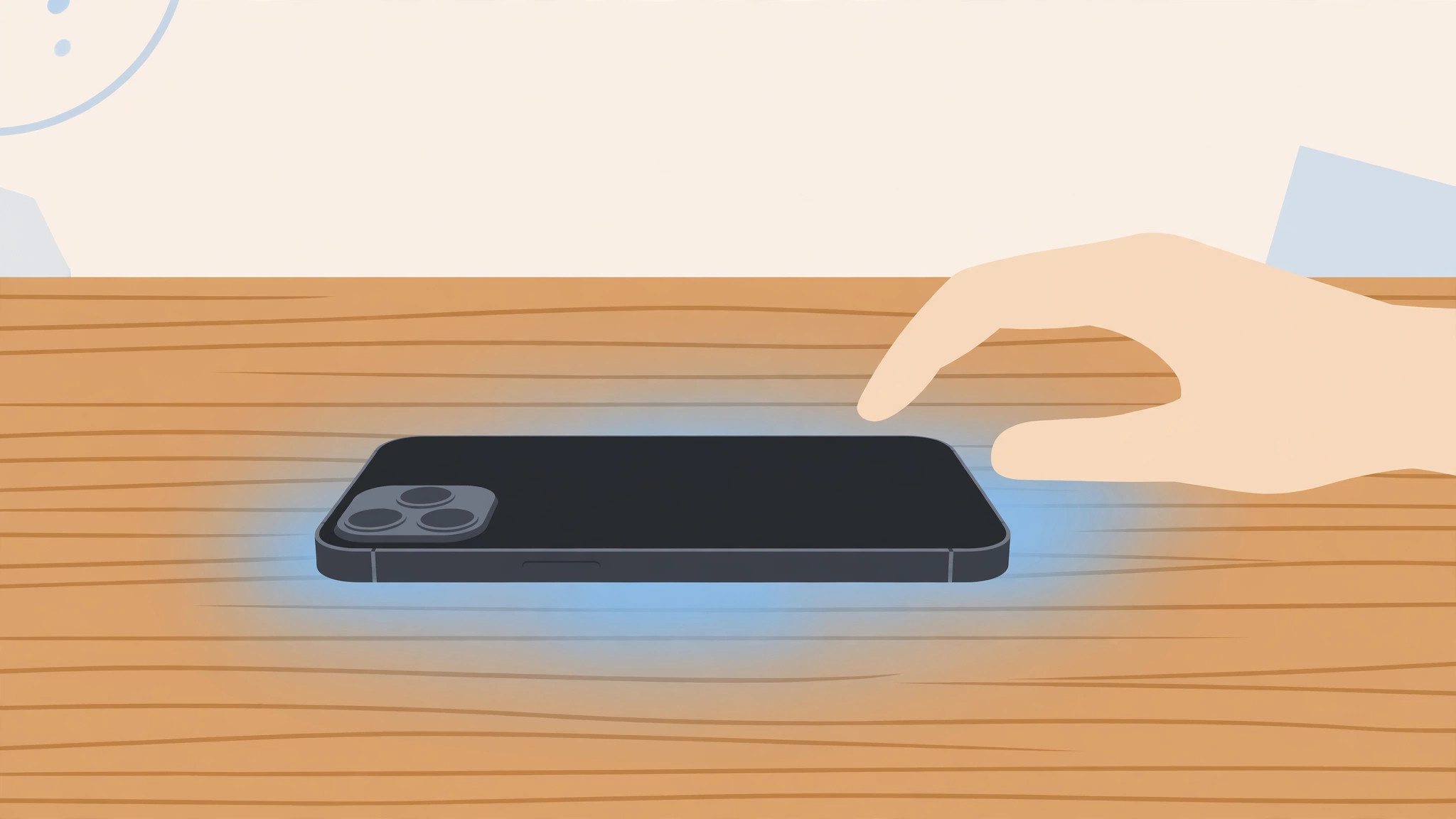
Pick up your iPhone to slide it across the desk, and the screen flares to life. Set it down, lift it once more, and there it goes again. For some people this is a handy way to glance at notifications, but for others it is a constant annoyance — at night, in meetings, or whenever you are trying to stretch the battery a little further.
The good news is that you are in control. Two separate features decide when the display wakes on its own: one reacts to lifting the phone, the other to tapping the screen. Apple leaves both switched on by default, yet you can turn off either or both in under a minute. This guide walks you through exactly where each toggle lives and what changes when you flip it.
Why your iPhone wakes up when you lift it
The main culprit is a feature called Raise to Wake. It uses the phone’s motion sensors to notice when you lift the handset from a table or pull it out of a pocket. The moment the angle changes, the screen wakes so you can see the time and any waiting notifications without pressing a single button.
The second feature is Tap to Wake. As the name suggests, one tap anywhere on a dark screen wakes the display. It is convenient when the phone is lying flat on a desk, but an accidental brush of the screen inside a bag or pocket can light it up just as easily. Coverage on MacRumors has long noted how these wake behaviors shape everyday iPhone use.
How to stop the screen from waking when you pick up your iPhone
You can switch these two features off independently. If only the lifting behavior bothers you, leave Tap to Wake alone; if stray taps are the problem, do the reverse. Most people who want a truly quiet screen turn off both. Here is how:
- Open the Settings app on your iPhone.
- Scroll down and tap Display & Brightness.
- Find Raise to Wake in the list and switch its toggle off. From now on, lifting the phone will no longer wake the screen. Apple documents this toggle in its display settings guide on Apple Support.
- Go back to the main Settings screen and tap Accessibility.
- Tap Touch, then switch off Tap to Wake. Tapping a dark screen will now do nothing at all.
- Test it: lock your phone, set it down, then lift it again. The display should stay dark until you press the side button.
If it still doesn’t work
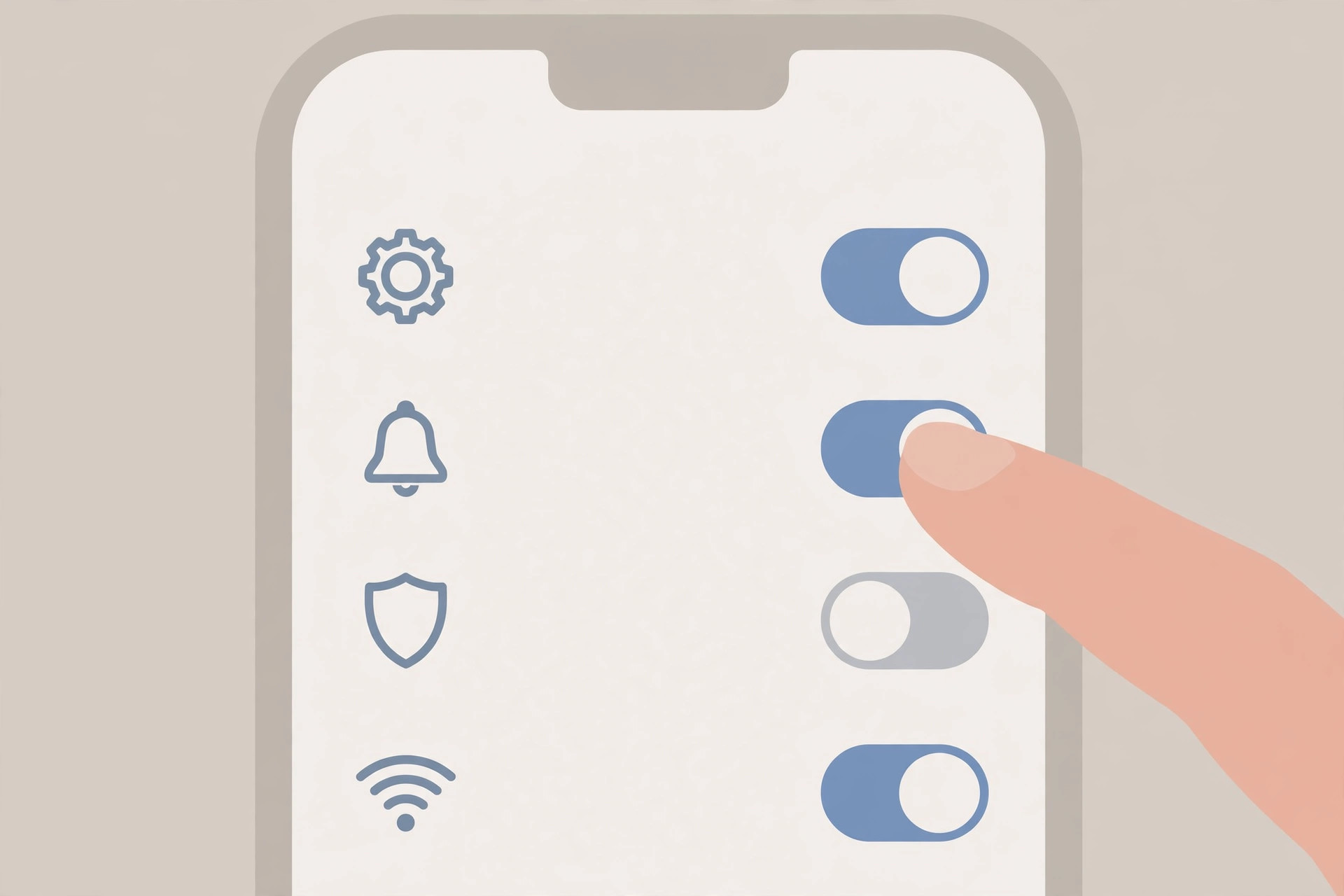
On iPhone models with an Always On display, switching off these two toggles will not make the screen go fully black — the display stays in its dimmed Always On state instead of waking up completely. That is normal behavior, not a bug. If you want the panel entirely dark, you can also switch off Always On under Settings > Display & Brightness, or simply lay the phone face down. As 9to5Mac has pointed out, the Always On screen and the wake gestures are separate systems.
Frequently asked questions
Will turning off Raise to Wake save battery?
Yes, a little. Every accidental wake-up lights the display, the phone’s biggest power draw. Fewer wake-ups mean the screen spends more of the day off, which translates into slightly better battery life over time.
Can I keep Tap to Wake while disabling Raise to Wake?
Absolutely — the two toggles are independent. Many people keep Tap to Wake on for quick glances while stopping the screen from firing every time the phone is picked up and moved.
Conclusion
Two toggles — Raise to Wake under Display & Brightness and Tap to Wake under Accessibility > Touch — control it all, and flipping them takes less than a minute. Once the display stays dark the way you like it, you may want to tidy the rest of the lock screen too: try moving your lock screen widgets down in iOS 26, give the liquid-glass clock a spin, or disable the quick camera launch if that shortcut keeps firing when you handle the phone.





