

You jot down a quick note on your iPhone — a phone number, a shopping list, an idea — and later you cannot find it. It turns out the note landed in a different account than the one you usually browse: maybe it went to your Gmail-synced notes instead of iCloud, or onto the device instead of the cloud. This happens because the Notes app saves every new note to a default account, and that default is not always the one you want.
The fix takes about thirty seconds. iOS lets you choose exactly where new notes go: your iPhone’s on-device storage, iCloud, or any third-party account with Notes sync turned on. Once set, every note you create lands in that account unless you move it manually — no more hunting through folders.
Note syncing lives alongside your other account settings, so it helps to understand how your accounts talk to each other. If you use both Apple devices, you may also want to set up message sync between iPhone and Mac so conversations follow you too.
Choose your default Notes account
- Open Settings, then tap Apps.
- Scroll down and tap Notes.
- Tap Default Account.
- Choose where new notes should be saved: On My iPhone, iCloud, or one of your connected accounts such as Gmail.
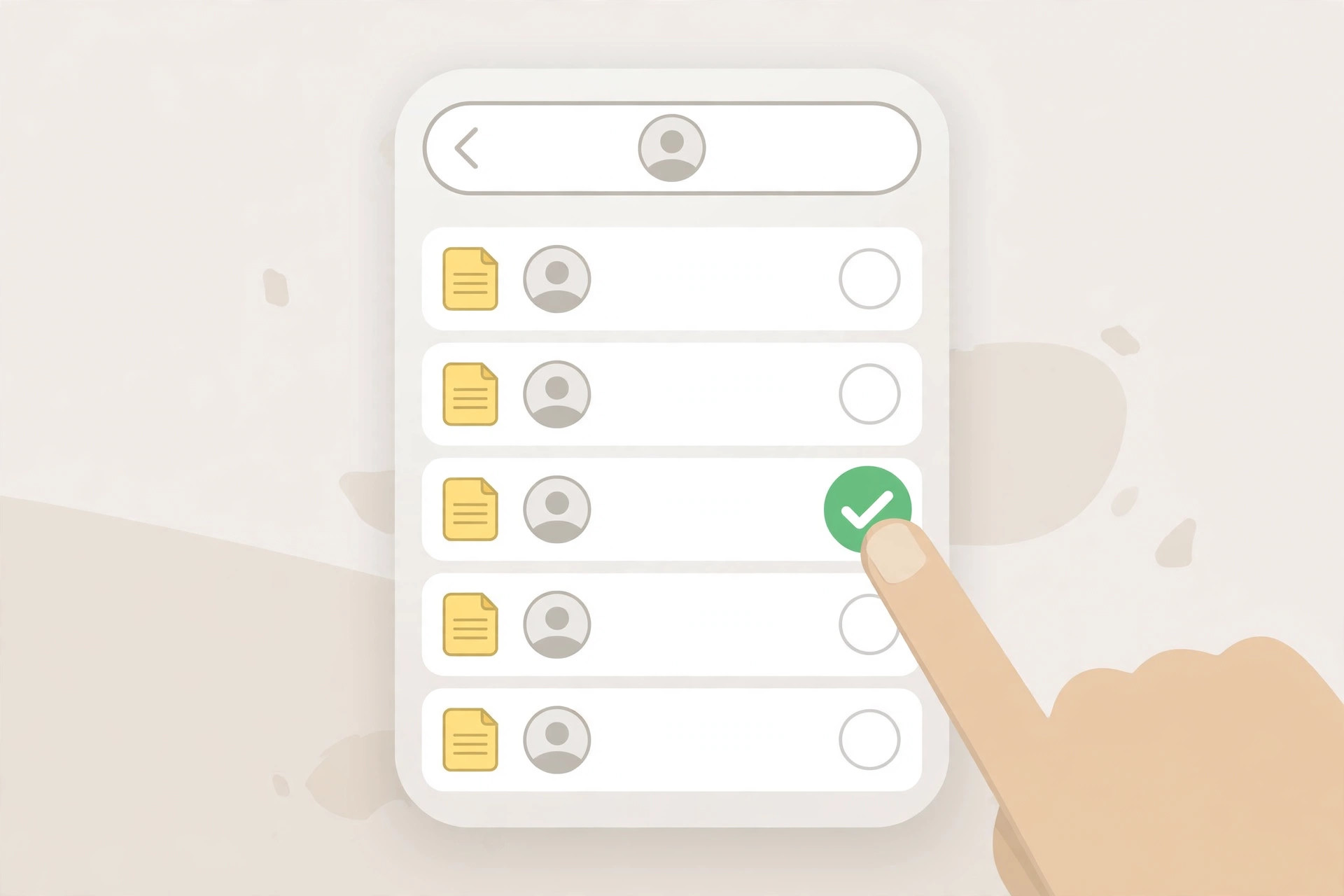
That is the whole procedure. From now on, tapping the compose button in Notes creates the note in the account you picked. Apple’s own documentation for the Notes app on support.apple.com describes this setting, and MacRumors has noted in its iOS guides that the available accounts depend on your Mail and Accounts configuration.
Which accounts appear in the list?
The Default Account list only shows storage locations that actually exist on your phone. On My iPhone is always there; iCloud appears when you are signed in with your Apple Account and iCloud Notes is enabled. Third-party accounts like Gmail or Outlook show up only if you have added them under Settings > Apps > Mail > Mail Accounts and switched on Notes sync for them. If an account you expect is missing, that toggle is the first place to check — a related settings maze is worth learning, much like knowing how to mute Mail notifications for specific contacts on macOS.
A quick word on iCloud vs. on-device notes
Choosing iCloud means new notes sync to all your Apple devices automatically — start a list on iPhone, finish it on Mac. Choosing On My iPhone keeps notes only on that device: fine for sensitive or throwaway notes, but they will not follow you elsewhere and they depend on your device backups. Most people are happiest with iCloud as the default.
If it still doesn’t work
If the Default Account option is missing entirely, you probably have only one notes location available — iOS hides the setting when there is nothing to choose between. Add iCloud Notes or another synced account and the option appears. If new notes still land in the wrong place after you change the setting, force-quit the Notes app and reopen it; the change applies to notes created after the switch, not to existing ones, which you can move manually by long-pressing a note and choosing Move.
Frequently asked questions
Can I set a different default for the Notes widget or Siri-created notes?
Notes created from the Lock Screen widget, Control Center, or Siri all respect the same Default Account setting, so one choice covers every entry point. 9to5Mac‘s iOS tips coverage confirms this behavior across quick-note entry points.
Will changing the default move my existing notes?
No. The setting only affects notes you create from now on. Existing notes stay in their current accounts. To consolidate, open each folder, select the notes, and move them to your preferred account — a good moment to also review which built-in iPhone apps you can delete if you are on a decluttering streak.
Conclusion
A wrong default Notes account is a small setting with an outsized annoyance factor. Thirty seconds in Settings > Apps > Notes > Default Account puts every future note exactly where you expect it — iCloud for syncing everywhere, on-device for privacy, or a work account for separation. Set it once and stop losing notes.





