
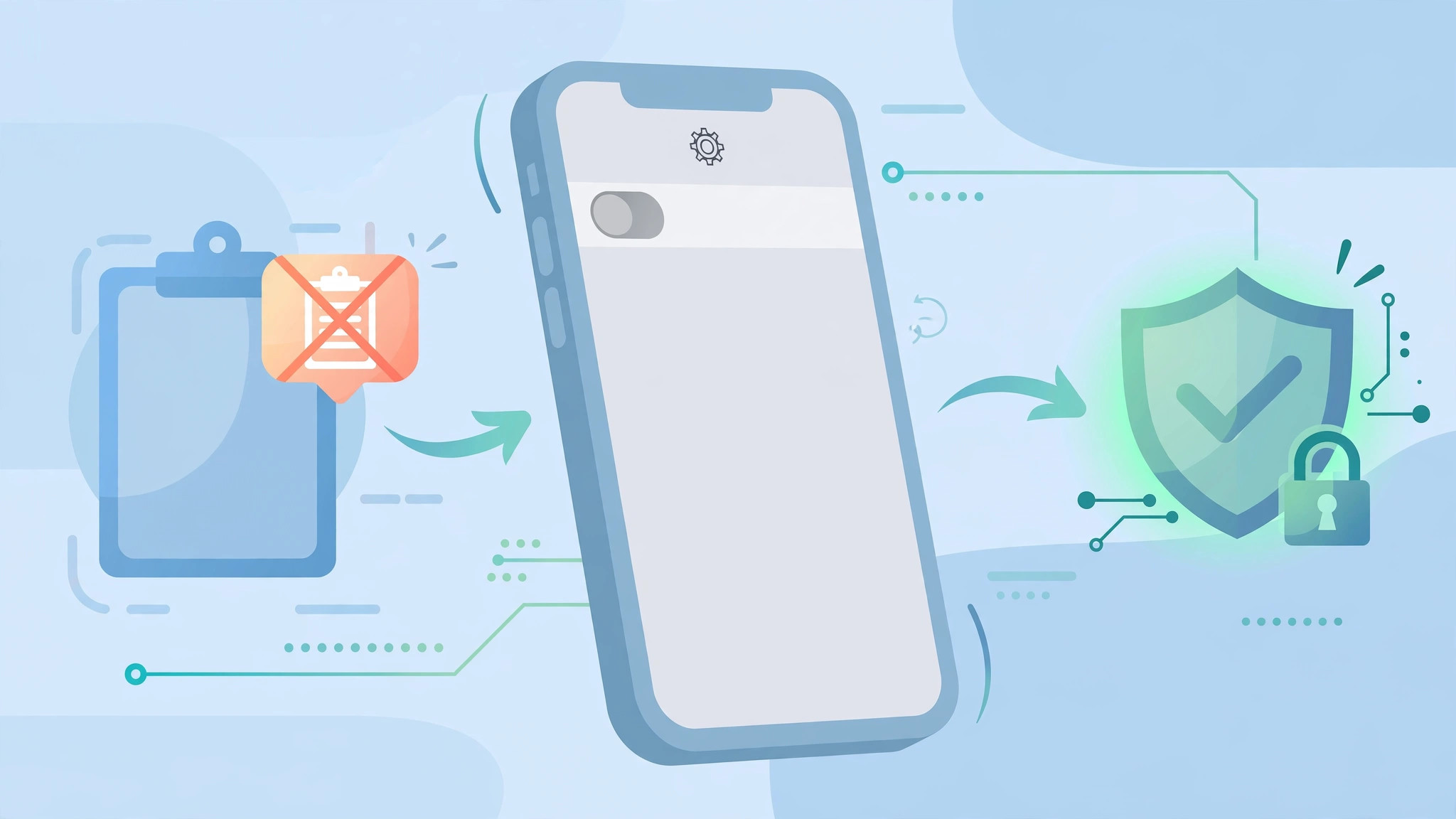
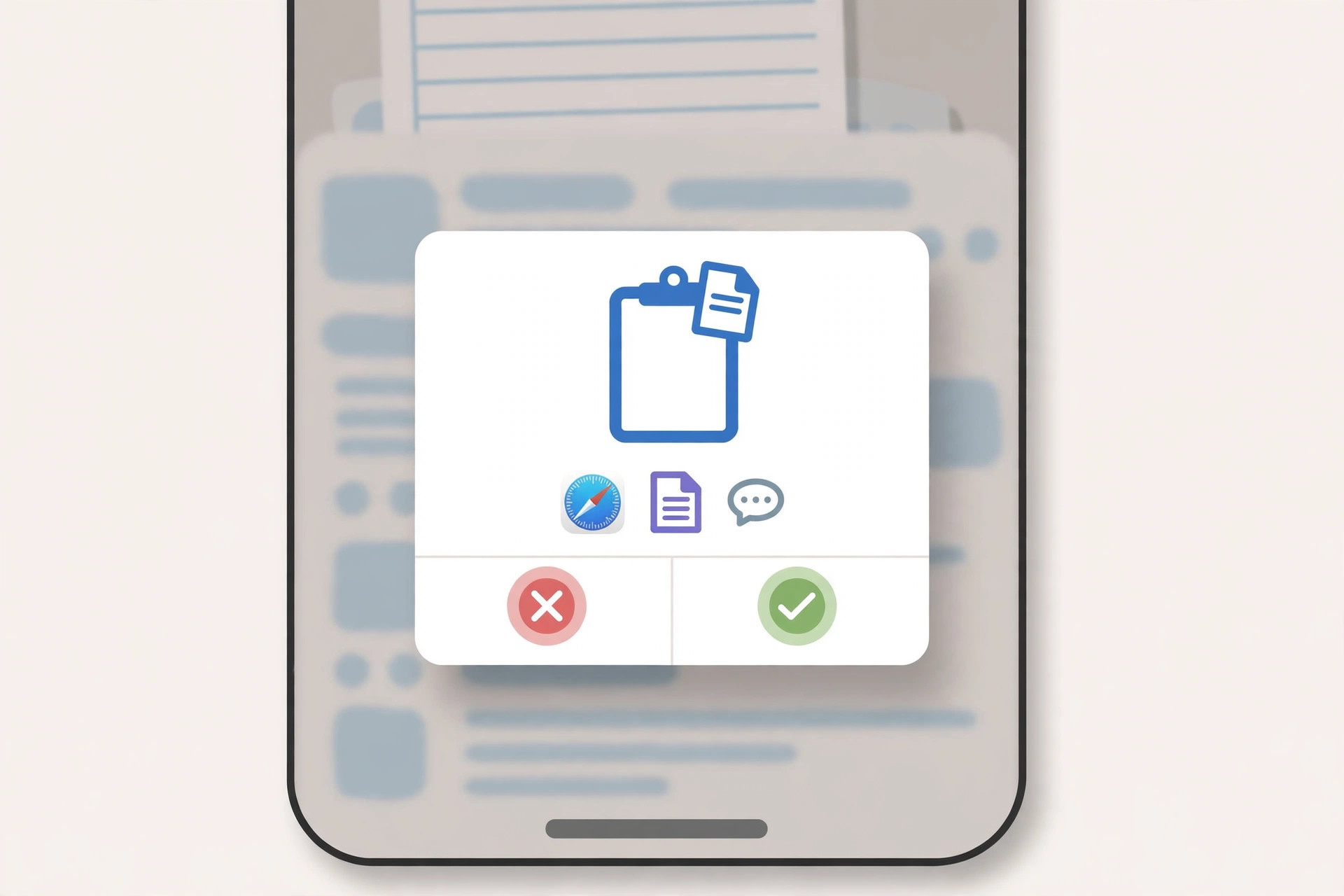
You copy a tracking number in one app, switch to another app to paste it, and your iPhone interrupts with a popup asking whether the app may paste from the other app. If you use your iPhone heavily, you have probably tapped “Allow Paste” dozens of times — and wondered whether you can just make the prompt go away.
Since iOS 16, Apple requires apps to ask your permission before reading the contents of your clipboard. It is a privacy feature: without it, any app could silently read everything you copy — passwords, addresses, private messages. But when you trust the app, the constant confirmation becomes pure friction. The good news is that you can decide, app by app, whether the prompt appears at all.
How to change the paste permission for an app
- Open the Settings app on your iPhone.
- On iOS 18 and later, scroll to the bottom of Settings and tap Apps to see the list of installed apps. On iOS 16 and 17, apps are listed directly in the main Settings screen, so just scroll down until you find the app you want.
- Tap the app’s name to open its settings page.
- Tap Paste from Other Apps.
- Choose one of the three options: Ask — iOS shows the confirmation dialog every time the app tries to read the clipboard (this is the default); Allow — the app can read your clipboard freely and the prompt never appears again; or Deny — the app is completely blocked from reading the clipboard.
- Go back and repeat steps 3–5 for each app you want to adjust. The setting applies per app, so changing it for one app does not affect any other.
Which option should you choose? Pick Allow for apps you paste into constantly — your notes app, your messenger, a password manager — where the prompt is only slowing you down. Keep Ask for apps you use occasionally or are not sure about. Choose Deny for apps you simply do not trust with your clipboard contents.
If it still doesn’t work
Don’t see “Paste from Other Apps” for an app? The option only appears for apps that actually request clipboard access — if an app never reads the clipboard, there is nothing to configure. Also confirm your iPhone runs iOS 16 or later in Settings > General > Software Update, and that the app itself is up to date. If you chose Allow but the popup still appears, force-quit the app and reopen it; if that does not help, restart your iPhone and the new permission should take effect.
Frequently asked questions
What exactly does the “Ask” option do?
With Ask, iOS shows the confirmation dialog every time the app attempts to read your clipboard, and the paste only goes through if you tap Allow Paste. It is the default because it keeps you informed without blocking anything outright — a middle ground between convenience and privacy.
Will choosing “Deny” break the app?
The app keeps working, but anything that relies on reading what you copied — such as a button that auto-fills from the clipboard — will stop working. You can still paste manually with the on-screen Paste command; the app just cannot grab the clipboard contents on its own. If something stops working as expected, switch the setting back to Ask or Allow.
Conclusion
That confirmation dialog exists to protect you, but you do not have to live with it for apps you trust. Set Allow for your everyday apps, Deny for the ones you don’t, and leave Ask for everything in between — and the popups disappear for good. You may also like our guides on how to stop Safari from suggesting passwords on iPhone, how to completely block iOS 26 updates on iPhone, and how to turn off all SharePlay features on iPhone.
Sources: Apple Support, MacRumors, 9to5Mac.





