
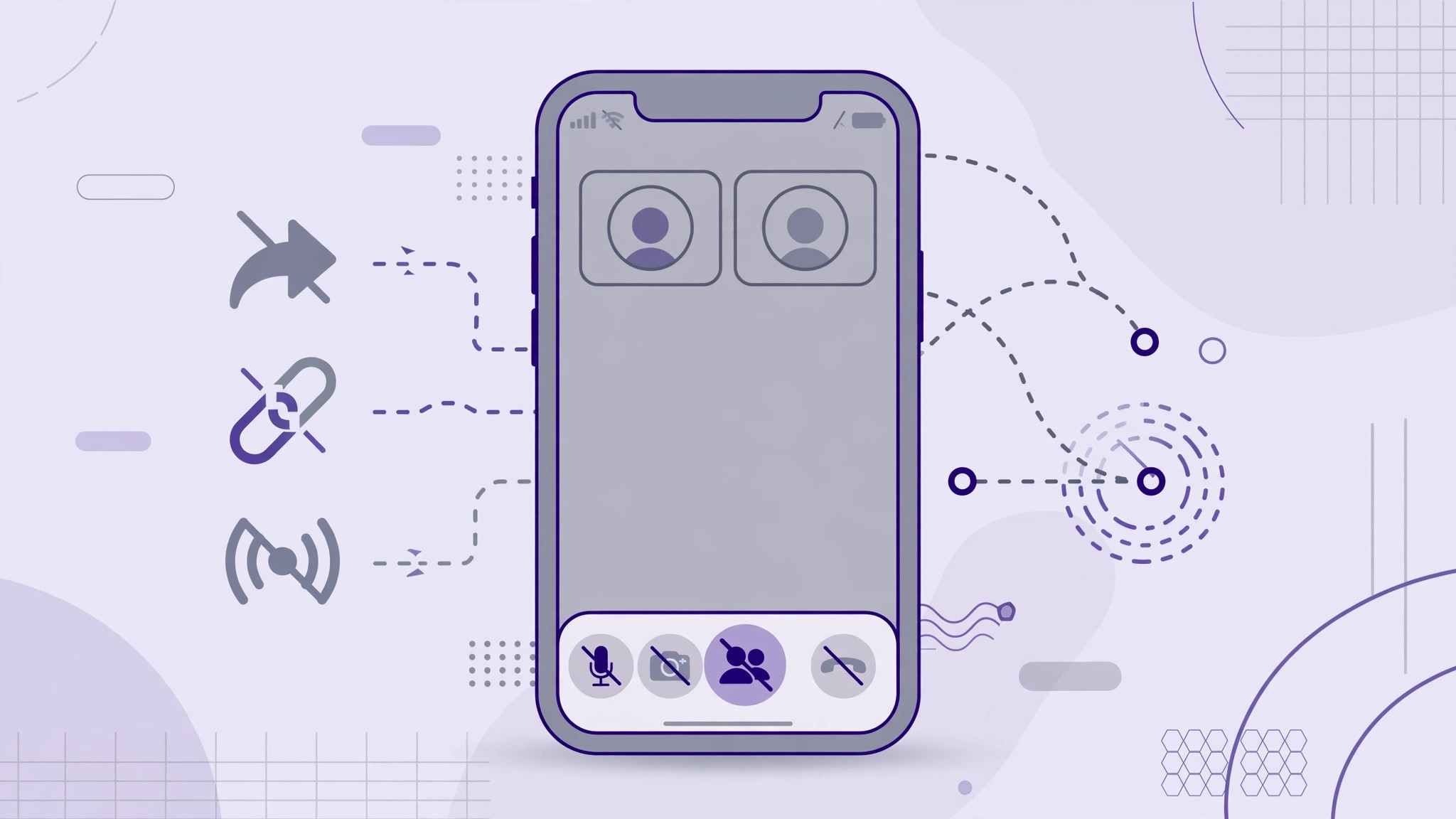
SharePlay is Apple’s way of letting you watch, listen, and browse together during FaceTime calls. It is a nice idea — until your iPhone starts suggesting you share a webpage, a video, or your screen every time you are on a call and you never use the feature. If those prompts annoy you more than they help, you can shut SharePlay down completely: first in the FaceTime settings, then at the system level so no app can trigger it.
Disabling SharePlay takes about a minute and is fully reversible if you ever want shared viewing back.
What SharePlay does
Introduced a few years ago across iOS and macOS, SharePlay lets call participants watch movies, listen to music, or share screens in sync during a FaceTime call. When it is enabled, iOS proactively suggests sharing content — for example, offering to start a SharePlay session when you open a video app mid-call. Tech sites like AppleInsider and MacRumors have tracked its evolution, and plenty of users on X admit they tap those prompts away every single time.
How to turn off all SharePlay features
To fully silence SharePlay, disable it in two places: the FaceTime settings and the system-wide Screen Time restrictions.
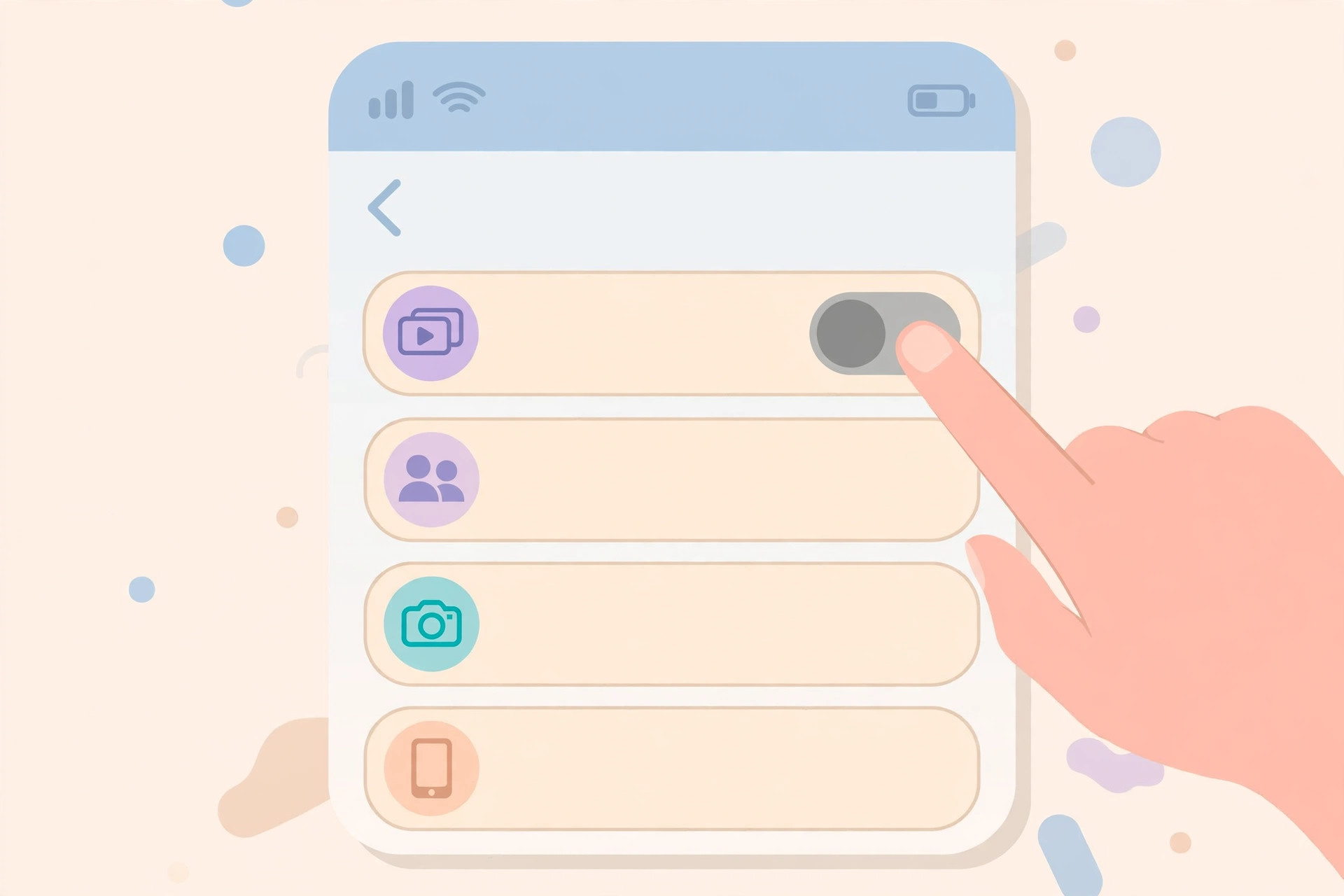
- Open Settings > Apps > FaceTime > SharePlay. Go to Settings, tap Apps, then FaceTime, and open the SharePlay section.
- Turn off the SharePlay toggle. Switch off the single toggle in that section. This stops SharePlay from within FaceTime.
- Go to Settings > Screen Time > Content & Privacy. Back in the main Settings list, open Screen Time, then Content & Privacy.
- Enable Content & Privacy. Turn on the Content & Privacy toggle at the top — the restrictions below only take effect while this master switch is on.
- Disable SharePlay under Allowed Apps & Features. In the Allowed Apps & Features section, find SharePlay and switch it off.
With both toggles off, SharePlay is blocked at the system level: no more prompts during calls, and no app can start a SharePlay session. If FaceTime is a big part of your routine, you may also like our guide to setting up message sync between iPhone and Mac, which keeps your conversations consistent across devices.
Fine-tuning your call experience
While you are decluttering FaceTime, consider a couple of companion tweaks. If call audio matters to you, our guide to turning off AirPods charging case sounds removes another small annoyance. And if you are exploring everything new in the latest system, the iOS 26 Liquid Glass lock screen guide walks through the visual changes. Creators on Instagram and YouTube also post handy FaceTime setup walkthroughs if you prefer video.
If it still doesn’t work
If SharePlay prompts keep appearing, double-check the Screen Time path: the Content & Privacy master toggle must be on, otherwise the SharePlay restriction underneath does nothing. Also confirm you disabled SharePlay in both places — the FaceTime toggle alone leaves the system-level feature available to other apps. If a specific third-party app still offers sharing, check that app’s own settings, and consult Apple’s support pages for the latest SharePlay documentation.
Frequently asked questions
Will turning off SharePlay affect regular FaceTime calls?
No. Voice and video calls work exactly as before — you are only disabling the shared-playback and screen-sharing layer, not FaceTime itself.
Can I turn SharePlay back on later?
Yes. Re-enable the toggle in Settings > Apps > FaceTime > SharePlay and flip SharePlay back on under Screen Time > Content & Privacy > Allowed Apps & Features.
Conclusion
SharePlay is great if you use it and pure noise if you do not. Two toggles — one in FaceTime settings, one in Screen Time restrictions — silence it for good. Reversing the change is just as quick whenever you want shared movie nights back. For more iPhone tips, browse the tutorials on CompareWala.






[…] If you enjoy fine-tuning how iOS looks and behaves, you might also like our guide on how to turn off the Liquid Glass effect in iOS 26, or if you want fewer interruptions, how to turn off all SharePlay features on iPhone. […]
[…] steps mirror iPhone exactly. If you are generally trimming back iOS automation, see our guide on how to turn off all SharePlay features on iPhone, or how to completely block iOS 26 updates on iPhone to stay on your current […]
[…] This is the one case where something actually changed for everyone. If you long-pressed the bar and chose Unpin, the pin was removed group-wide. The good news: Telegram immediately shows an Undo toast at the bottom of the screen — tap it right away to restore the pin. If the toast is already gone, re-pin manually: find the message, long-press it, and tap Pin. One important caveat: pinning or unpinning for everyone requires the Pin Messages admin permission. If you are not an admin with that right, ask a group admin to re-pin the message for you. For fewer interruptions in group voice chats, by the way, see how to turn off all SharePlay features on iPhone. […]
[…] afterward). If you’re also having trouble with related sharing features, see our guides on turning off all SharePlay features and setting up message sync between iPhone and […]
[…] Go to Settings → Game Center and set Profile Privacy to Friends Only or Only You, and turn on Requests from Contacts Only. Strangers then can’t find or invite you. If social gaming features in general annoy you, you may also want to turn off all SharePlay features on iPhone. […]