
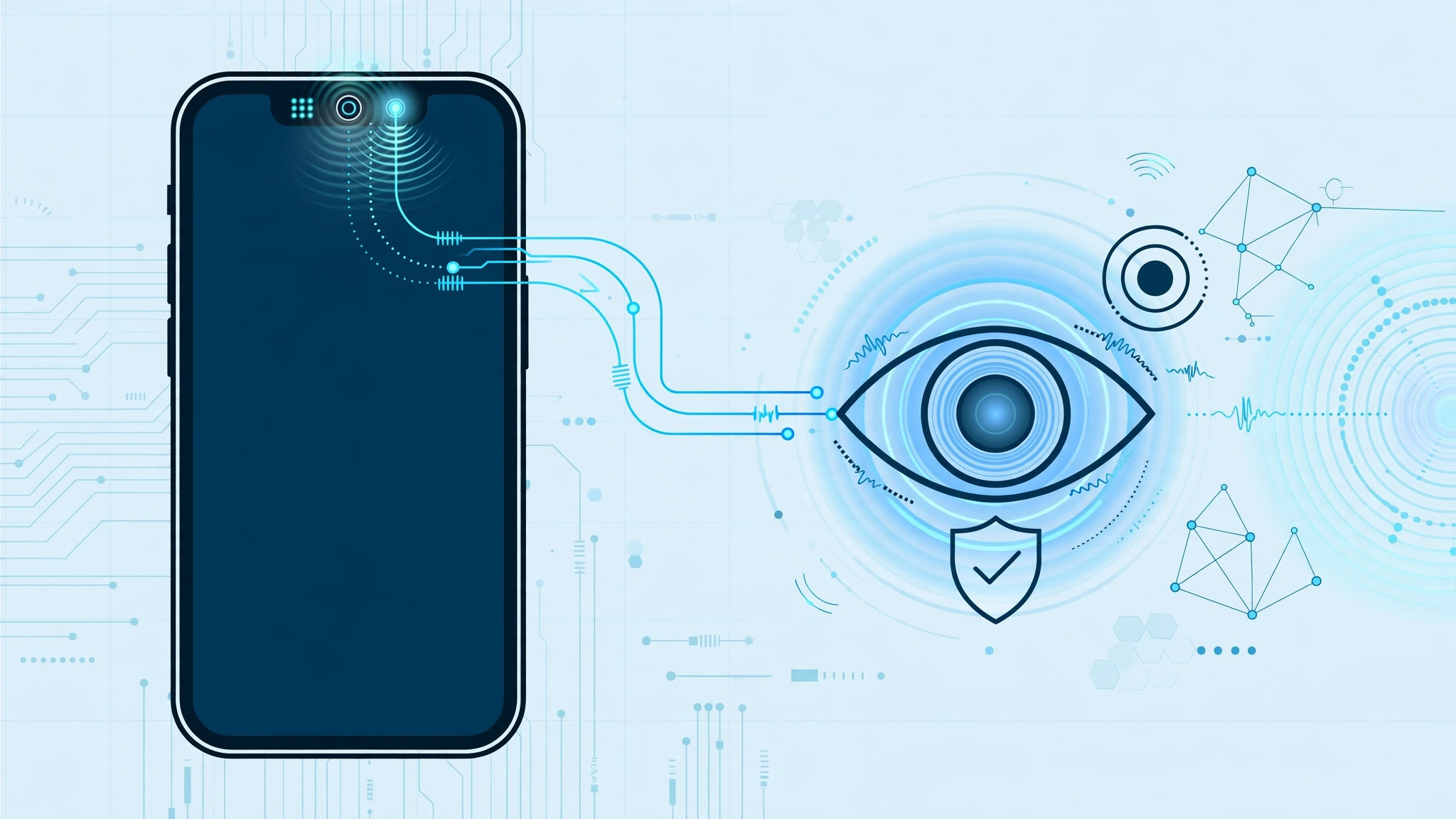
Deep in Settings > Face ID & Passcode, below the familiar Face ID toggles, sits a switch called “Attention Awareness.” It is on by default, and most iPhone owners never give it a second thought — yet it quietly changes how the phone behaves many times a day, using the TrueDepth camera to check whether you are actually looking at the screen.
So what does it actually do? In short, it makes your iPhone react to your gaze: it keeps the display lit while your eyes are on it, turns down the volume when you glance at an incoming call, and reveals full notification text on the Lock Screen when it sees you looking. Here is the full picture, plus how it differs from a similarly named Face ID setting.
What Attention Awareness actually does
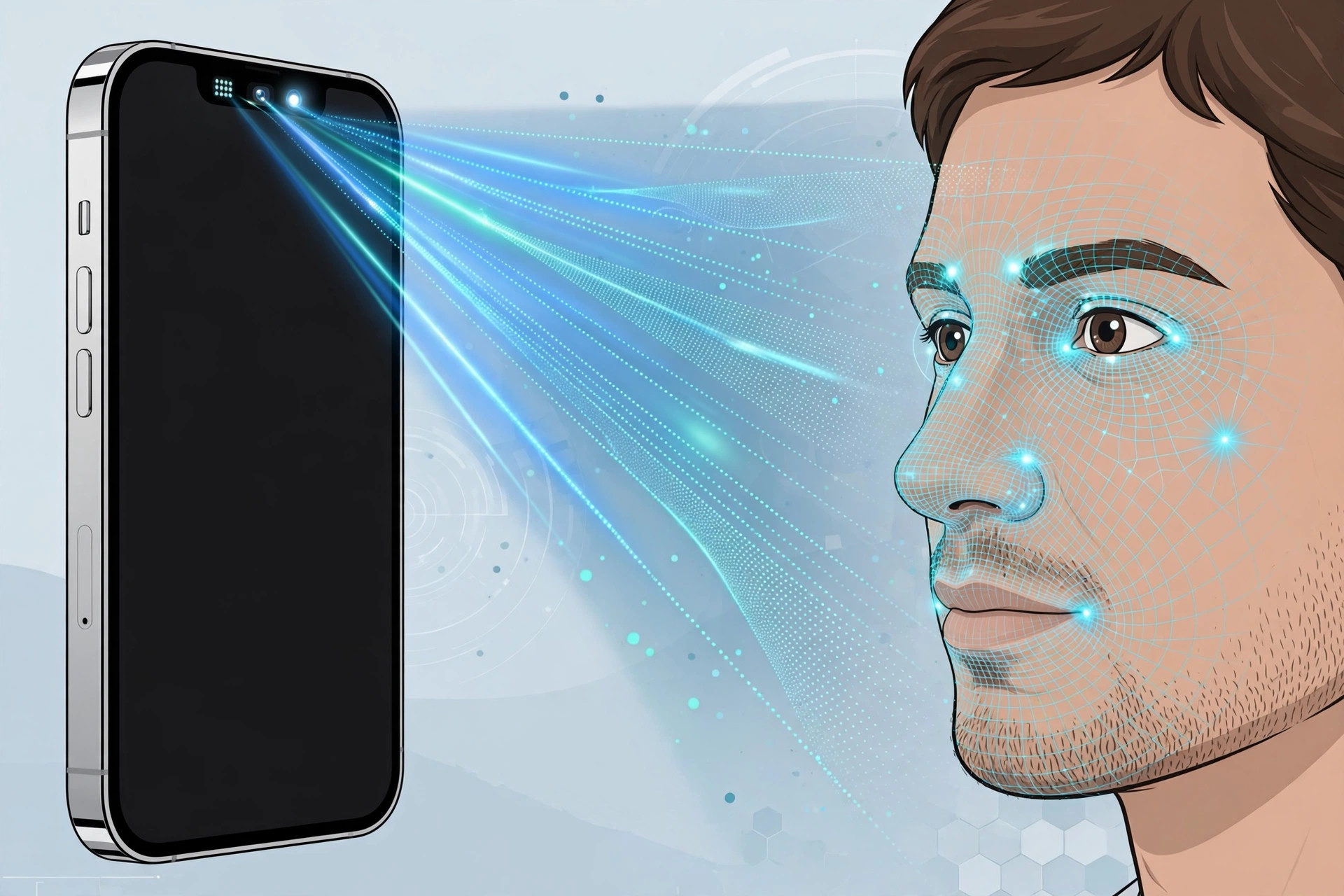
When Attention Awareness is on, your iPhone periodically checks — using the TrueDepth sensor array in the notch or Dynamic Island — whether your face is pointed toward the screen. It does not take photos of you; it only detects attention. That signal drives three behaviors:
- The screen stays awake while you are looking at it. Reading a long article or following a recipe? The display will not dim or lock as long as your eyes are on it — no more tapping the screen to keep it alive.
- Alerts get quieter when you glance at the phone. If an incoming call, alarm, or timer is ringing and you look at the screen, the volume drops. The logic is simple: you have clearly noticed the alert, so there is no need to keep blaring it at full volume.
- Lock Screen notifications expand when you look. Glance at a locked iPhone and hidden notification placeholders turn into full message text; look away and they hide again — a neat privacy touch.
If any of this annoys you, the switch is at Settings > Face ID & Passcode > Attention Awareness. Turning it off may also save a small amount of battery, since the TrueDepth system no longer checks for your gaze.
Attention Awareness vs. “Require Attention for Face ID”
Do not confuse the two — they share a settings screen but do different jobs. Require Attention for Face ID is a security requirement: the iPhone unlocks only when your eyes are open and looking directly at it, so nobody can unlock your phone with your face while you are asleep. Attention Awareness is purely about convenience: screen dimming, alert volume, and notification previews. One practical caveat they share: certain sunglasses block the infrared light the TrueDepth camera relies on, which can make both features less reliable while you wear them.
If it still doesn’t work
Screen still dimming while you read? First confirm the toggle is on in Settings > Face ID & Passcode. Then wipe the TrueDepth area clean and check that no screen protector or case creeps over the notch or Dynamic Island. Remember that dark sunglasses can interfere with attention detection. If nothing helps, restart your iPhone and install the latest iOS update.
Frequently asked questions
Is the camera watching me all the time?
Not in the way you might fear. Attention detection happens locally on your iPhone — Apple says Face ID data never leaves the device. No photos are captured or stored; the phone only checks whether a face is oriented toward the screen.
Should I turn Attention Awareness off?
For most people, no: the behaviors are genuinely useful and the battery saving from disabling it is minor. Switch it off only if the dimming override or the volume lowering distracts you, or if you want to squeeze out every last drop of battery life.
Conclusion
Attention Awareness is one of those quiet iPhone features that makes the phone feel smarter: it stays awake while you read, quiets down once you have noticed an alert, and keeps Lock Screen notifications private until you look. Now that you know what it does — and how it differs from “Require Attention for Face ID” — you can make an informed choice. You may also like our guides on how to disable quick camera launch from the iPhone Lock Screen, how to add and change the iPhone startup sound in iOS, and how to change the Safari design on iPhone.
Sources: Apple Support, MacRumors, AppleInsider.






[…] the TrueDepth camera area, remove any case or screen protector that covers the notch, and check the Attention Aware Features settings, which can stop Face ID from engaging when you’re not looking at the phone. You can also […]