
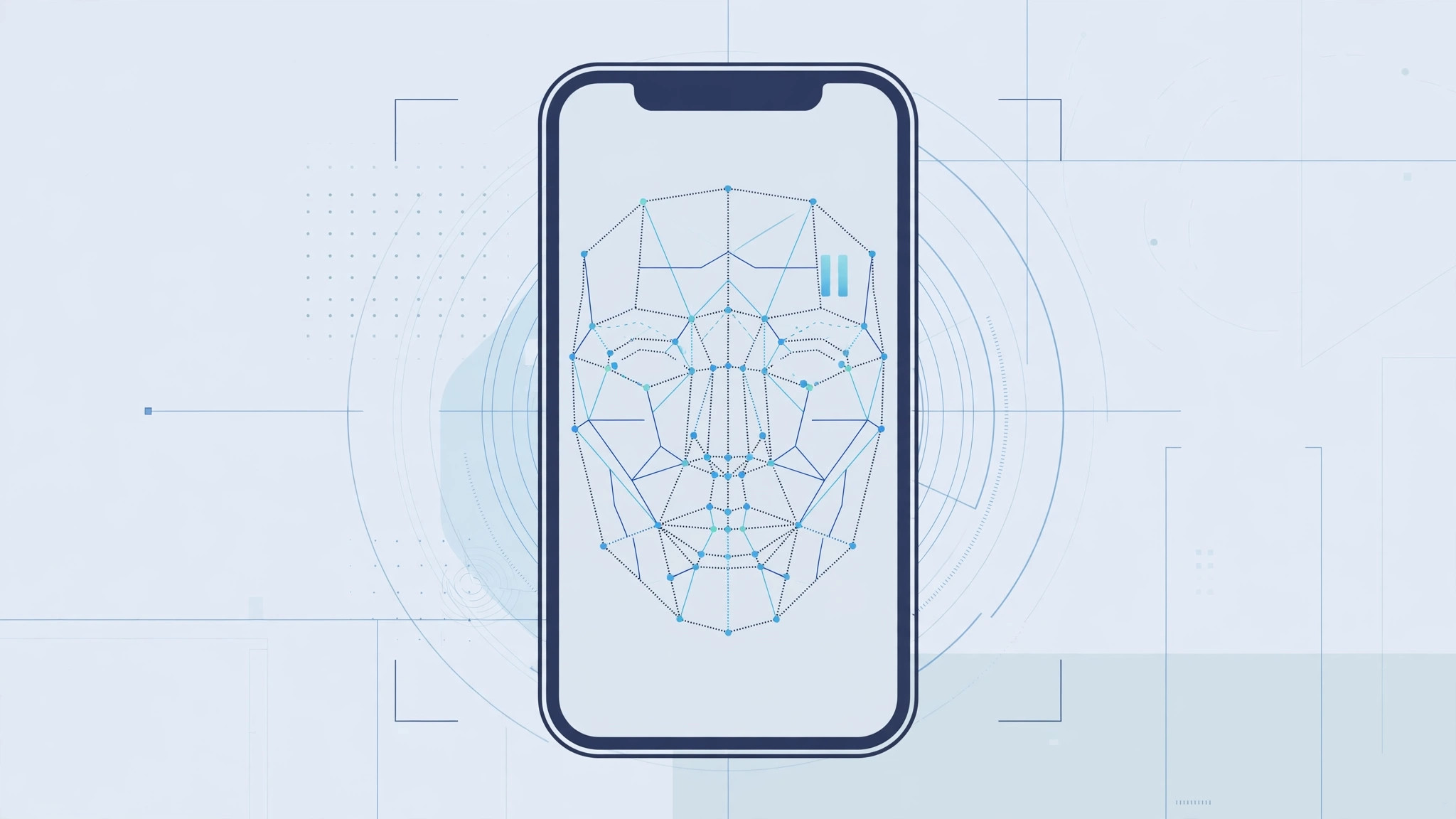
Face ID is wonderfully convenient — until the moment you want it off. Maybe you’re handing your phone to a friend, going through airport security, or you simply want the extra assurance of a passcode for a while. Digging through Settings to toggle Face ID off is slow and clumsy. Fortunately, your iPhone has a built-in shortcut that disables Face ID in about two seconds, without changing any settings.
This trick works because Apple designed Face ID to yield to your passcode in high-stakes moments. Once you know the gesture, you can force the passcode screen instead of Face ID any time you like — and it reactivates on its own the next time you unlock.
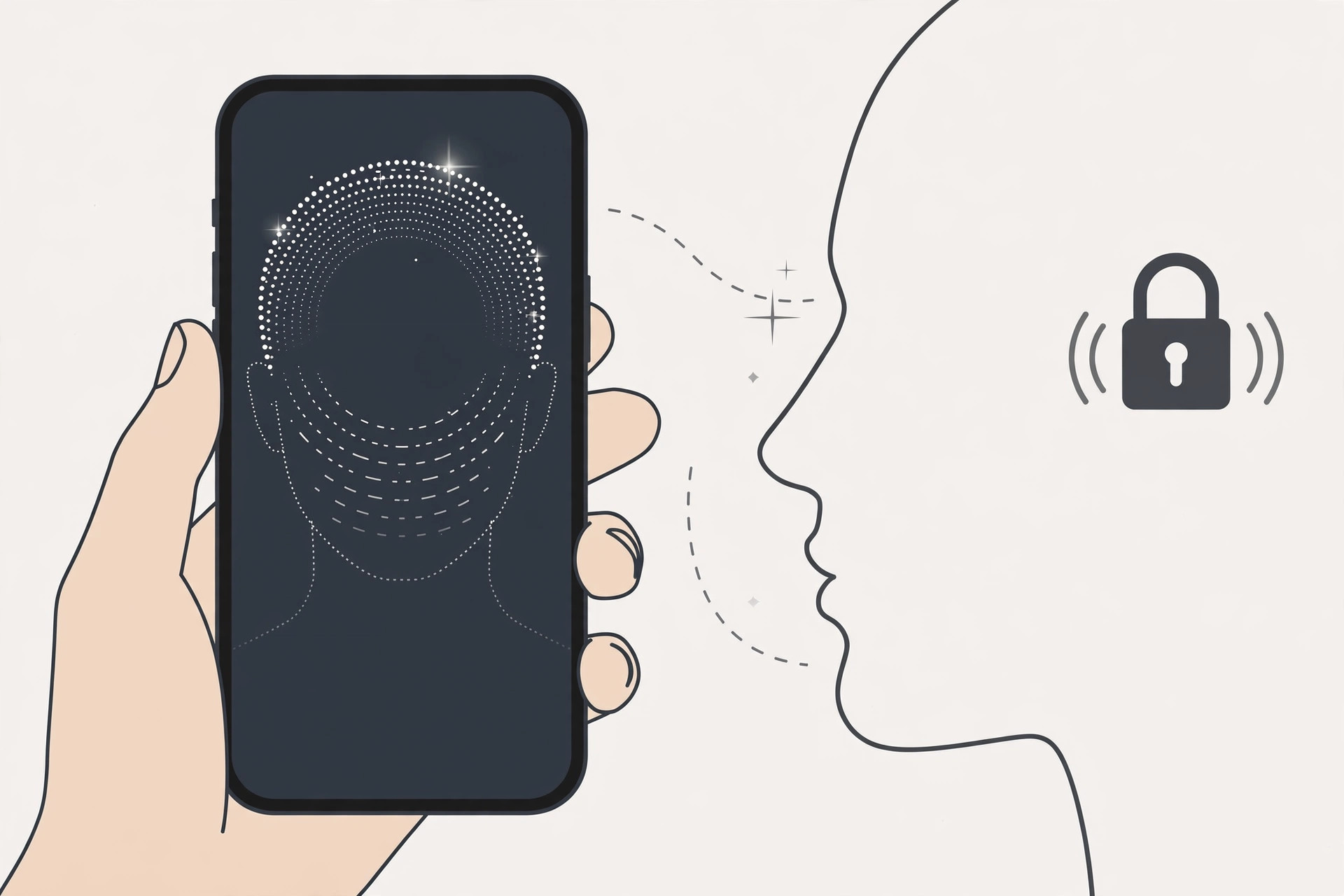
Disable Face ID temporarily, step by step
- Press and hold the Side button and either Volume button at the same time.
- The power-off screen appears, showing “slide to power off”, Medical ID, and Emergency SOS options.
- Tap Cancel at the bottom of the screen.
- That’s it — Face ID is now disabled. The next time the phone needs unlocking, it will ask for your passcode instead of scanning your face.
- Face ID turns itself back on automatically as soon as you enter your passcode.
On an iPhone with a Home button, the gesture is slightly different: click the Side button five times quickly to bring up the Emergency SOS screen, then tap Cancel. Apple documents the various situations that require a passcode in its guide to using Face ID on iPhone, and 9to5Mac has covered this shortcut in its iPhone tips roundups.
If it still doesn’t work
If tapping Cancel doesn’t seem to change anything, make sure you actually saw the power-off screen — a quick accidental press won’t trigger it; you need to hold both buttons until the screen changes. Note that a restart has the same effect: after any reboot, Face ID stays off until you enter your passcode once. If Face ID isn’t working at all (rather than being temporarily disabled), that’s a different issue — clean the TrueDepth camera area, remove any case or screen protector that covers the notch, and check the Attention Aware Features settings, which can stop Face ID from engaging when you’re not looking at the phone. You can also watch the shortcut demonstrated on video to make sure your timing is right.
Frequently asked questions
Does this turn off Face ID permanently?
No — that’s the beauty of it. This is a one-time override, not a settings change. The moment you type your passcode to unlock, Face ID is fully active again. If you want it off for good, go to Settings > Face ID & Passcode and toggle off iPhone Unlock — but for most situations, the temporary method is all you need. It also works nicely alongside features like locking private tabs with Face ID, which keep using Face ID normally.
Can someone turn Face ID back on without my passcode?
No. Only entering your passcode reactivates Face ID after this shortcut. So if you disable it before handing your phone to someone, they cannot quietly re-enable face unlock — the phone will keep demanding the passcode they don’t know.
Conclusion
Hold Side plus Volume, tap Cancel, done. It’s the fastest privacy move on iPhone — a two-second gesture that swaps Face ID for your passcode exactly when you want it, and politely switches itself back afterward.





