
You walk out of your bedroom and your iPhone buzzes: your iPad has been “left behind.” Except it hasn’t — it is sitting on your desk, exactly where it always sits. If your iPhone keeps warning you about a forgotten iPad, MacBook, or AirPods that never actually went anywhere, you are dealing with a well-meaning Find My feature that simply needs calibrating.
The alerts come from “Notify When Left Behind,” a safety net designed to stop you from abandoning a device in a café or a taxi. It is doing its job — it just does not know yet that your home is a safe place. Here is why the false alarms happen and the two ways to silence them: per device, or per location. And if it is your AirPods doing the chirping, our guide to turning off AirPods charging case sounds tackles another noisy Apple accessory.
Why your iPhone thinks you keep forgetting things
Notify When Left Behind watches the distance between your iPhone and your other Apple devices. When a paired gadget — an iPad, a MacBook, AirPods — separates from you by more than a short distance, your iPhone pings you so you can go back for it. Genuinely useful when you are rushing out of a coffee shop.
False positives cluster around a few situations. The classic one is home: your iPad lives on the nightstand and your Mac never leaves the desk, but the feature still treats every trip to the kitchen as a potential abandonment. Moving to a new apartment can restart the problem, because your old “safe” address no longer applies. And near secured facilities or dense downtown blocks, wobbly GPS can make a stationary device look like it is drifting away. Apple’s Find My support documentation describes how the alert is supposed to behave, and Apple-focused outlets like 9to5Mac and MacRumors have covered its quirks in detail.
Fix it in the Find My app
Open the Find My app on your iPhone and work through these steps for the gadget that keeps triggering alerts:
- Find the device. In Find My, tap the Devices tab at the bottom and select the iPad, Mac, or AirPods that is causing the notifications.
- Open the alert setting. Tap Notify When Left Behind to see its current configuration.
- Option A — silence it for this device. If the gadget never leaves the house (a home iPad, a desk-bound MacBook), switch the notification off entirely for that device. Problem solved permanently.
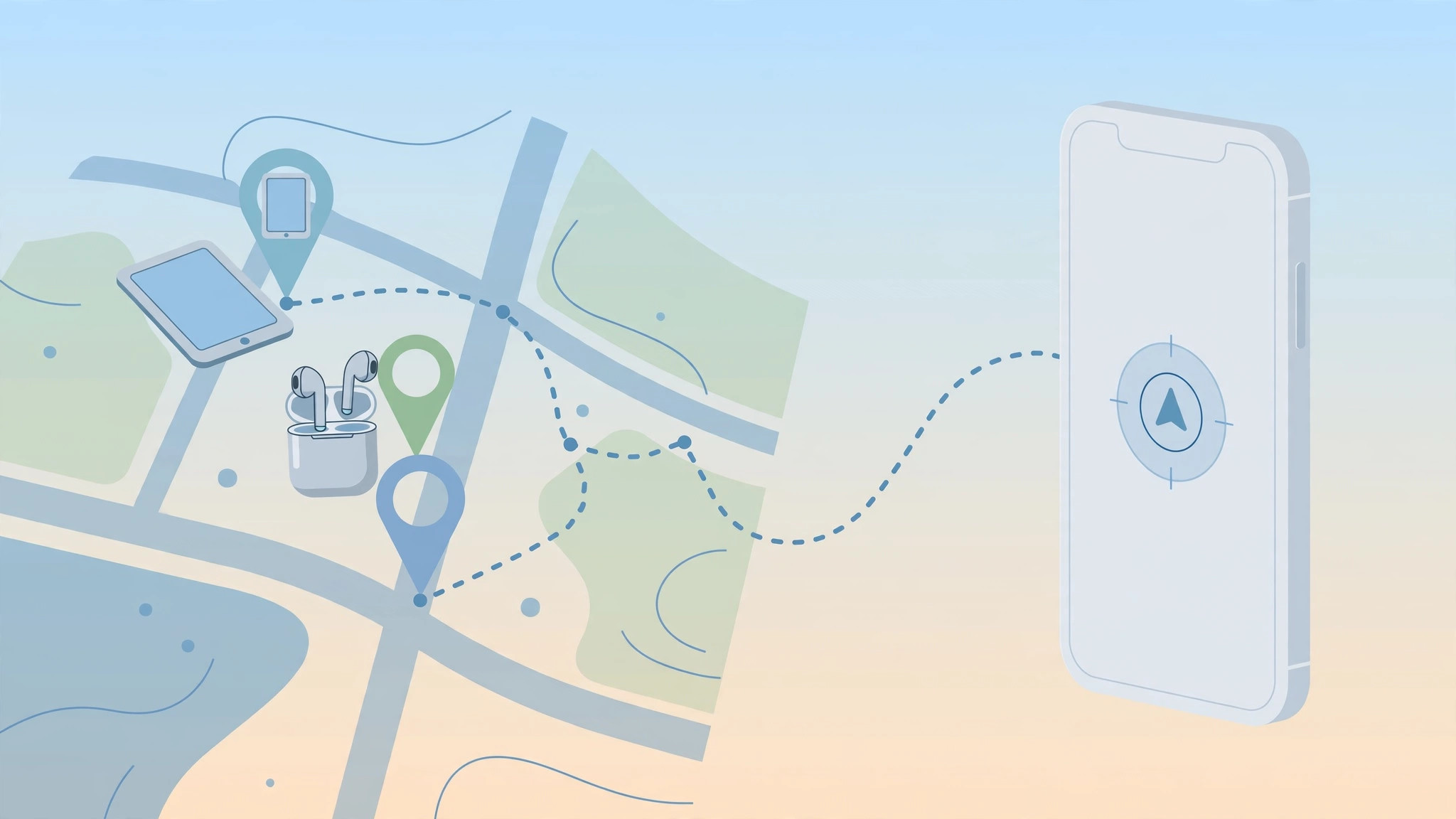
- Option B — add a safe location. If the alerts only fire at one place — your office, a new apartment — tap New Location and add that spot as an exception. Use your current location and choose a generous radius so minor GPS wobble does not re-trigger the alert.
Which fix should you pick?
Think about the device’s lifestyle. A Mac mini that has never left your desk does not need left-behind protection at all — turn it off and enjoy the silence. But an iPad you carry to work and back is worth protecting on the road; for that one, keep the alert on and simply whitelist home and office as exceptions. The key insight: this is not a bug. The feature is working exactly as designed — your safe locations just need calibrating.
If it still doesn’t work
First, double-check you edited the setting for the right device — with several Apple gadgets it is easy to silence the iPad while the MacBook is the actual complainer. If location exceptions are not sticking, widen the radius and make sure Location Services is enabled for Find My in Settings > Privacy & Security. After moving house, delete the old home exception and re-add your new address; stale locations are the number one cause of mystery alerts. Still buzzing? Toggle Notify When Left Behind off and back on for that device to force a fresh start.
Frequently asked questions
Is this a bug in Find My?
No — and that is good news, because it means the fix is in your hands. The alert fires whenever a device separates from your iPhone outside a trusted location. Once you tell Find My which places (and devices) are exempt, the false alarms stop.
Will turning the alert off make it harder to find a lost device?
Not at all. Notify When Left Behind is purely a proactive warning; it has nothing to do with locating a missing gadget. Find My tracking, Activation Lock, and remote erase all keep working exactly as before.
Conclusion
Those “device left behind” pings feel like nagging, but they are really just an overeager bodyguard. Spend two minutes in Find My: switch the alert off for devices that never travel, or teach it your safe locations with a generous radius. Calibrated once, it goes back to being the quiet safety net it was meant to be — and if your iPhone has other audio annoyances, our guide to stopping iPhone from switching audio between headphones and speakers is worth a read too.





