
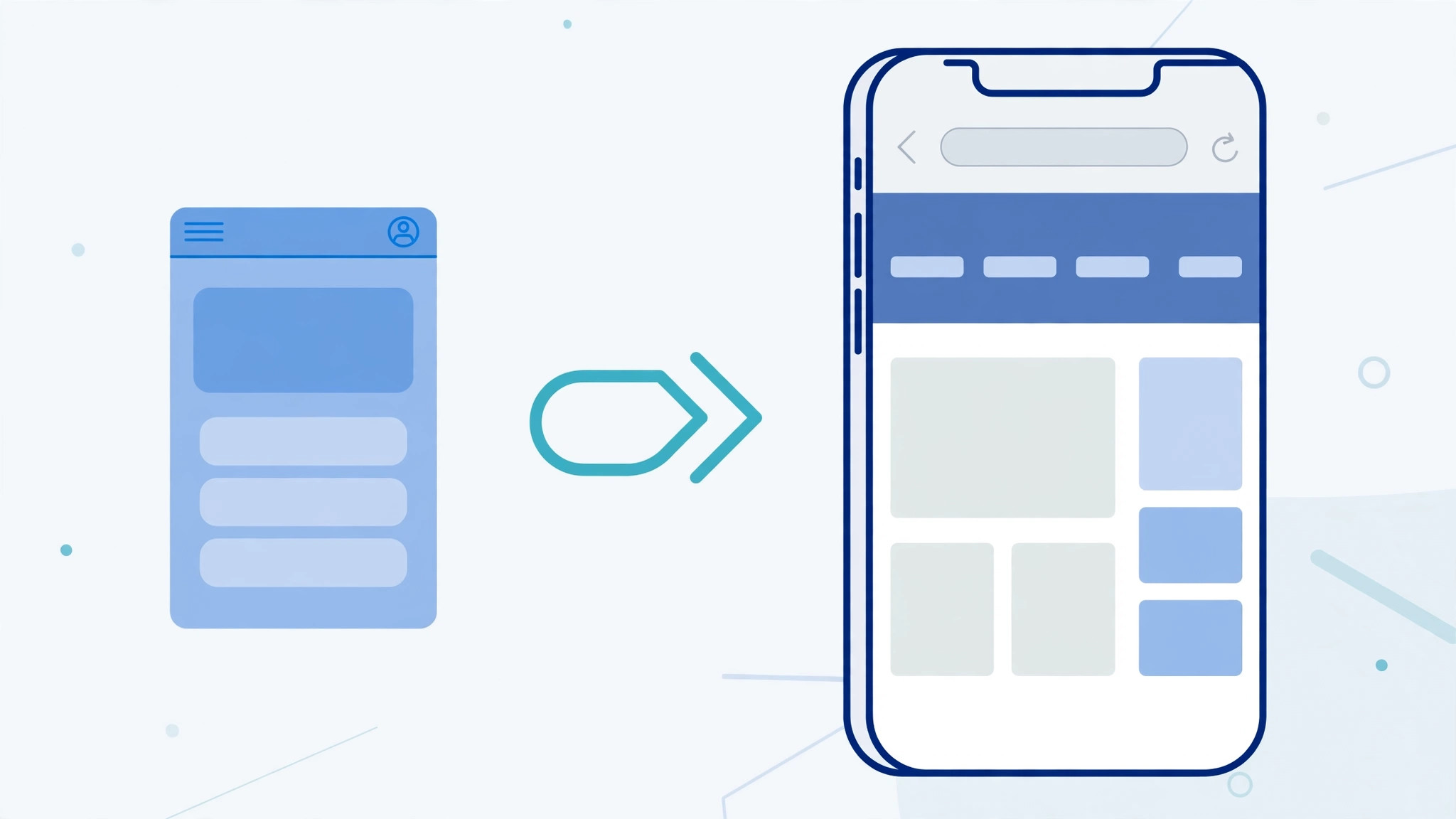
Some websites hide their best features from iPhone users. A settings page, a download button, or a full dashboard might only appear when the site believes you’re visiting from a desktop computer — the mobile version you get instead can feel stripped down and limited. The fix is built right into Safari: you can ask any website for its desktop version with a couple of taps. The exact steps depend on whether your iPhone runs iOS 18 or an older release, but either way it takes less than a minute. Here’s how to load the full desktop site on your iPhone, and how to switch back to the mobile version when you’re done.
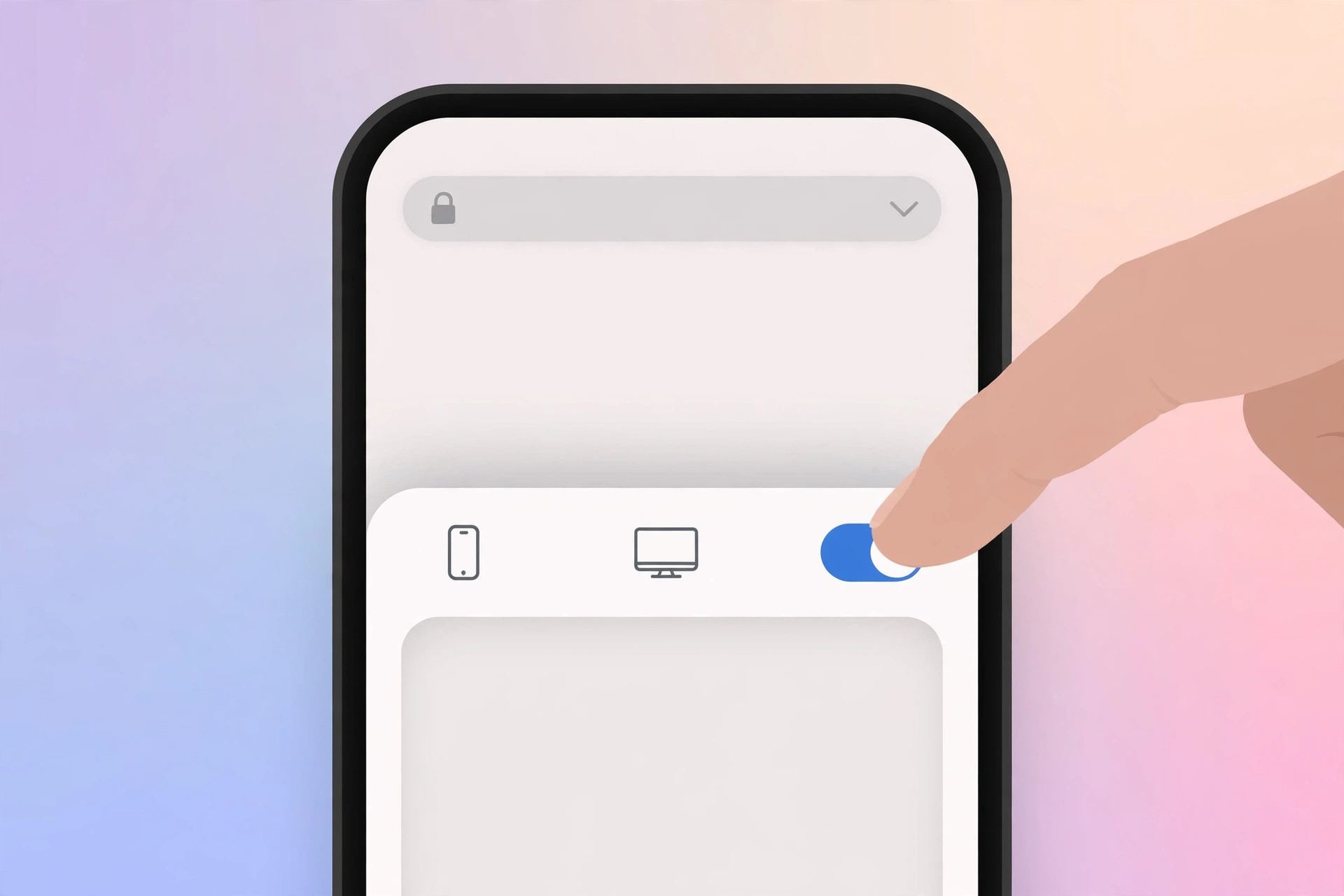
Request the desktop website on iOS 18
Apple reshuffled Safari’s menus in iOS 18, so the option moved. Here’s where it lives now:
- Open the website in Safari.
- Tap the page-settings button in the address bar (at the bottom of the screen).
- Tap the three dots (•••) in the bottom-right corner of the menu that appears.
- Tap Request Desktop Website — the page will reload in its desktop layout.
Use this trick a lot? Tap Edit at the top of that menu and move “Request Desktop Website” into the top panel — it will then be one tap away every time. To return to the mobile layout, open the same menu and choose “Request Mobile Website” instead. Apple’s iPhone User Guide covers these Safari page settings in detail.
Request the desktop website on iOS 17 and older
On older iOS versions, the option sits right in the address bar menu:
- Open the website in Safari.
- Tap the aA button on the left side of the address bar.
- Tap Request Desktop Website.
The page reloads in desktop mode. To get the mobile version back, repeat the steps and choose “Request Mobile Website”. For more ways to reshape Safari, see our guide on how to change Safari’s design on iPhone.
If it still doesn’t work
A few things to check. First, make sure you’re using Safari itself — pages opened inside other apps’ built-in browsers may not offer the desktop option at all. Second, some websites ignore the request entirely and serve the mobile layout based on your screen size; in that case, try rotating your iPhone to landscape for extra width, then request the desktop site again after the page has fully loaded. Finally, if the menu option seems to be missing, update iOS — MacRumors‘ roundups of each iOS release note whenever Safari’s menus change.
FAQ
Does Safari remember my choice for a website?
Yes. Safari remembers whether you asked for the desktop or mobile version on a per-website basis, so you only have to set it once per site.
Why do some sites still look like the mobile version?
Some sites decide which layout to show based on your screen width rather than your request. Safari can’t override that — but switching to landscape orientation sometimes helps.
Conclusion
The desktop version of a site is only a couple of taps away, whether you’re on iOS 18 or an older release. Request it when you need the full feature set, then switch back when you want the lighter mobile layout. And if Safari keeps nagging you about passwords while you browse, here’s how to stop Safari from suggesting passwords for websites on iPhone.





