

A photobomber in the background, a trash can ruining an otherwise perfect shot, a stranger wandering through your vacation photo — we’ve all taken pictures that would be flawless if one distracting object just wasn’t there. Apple’s Clean Up tool can erase those distractions, but it needs Apple Intelligence, which only runs on the iPhone 15 Pro, the iPhone 16 lineup, and newer models. If your iPhone is older, you’re not out of luck: several free tools remove objects from photos just as well. Here are three reliable options, from a one-tap eraser to a manual brush.
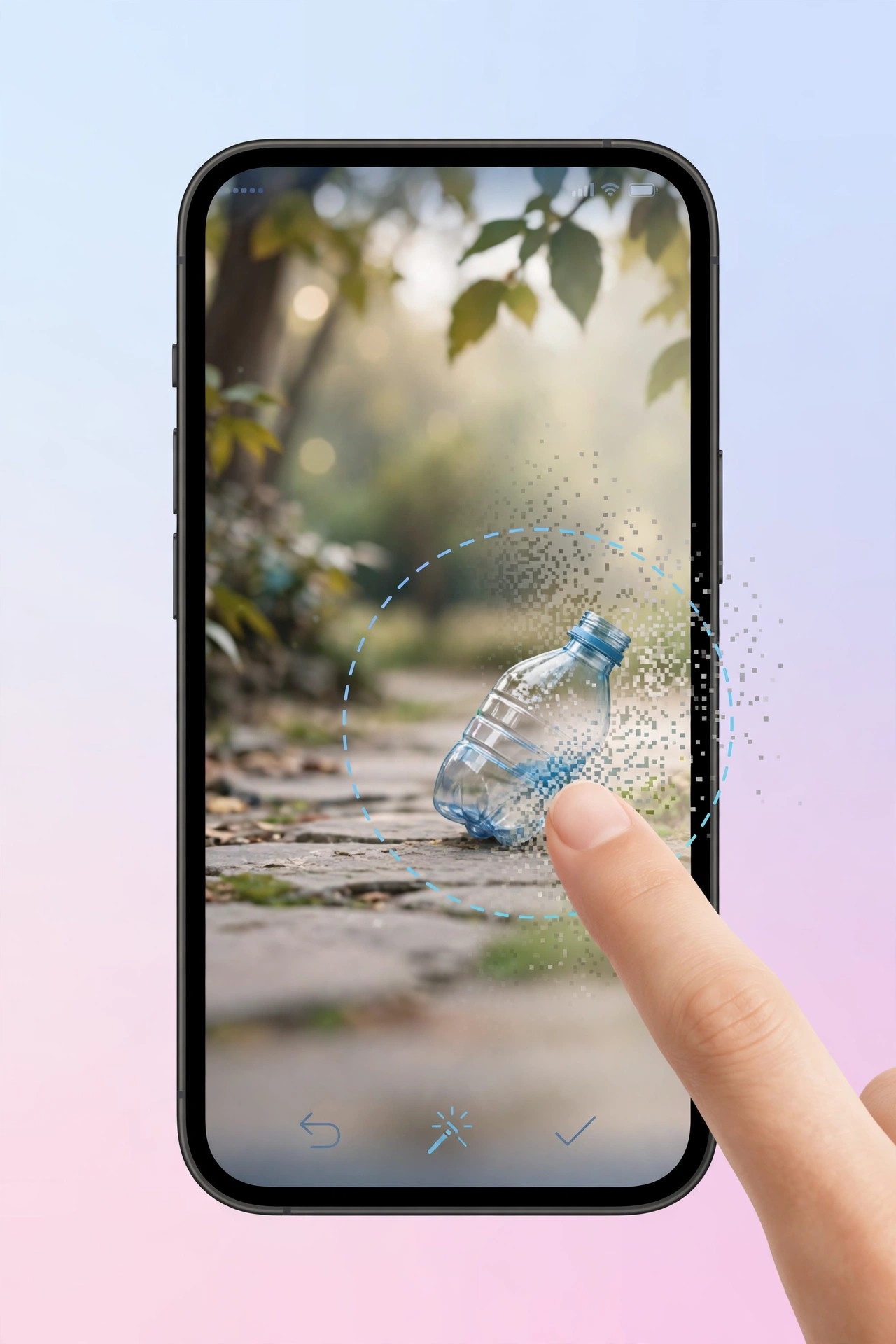
Option A — Google Photos Magic Eraser
If you already use Google Photos, its Magic Eraser is the closest thing to Apple’s Clean Up:
- Install Google Photos from the App Store and open the photo you want to fix.
- Tap Edit, then tap Tools.
- Tap Magic Eraser.
- Tap the suggested objects Google highlights, or brush over the unwanted object with your finger.
- Tap Done, then save a copy of the edited photo.
Google’s Photos help pages document Magic Eraser’s current availability across devices, so it’s worth a quick check if the option doesn’t appear for you.
Option B — Snapseed’s Healing tool
Snapseed is Google’s free photo editor, and its Healing tool is ideal for smaller distractions like signs, wires, or blemishes:
- Open the photo in Snapseed.
- Tap Tools, then tap Healing.
- Zoom in on the unwanted object and brush over it with your finger.
- Snapseed fills the area using the surrounding pixels — repeat the stroke for stubborn spots.
- Export the finished photo to your library.
Option C — cleanup.pictures in Safari (no app needed)
Don’t want to install anything? The free web app cleanup.pictures runs entirely in your browser:
- Open Safari and go to cleanup.pictures.
- Upload the photo from your library.
- Brush over the objects you want gone.
- Download the cleaned image.
If you enjoy iPhone photography tricks, our guide on how to take HDR screenshots on iPhone and iPad is worth a look next.
If it still doesn’t work
Magic Eraser missing from Google Photos? Make sure the app is fully updated — Google rolls features out gradually, and older versions may not have it. If Snapseed’s Healing leaves smudges, zoom in closer and use smaller brush strokes; busy backgrounds are much harder to fix than plain skies. For cleanup.pictures, a stable connection helps, since the processing happens online. And if a photo simply won’t clean up nicely, MacRumors‘ guides to Apple’s Clean Up explain which iPhones support the built-in tool. Video walkthroughs on YouTube can also show the exact brush technique in action.
FAQ
Are these tools really free?
Yes. Magic Eraser’s basic erasing, Snapseed, and cleanup.pictures all remove objects without charging you. Some offer paid tiers for extra features, but erasing doesn’t require paying.
Will erasing objects reduce my photo’s quality?
Barely, if you work carefully. Always save a copy rather than overwriting the original, and export at full resolution to keep the most detail.
Conclusion
You don’t need the latest iPhone or Apple Intelligence to rescue a photo from an unwanted object. Magic Eraser handles the job in seconds, Snapseed gives you precise manual control, and cleanup.pictures needs no install at all. Pick the one that fits your workflow — and if your camera itself is acting up, see why spatial photo mode isn’t working in iOS 26 for fixes.





