
iOS 18 introduced a genuinely useful privacy feature: the ability to hide apps so they vanish from your Home Screen, folders, and even Spotlight search. It’s great for banking apps or anything you’d rather keep private — until you forget where they went. Don’t worry: hidden apps aren’t deleted, and there are two simple ways to find them again.
Lock vs. hide: what’s the difference?
iOS 18 actually offers two separate protections. Locking an app keeps its icon on the Home Screen but requires Face ID or Touch ID to open it. Hiding an app goes further: the icon disappears completely and the app won’t appear in search results, with its notifications concealed too. Both are set by long-pressing an app icon and choosing Require Face ID, but only hiding moves the app into a special locked folder. The tech press, including 9to5Mac, covered both options when iOS 18 launched.
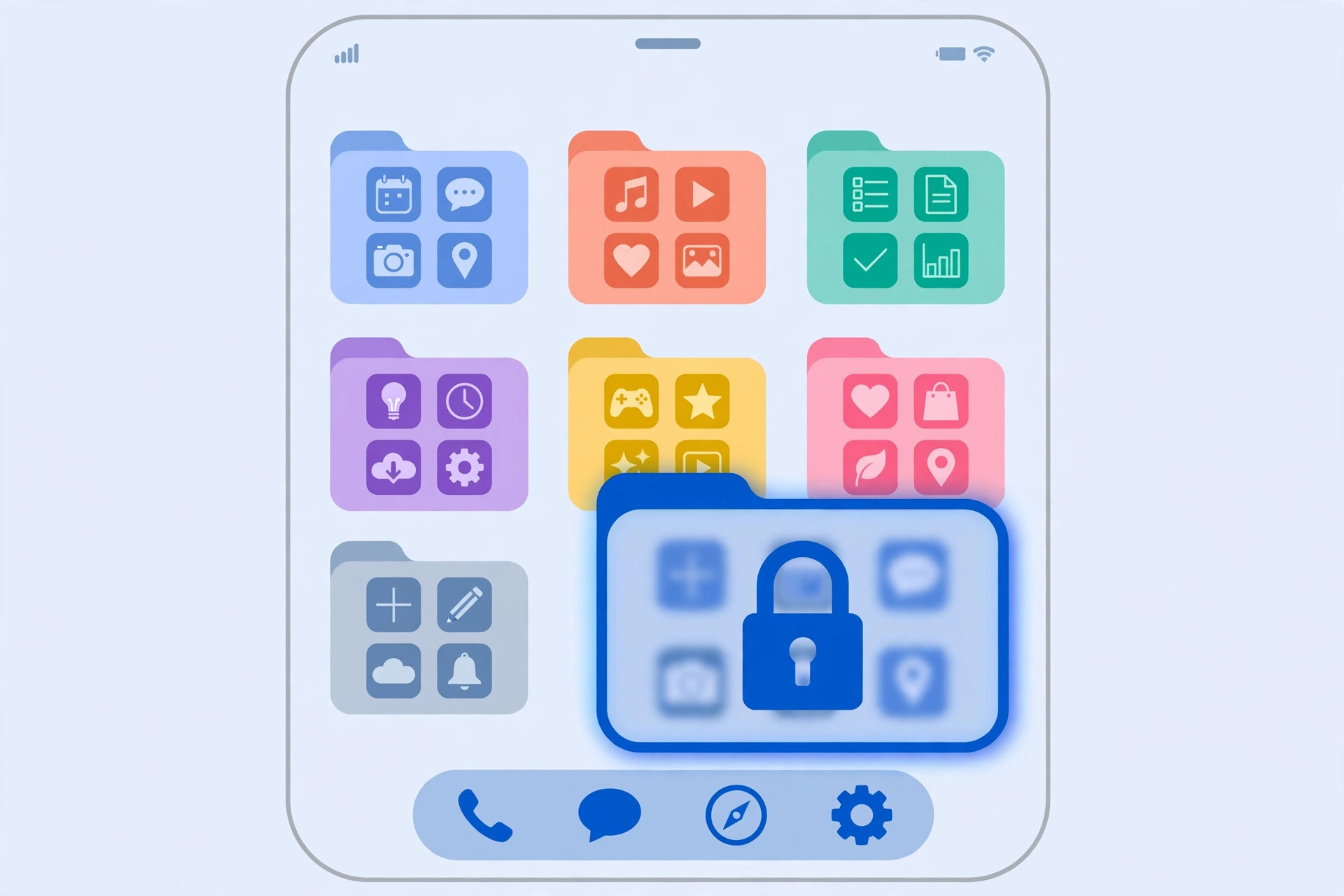
Method 1: Find hidden apps in the App Library
- Swipe left past all your Home Screen pages until you reach the App Library.
- Scroll all the way down to the bottom of the category folders.
- Tap the Hidden folder (it shows a Face ID icon).
- Authenticate with Face ID or Touch ID when prompted.
- You’ll now see every hidden app — tap any of them to open it.
Note: you can’t open this folder with your passcode — only biometrics work, which is the whole point of the privacy design. Apple documents these app protections in its iPhone user guide.
Method 2: Find hidden apps in Settings
- Open Settings and scroll down to Apps.
- Scroll to the very bottom of the app list.
- Tap the Hidden Apps folder.
- Authenticate with Face ID or Touch ID.
- Browse and launch your hidden apps from here.
How to unhide an app
Found it and want it back on the Home Screen? Open the Hidden folder (either method), long-press the app icon, and choose Don’t Require Face ID. The app returns to the App Library, from where you can drag it back to the Home Screen.
If it still doesn’t work
Can’t find an app in the Hidden folder? It may not be hidden at all — just removed from the Home Screen, in which case a quick App Library search will surface it. Also check Settings → Screen Time → Content & Privacy Restrictions, which can hide entire categories of apps and trips up a lot of people. And if clutter is the real problem, small customizations — from setting a silent ringtone to tidying your Home Screen — add up to an iPhone that feels truly yours. If storage is the issue instead, see what to do when WhatsApp takes up too much storage on iPhone.
FAQ
Do hidden apps still send notifications?
Notifications from hidden apps are silenced and their content is concealed on the Lock Screen — another reason the feature is genuinely private.
Can someone find my hidden apps without my face?
No. The Hidden folder requires your Face ID or Touch ID every time, and the passcode can’t substitute. Without your biometrics, the apps stay invisible.
The bottom line
Finding hidden apps in iOS 18 is easy once you know where to look: the Hidden folder at the bottom of the App Library, or the Hidden Apps section at the bottom of Settings → Apps. Just remember that only Face ID or Touch ID opens the door — there is no passcode fallback by design.





