
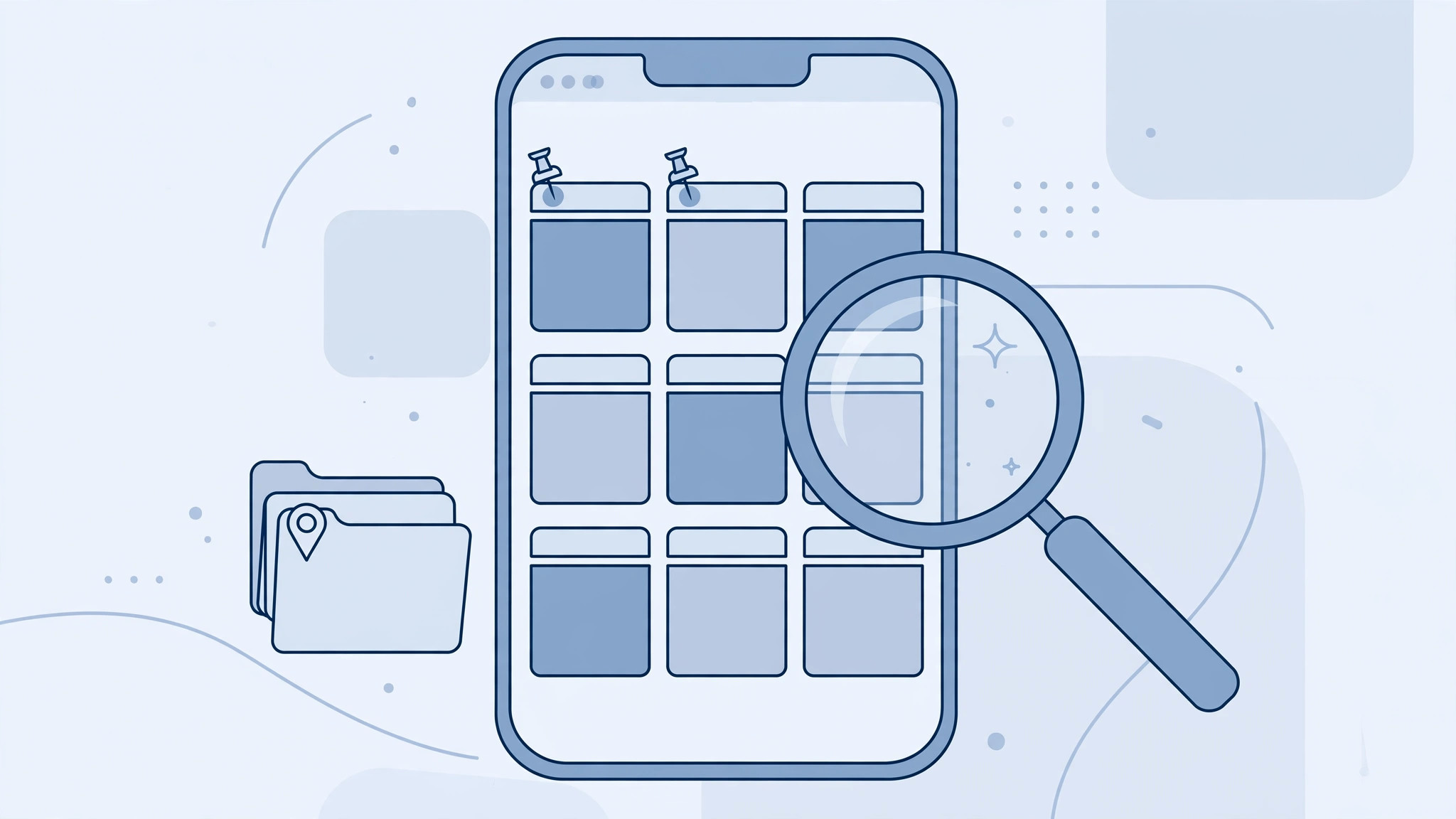
Open Safari on your iPhone right now and check the tab counter — if it’s in the double digits, you’re not alone. Safari makes it dangerously easy to accumulate tabs and painfully hard to find the one you need. Fortunately, Apple’s browser has a full toolkit for taming tab chaos: Tab Groups, pinned tabs, sorting, and a surprisingly powerful tab search. Here’s how to use them all.
Organize tabs with Tab Groups
Tab Groups are Safari’s answer to tab overload: separate collections of tabs you can switch between, like having multiple browsers in one. Create one for work, one for travel planning, one for shopping — each keeps its own tabs, and groups sync across your Apple devices via iCloud.
- Open Safari and tap the Tabs button (two overlapping squares).
- Tap the tab group name at the bottom of the screen.
- Tap New Empty Tab Group, give it a name, and tap Save.
- Open tabs as usual — they now belong to this group. Switch groups anytime from the same menu.
Apple documents Tab Groups in its iPhone user guide, and AppleInsider has tracked their evolution across iOS versions.

Pin the tabs you always need
For the handful of pages you open every day, pinning keeps them one tap away at the top of the tab view:
- Tap the Tabs button to open the tab overview.
- Long-press the tab you want to pin.
- Tap Pin Tab.
Pinned tabs stay put even when you close other tabs, and they sync via iCloud too.
Sort tabs by title or website
When a Tab Group fills up, let Safari tidy it for you:
- Open the tab overview with the Tabs button.
- Long-press any tab.
- Choose Arrange Tabs By → Title or Arrange Tabs By → Website.
Sorting by website is especially handy for research sessions where you’ve opened ten articles from three sites.
Search across all open tabs
Sometimes organizing isn’t enough — you just need that one page. Safari’s tab search finds it in seconds:
- Open the tab overview.
- Tap the top of the screen to reveal the search field — the same tap-to-top gesture that works across iOS.
- Type part of the page title or website name.
- Matching tabs appear instantly; tap one to jump to it.
If it still doesn’t work
Tabs mysteriously disappearing? Check Settings → Apps → Safari → Close Tabs — if it’s set to “After One Day” or “After One Week,” Safari auto-closes old tabs. Set it to Manually to keep them. If tabs aren’t syncing between devices, verify you’re signed into the same Apple ID with iCloud Tabs enabled. And if Safari feels sluggish with dozens of tabs open, closing them in bulk (long-press the Tabs button → Close All Tabs) works wonders. For more iPhone-to-Mac continuity tricks, see our guide on setting up message sync between iPhone and Mac.
FAQ
Is there a limit to how many tabs Safari can hold?
Safari caps out at 500 tabs per Tab Group — more than enough for even the worst tab hoarders, though performance is best well below that.
Do Tab Groups work in Private Browsing?
Private tabs live in their own separate group and aren’t saved to iCloud, but you can still organize them with pinning and search while the session lasts.
The bottom line
You don’t need a third-party browser to stay organized: Tab Groups separate your contexts, pinned tabs keep essentials handy, sorting brings order, and tab search finds anything in seconds. Spend five minutes setting this up and your tab chaos becomes a filing system. And if you love squeezing more from Apple’s apps, check out how to use Action Mode video on iPhone.





