
There are moments when a ringing iPhone is the last thing you want — in meetings or at night. Apple’s defaults give you two extremes: ring loudly, or go fully silent with no vibration. The sweet spot — a phone that vibrates for calls in normal mode and stays fully silent in silent mode — needs one extra ingredient: a silent ringtone.
iOS doesn’t include one, but adding it takes minutes: transfer a ready-made silent ringtone from a computer, or build one in Apple’s free GarageBand app. Then a quick settings change makes it behave exactly as you want.
Method 1: Transfer a silent ringtone from a computer
Fastest if you have a Mac or PC nearby — you just need a silent ringtone in Apple’s .m4r format.
- Download a silent .m4r ringtone to your computer.
- Connect your iPhone with a cable, unlock it, and tap “Trust” if asked.
- On a Mac, open Finder and select your iPhone in the sidebar; on Windows, open iTunes and click the phone icon.
- Drag the .m4r file onto your iPhone in Finder (or into the Tones section in iTunes) and sync.
- On the iPhone, open Settings → Sounds & Haptics → Ringtone — the silent tone tops the list. Apple details this flow in its guide to creating a custom ringtone on iPhone.
Method 2: Make a silent ringtone in GarageBand
No computer? The free GarageBand app can export any project as a ringtone — including one with the volume at zero.
- Install GarageBand from the App Store.
- Open it, tap +, and start a new song with the Audio Recorder instrument.
- Record a few seconds of audio, then drag the track’s volume slider all the way down.
- Tap the arrow (top-left), choose My Songs, long-press your project, and pick Share → Ringtone.
- Name it “Silent” and tap Export. 9to5Mac’s walkthrough shows the same export flow with screenshots, and Apple has a short video tutorial on custom ringtones too.
Set the ringtone and tune haptics
Now tell iOS how to use the new tone:
- Go to Settings → Sounds & Haptics → Ringtone and select the silent ringtone as the default.
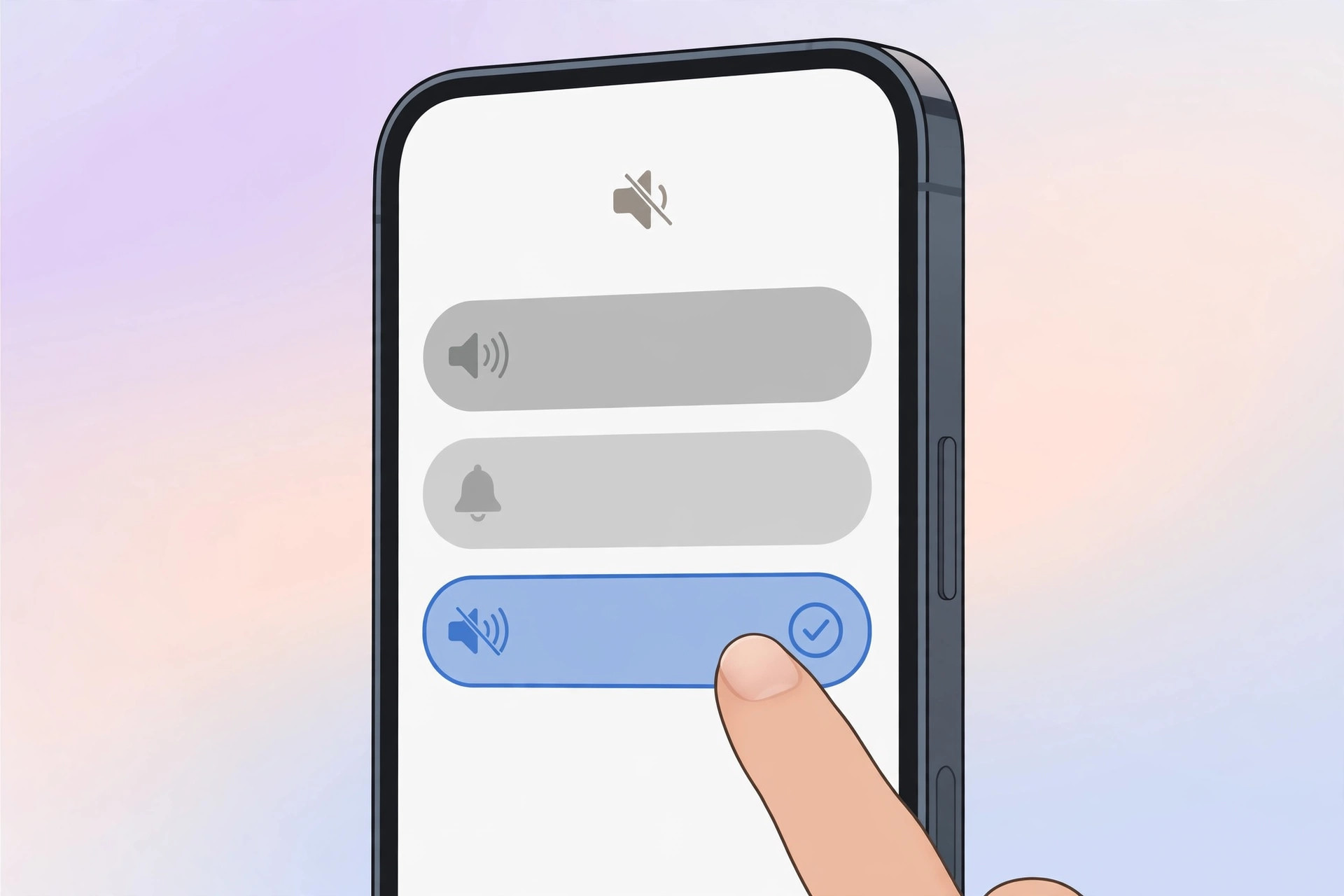
- Tap Haptics and choose “Don’t Play in Silent Mode”.
- Keep a vibration pattern selected (not “None”) so calls still buzz.
Done: in normal mode your iPhone vibrates for calls without a sound; flip the silent switch and it stays fully quiet. Also see our guides on adding and changing the iPhone startup sound in iOS and turning off AirPods charging case sounds.
If it still doesn’t work
- Tone missing from the list? Sync the .m4r file again — and confirm it’s really .m4r, not .mp3 or .m4a.
- Phone still rings? Check the tone is set under Ringtone, not just Text Tone — they’re separate.
- No vibration? Go to Settings → Sounds & Haptics → Haptics and pick a vibration pattern.
- A Focus mode is active? Do Not Disturb silences calls on its own — check which Focus is on.
Frequently asked questions
Will a silent ringtone mute my alarms?
No — alarms in the Clock app use their own sound, so your morning alarm still rings normally.
Can I silence just one contact?
Yes. Open the contact, tap Edit → Ringtone, and assign the silent tone there — that person’s calls will vibrate or stay quiet while everyone else rings normally.
Conclusion
A silent ringtone plus the right haptics setting gives you the best of both worlds: discreet buzzing by day, total silence by night. Whether you transfer a ready-made .m4r file or build one in GarageBand, the whole setup takes under ten minutes.






[…] restrictions. While you’re digging through settings, you might also like our guide on how to set a silent ringtone on iPhone for meetings and quiet […]