
When Face ID works, unlocking your iPhone feels like magic — you glance at the screen and swipe up. But when Face ID starts failing, the experience turns into an exercise in patience. The phone stares back at you, tries again, fails again, and only after several long seconds does it finally offer the passcode keypad. If you already know your face is not going to be recognized, those seconds feel like an eternity.
Fortunately, there is a way to skip the wait entirely. With one tap, you can tell iOS to stop attempting Face ID and bring up the passcode screen immediately. It takes about two seconds to learn and will save you frustration every single day until your Face ID is fixed.
Why Face ID keeps you waiting
When you swipe up on the lock screen, iOS starts a Face ID scan. If the scan fails — because your face is covered, the TrueDepth camera is smudged, or the hardware is faulty — the system waits and retries before giving up. Only then does it show the passcode option. This retry loop is what creates the 3–4 second delay. The trick is to interrupt it: tapping the "Face ID" label on the lock screen tells iOS you want to skip the biometric attempt right now.
How to bring up the passcode screen instantly
Here is the shortcut:
- Wake your iPhone by tapping the screen or pressing the side button.
- Swipe up from the bottom edge, as you normally would to unlock.
- Immediately tap the "Face ID" text label that appears on the lock screen.
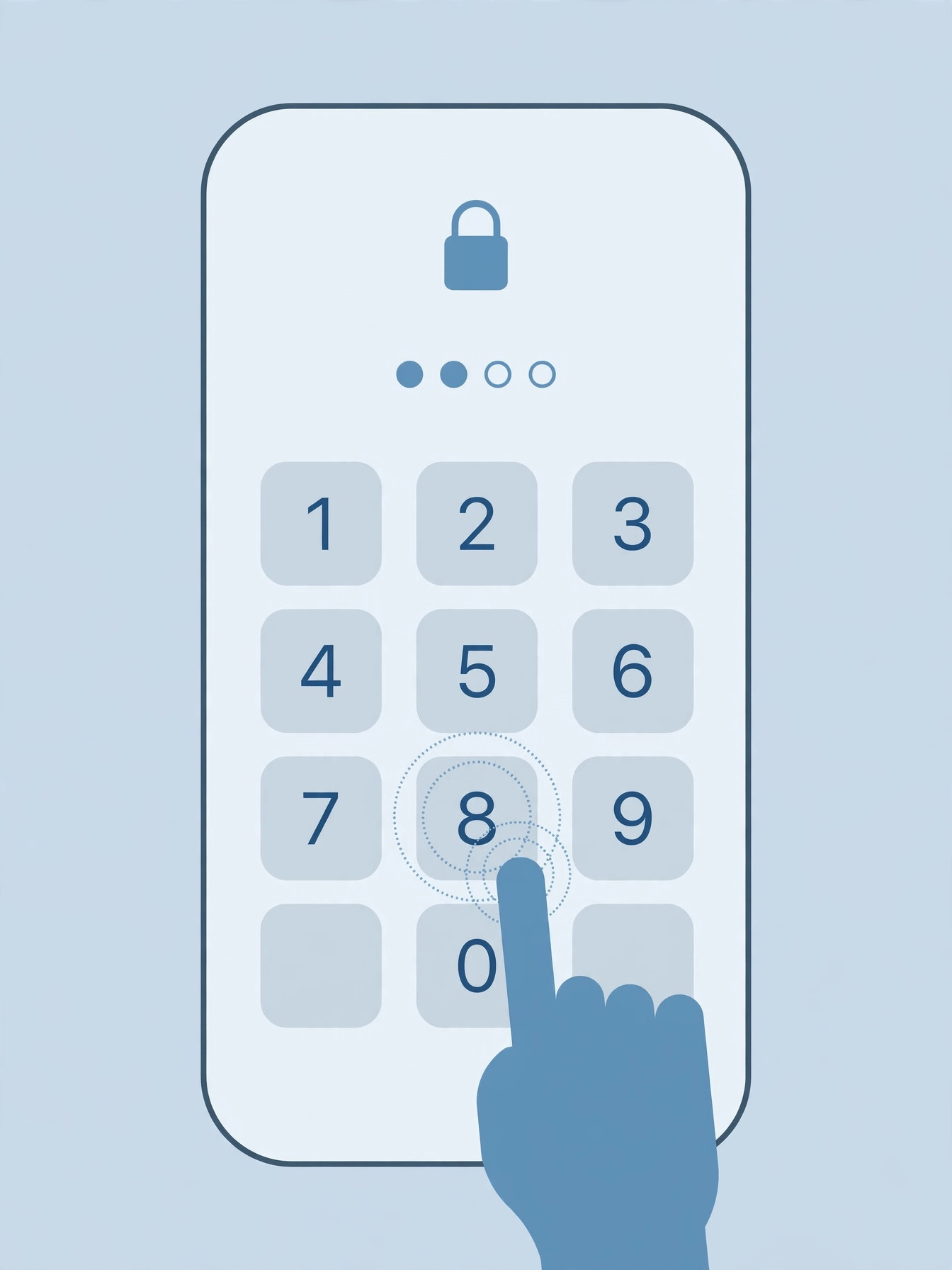
The passcode keypad appears at once — no waiting for Face ID to fail first. Type your passcode and you are in. It works every time, and it works even when Face ID is completely broken. Apple explains the relationship between Face ID and passcodes in its guide to using Face ID on iPhone.
When this trick is most useful
This shortcut shines in a few specific situations. If you wear a mask, ski goggles, or a helmet for work, Face ID will struggle — tapping through to the passcode saves the wait. The same goes for a smudged TrueDepth camera or harsh backlight confusing the sensor. And if Face ID has stopped working entirely, this becomes your daily unlock method. For persistent failures, it is worth working through dedicated Face ID troubleshooting steps as well.
If it still doesn’t work
If tapping "Face ID" does not bring up the keypad, make sure you are tapping the label itself — it appears near the top of the lock screen right after you swipe up. If the label does not appear at all, Face ID may be disabled: check Settings > Face ID & Passcode and confirm that "iPhone Unlock" is switched on. If the hardware is genuinely faulty and you see a "Face ID is not available" message, no software trick will fix it — book a repair at an Apple Store or an authorized service provider.
Frequently asked questions
Does tapping "Face ID" disable Face ID permanently?
No. It only skips the current scan. The next time you swipe up, Face ID will try again as normal.
Can I make my iPhone always ask for the passcode instead?
Not with one tap — but you can turn off "iPhone Unlock" in Settings > Face ID & Passcode to require the passcode every time. The tap shortcut is the faster option for temporary situations.
Conclusion
A slow or broken Face ID does not have to slow you down. One tap on the "Face ID" label brings up the passcode keypad instantly, turning a four-second wait into a one-second unlock. And while you are customizing your lock screen experience, you might also want to disable the quick camera launch from the iPhone lock screen or learn how to move lock screen widgets down in iOS 26.





