
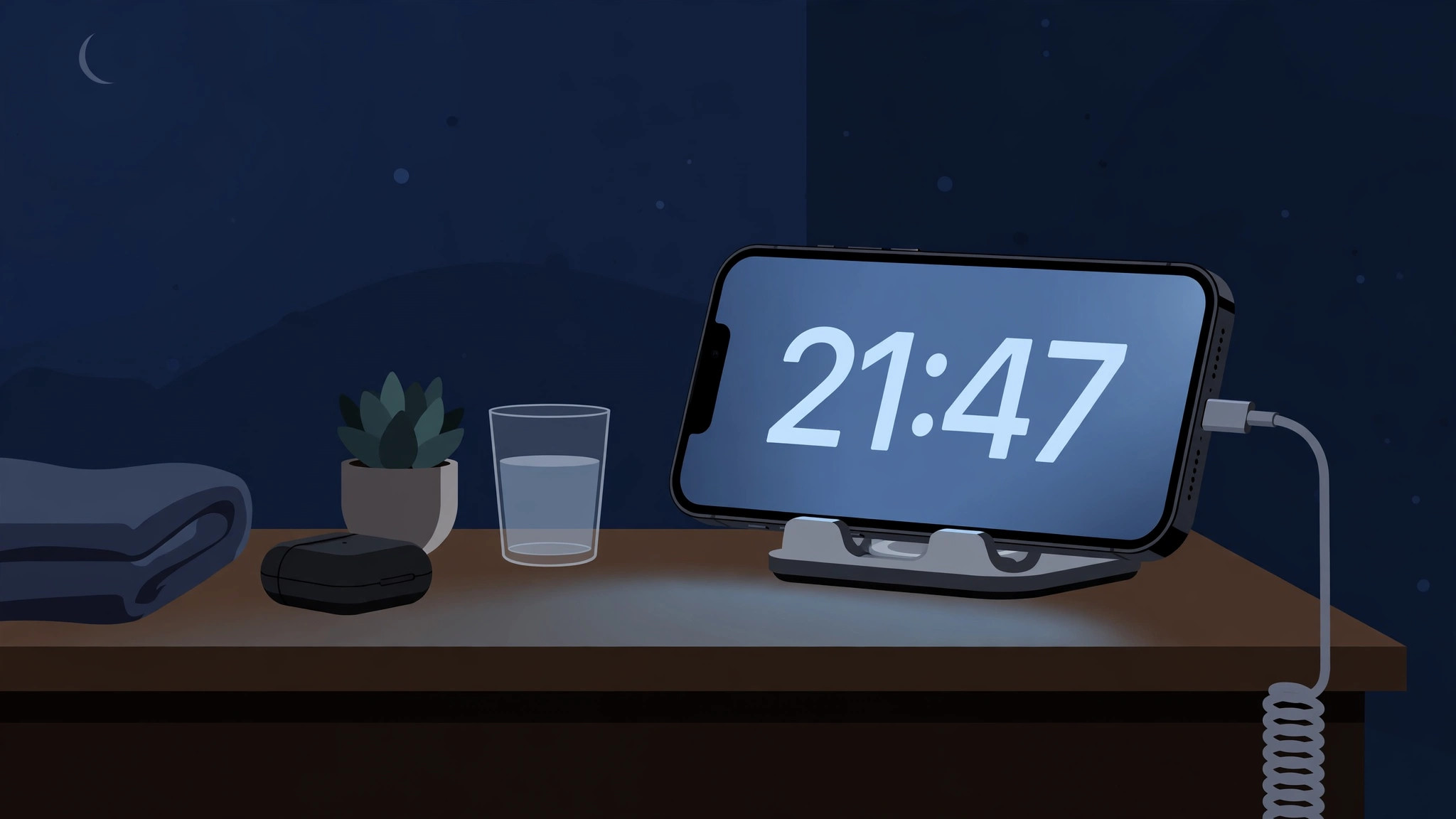
StandBy mode, introduced in iOS 17, turns your charging iPhone into a smart nightstand display — showing the clock, widgets, and photos while it sits in landscape orientation. It is genuinely useful, but there is a privacy catch: notifications arrive with their full text on show, readable by anyone who glances at your nightstand. If you would rather keep message previews to yourself, iOS gives you two straightforward ways to hide notification content in StandBy. Both take less than a minute.
StandBy only kicks in when your iPhone is charging and placed sideways, so this is mostly a bedroom-and-desk concern. Still, if you customize your lock screen heavily — like our guide to the iOS 26 Liquid Glass lock screen clock — you will appreciate giving StandBy the same privacy treatment.
Method 1: Show preview on tap only
This is the balanced option: notifications still appear in StandBy, but their content stays hidden until you tap them. Face ID then verifies it is you before revealing the text.
- Open Settings on your iPhone.
- Scroll down and tap StandBy.
- Turn on Show Preview on Tap Only.
From now on, incoming notifications in StandBy show only the app icon and sender name — the message body stays concealed. Tap the notification, glance at your iPhone so Face ID authenticates you, and the full text appears. As 9to5Mac noted when covering StandBy’s debut, this mirrors how locked notifications behave elsewhere in iOS, so it feels familiar immediately.
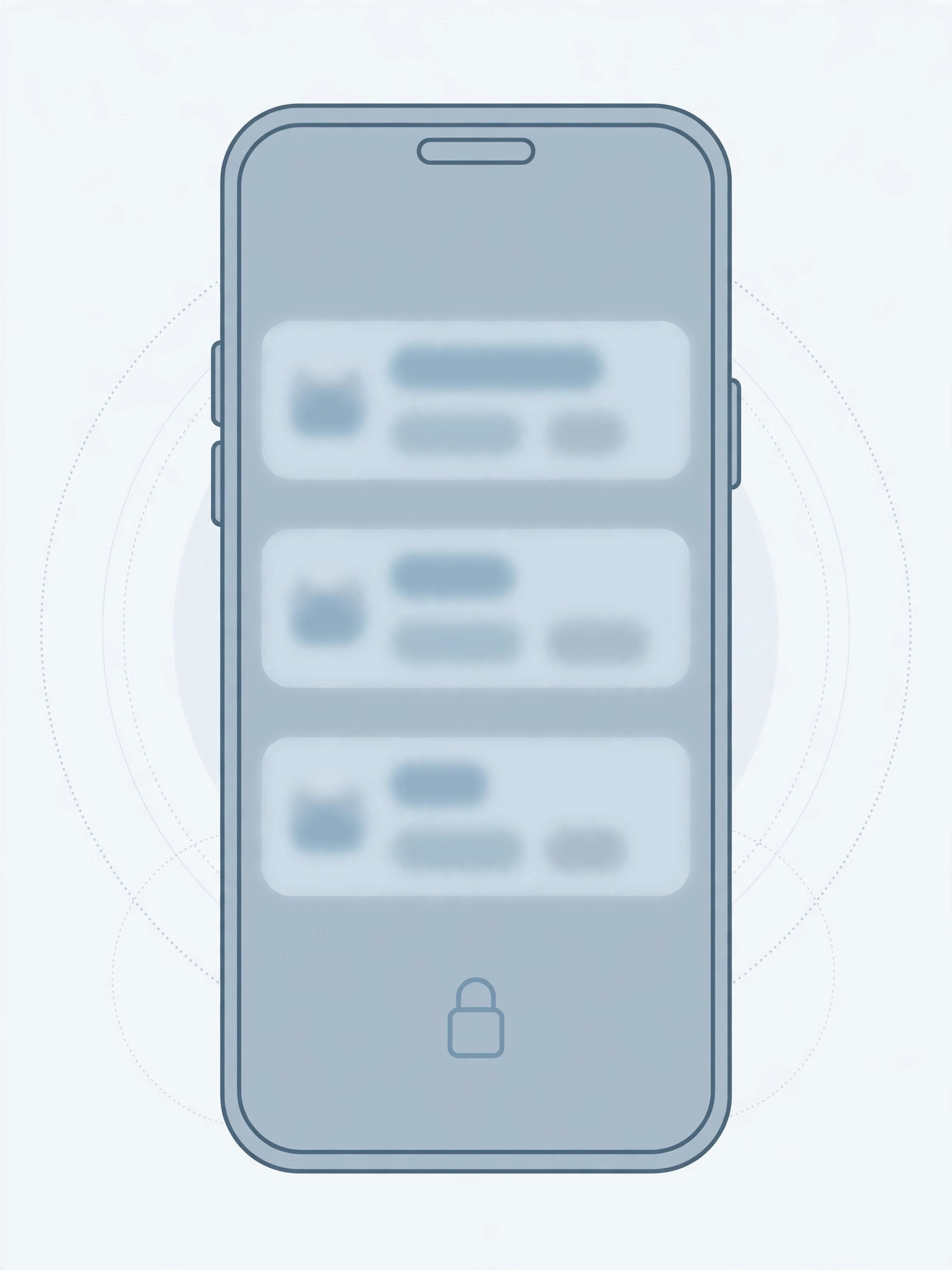
Method 2: Turn off StandBy notifications entirely
If you want maximum privacy — say the phone sits in a shared bedroom or office — you can silence StandBy notifications altogether.
- Open Settings → StandBy.
- Toggle off Show Notifications.
With this off, no notifications appear in StandBy at all; your nightstand display stays clean and unreadable to passersby. Truly critical alerts can still come through, so you will not miss emergencies. Apple’s support site documents both StandBy toggles alongside the rest of the feature’s settings.
If it still doesn’t work
If previews still show full text, double-check you are editing the StandBy settings and not the general Notifications settings — they are separate screens. Also confirm Face ID is set up; without it, tap-to-reveal cannot verify you. And if your iPhone never enters StandBy in the first place, make sure it is charging, rotated to landscape, and locked — StandBy will not start on a flat, unplugged phone. MacRumors has a good rundown of StandBy requirements if you are troubleshooting.
While you are hardening your lock screen, consider also disabling the quick camera launch from the iPhone lock screen — another small change that keeps casual snoopers out.
Frequently asked questions
Does hiding previews affect notifications elsewhere?
No. These toggles apply only to StandBy mode. Your lock screen, Notification Center, and banners keep whatever preview settings you have chosen under Settings → Notifications.
Will I still get urgent alarms in StandBy?
Yes. Time-sensitive alerts and alarms — including the kind you set with our guide on setting alarms for urgent reminders in iOS 26 — still break through. Hiding previews only conceals message content; it does not silence critical alerts.
Conclusion
StandBy is at its best when it is glanceable for you and opaque to everyone else. Flip on Show Preview on Tap Only for the sweet spot of privacy and convenience, or switch off Show Notifications entirely for total peace of mind. Either way, your nightstand stops broadcasting your messages.





