
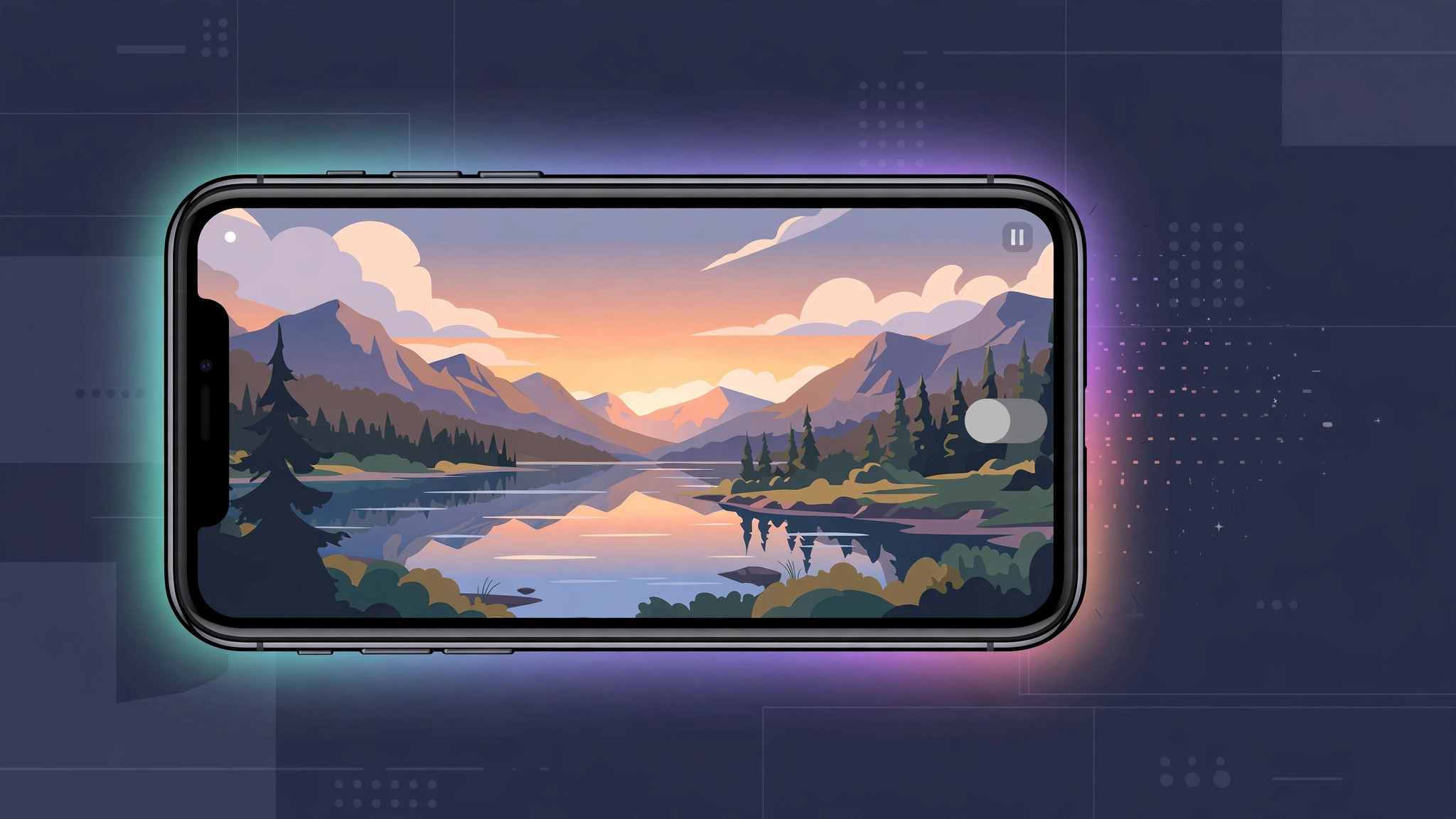
Open any video in the YouTube app on your iPhone, tap to go fullscreen, and you might notice something odd: the black bars above and below the video are not black anymore. Instead, they glow with soft colors sampled from the video itself. That is ambient mode — YouTube’s attempt at a more immersive viewing experience — and it is switched on by default. If you find the glowing background distracting, eye-straining, or just plain unnecessary, the good news is that you can turn it off in a few taps. Here is how.
Ambient mode arrived as part of YouTube’s broader visual refresh, and tech press like TechCrunch covered the rollout as YouTube chased a more cinematic feel. The effect uses a subtle color-bleed behind the video player. On an iPhone’s OLED screen it can look striking — but it also uses extra battery and washes out the letterbox area that many viewers prefer pitch black.
How to turn off ambient mode in the YouTube app
The toggle lives inside the video player’s own settings, not the app’s main settings menu — which is why so many people miss it. 9to5Mac has pointed out that YouTube buries several playback options in this exact spot.
- Open the YouTube app on your iPhone and start playing any video.
- Tap the video once to reveal the player controls, then tap the fullscreen icon (or rotate your phone to landscape).
- With the video playing fullscreen, tap the gear icon in the top-right corner of the player.
- In the settings sheet that appears, tap Additional settings.
- Find Ambient mode in the list and toggle it off.
The glowing background disappears immediately — the letterbox area returns to solid black. The setting applies to the app as a whole, so you only need to do this once, not once per video. If you are the kind of viewer who fine-tunes everything, you may also want to turn off the Liquid Glass effect in iOS 26 for a calmer interface overall.
If it still doesn’t work
If the toggle does not seem to stick, or you do not see Additional settings at all, check these: make sure the YouTube app is updated to the latest version from the App Store (ambient mode controls moved around in early releases); force-quit and reopen the app after toggling; and confirm you are changing the setting while a video is actually playing — the gear icon only shows the full option list during playback. YouTube’s own help pages note that some playback features roll out gradually, so an outdated app is the most common culprit. Creators discussing the change on X have also noted the setting occasionally resets after major app updates, so it is worth rechecking after an update.
And if video apps keep misbehaving in other ways — like audio jumping to the wrong output — our guide on stopping the iPhone from auto-switching audio to headphones may help.
Frequently asked questions
Does turning off ambient mode save battery?
Marginally, yes. On OLED iPhones, true black pixels are switched off entirely, so a solid black letterbox uses slightly less power than a glowing one. The difference per video is small, but it adds up for heavy watchers.
Can I turn off ambient mode on the YouTube website too?
Yes — on youtube.com, click the gear icon in the player and toggle Ambient mode there as well. The app and website settings are independent. If you do a lot of browsing-side tweaking, see also how to change Safari’s design on iPhone.
Conclusion
Ambient mode is a classic example of a feature that is lovely in a demo and divisive in daily use. Fortunately, YouTube makes it optional: one trip to the gear icon, then Additional settings, then Ambient mode off — and your fullscreen videos are back to clean, distraction-free black. Toggle it once and forget about it.





