
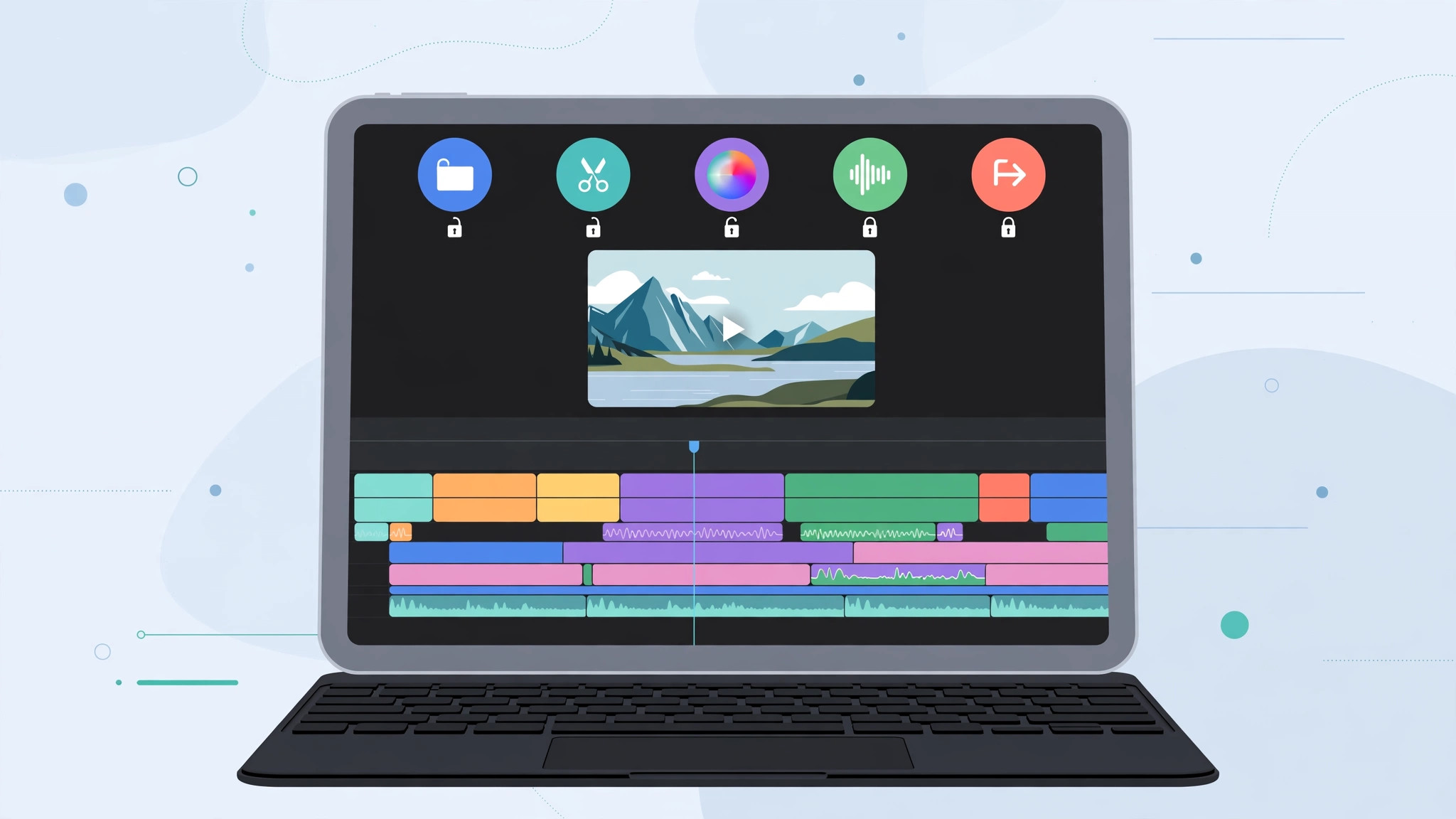
DaVinci Resolve for iPad is a remarkable feat — a genuine pro video editor running on a tablet. But if you have used the desktop version, you will notice something missing: several of the classic pages (Media, Edit, Fusion, Color, Fairlight, Deliver) are hidden or unreachable in the iPad interface. The good news is that they are not actually gone. With a Bluetooth keyboard and one settings trick, you can unlock every tab and jump between them freely. Here is how.
This workaround has been shared widely by editors on YouTube and in creator communities, and it does not require jailbreaking or shady profiles — just the app’s own keyboard shortcut system.
Why some tabs are hidden on iPad
Blackmagic Design streamlined the iPad interface for touch, tucking away the full page roster that desktop users take for granted. The pages still exist in the app’s code; there is simply no on-screen button for them in certain localizations and layouts. The trick below exposes them by assigning keyboard shortcuts directly to each page. Blackmagic’s own documentation covers the keyboard customization panel we are about to use.
How to unlock every DaVinci Resolve page on iPad
- Open the Settings app on your iPad, scroll to DaVinci Resolve, tap Language, and switch the app interface to English. (The shortcut list we need is most complete in English.)
- Connect a Bluetooth keyboard to your iPad — any keyboard works.
- Open DaVinci Resolve on the iPad and press Cmd + Option + K to open the keyboard shortcuts window.
- In the right-hand pane, find the All Commands – Show page section.
- Assign a shortcut to each page (Media, Edit, Fusion, Color, Fairlight, Deliver) — pick memorable keys — and save your changes.
- Use your new shortcuts to jump between pages instantly. All the hidden tabs are now reachable.
- Optional: disconnect the keyboard and switch the app language back — the shortcuts remain saved.
That is the whole trick. Once the shortcuts exist, the pages behave exactly like their desktop counterparts. If you also work with stills on your tablet, our guide on taking HDR screenshots on iPhone and iPad pairs nicely with a mobile editing workflow.
If it still doesn’t work
If Cmd + Option + K does nothing, confirm the keyboard is actually connected (type in Notes first) and that DaVinci Resolve is updated — very old iPad builds had a more limited shortcut editor. If the Show page section is empty, double-check the app language is set to English; some translations hide these commands. And if shortcuts stop working after an app update, reopen the shortcut editor and re-save — 9to5Mac has noted that major Resolve updates occasionally reset custom bindings.
Frequently asked questions
Do I need to keep the keyboard connected forever?
No. The keyboard is only needed to open the shortcut editor and press the new shortcuts. Many editors assign the shortcuts once, then trigger them from an iPad keyboard case or a shortcut app when needed.
Is this against Blackmagic’s terms?
Not at all — you are using the app’s built-in keyboard customization, a supported feature. Nothing is modified or hacked. For more iPad power tips, see how to change Safari’s design on iPhone and how to turn off AirPods charging case sounds.
Conclusion
The iPad version of DaVinci Resolve hides its full page roster, but it never removes it. Switch the app to English, connect a keyboard, open the shortcut editor with Cmd + Option + K, and assign keys to every page under Show page. A few minutes of setup gives you the complete desktop-style tab workflow on your tablet.





